12 Printing Photos
Sending and Printing Photos Using Bluetooth
®
Technology
From a Cell Phone
NOTE: The steps for using Bluetooth transmission may be different for each cell
phone. See the documentation of your cell phone for specific details on how to
send photos using Bluetooth.
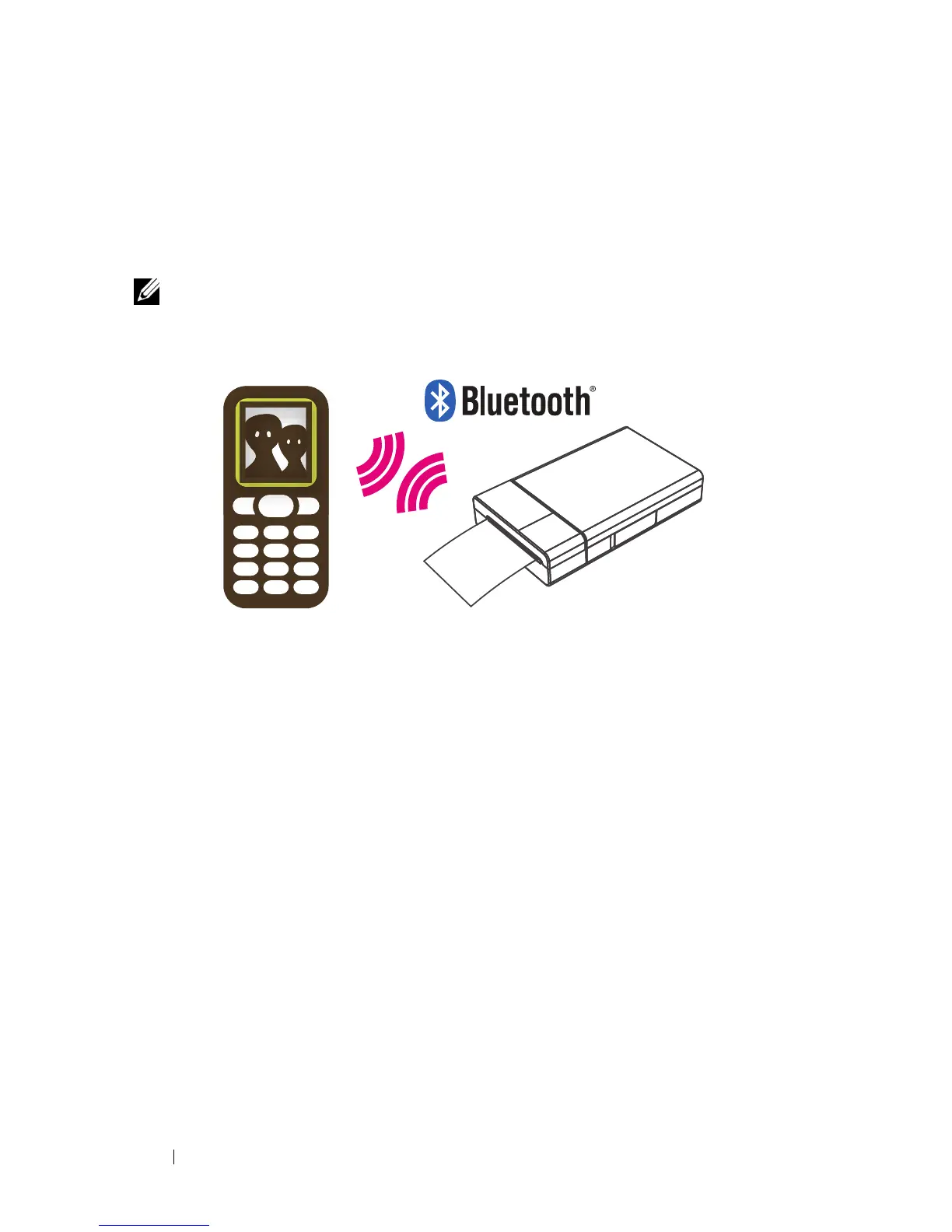
You can send photos from a Bluetooth-enabled cell phone to your
Dell Ink-Free Printer PZ310 for printing.
1
Select the photo you would like to print from the stored photos on your
cell phone.
2
Select the Bluetooth transmission option on your cell phone’s menu list.
For example, "Send via Bluetooth", "Copy", or "Beam".
3
Search for devices and select
Dell PZ310
.
4
Confirm the transmission on your cell phone and begin sending the photo
to the printer.
The printer automatically begins printing once the photo has been fully
received. It takes approximately a minute to send and complete printing via
Bluetooth transmission (based on a JPEG image taken from a 2 mega pixel
camera phone).










 To Next Page