Printing Photos 15
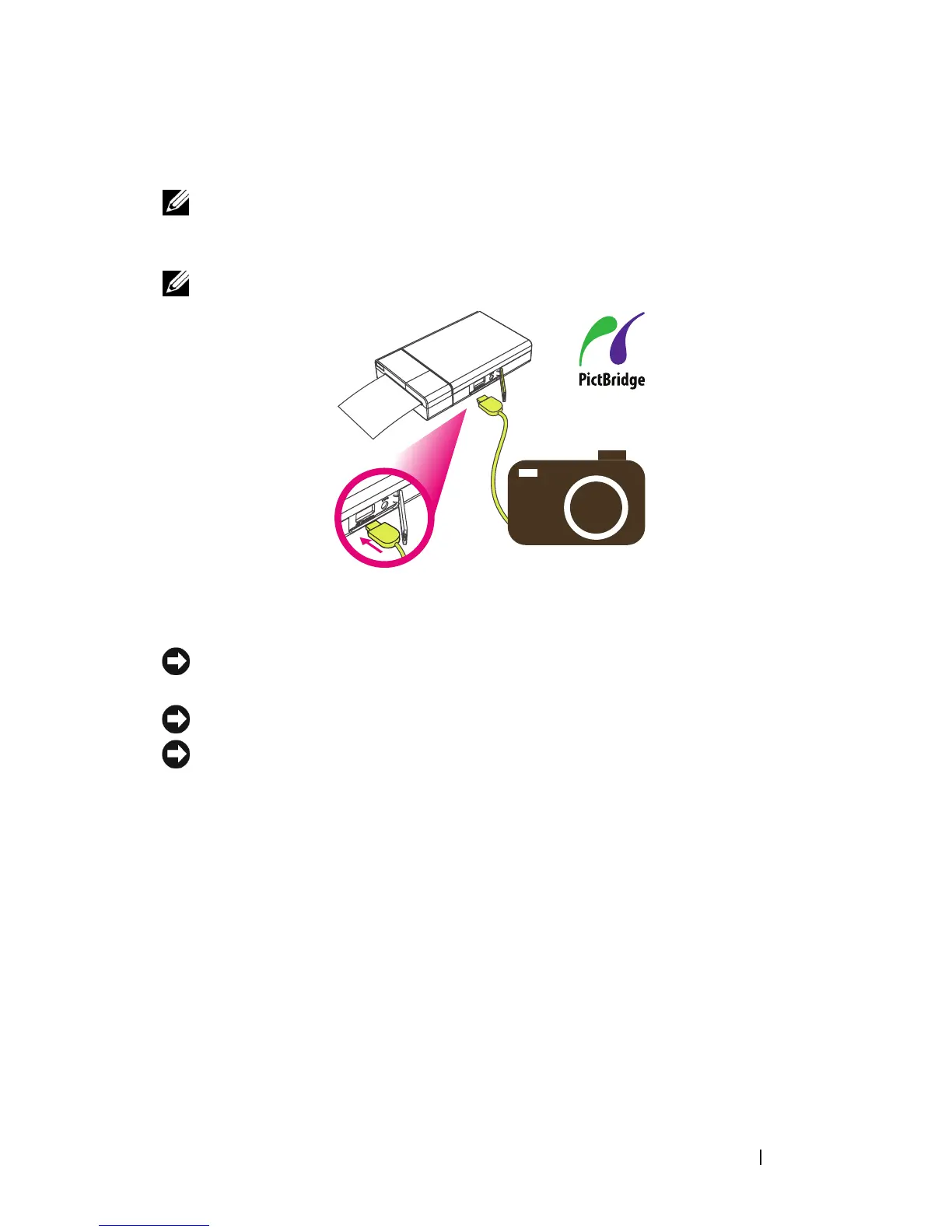
Sending and Printing Photos Using PictBridge
NOTE: The steps for using PictBridge may be different for each digital camera. See
the documentation of your digital camera for specific details on how to send photos
using PictBridge.
NOTE: USB cable is not shipped with your printer.
You can also print photos directly from a digital camera that supports
PictBridge.
NOTICE: Do not disconnect the USB cable until the entire printing process is
complete.
NOTICE: Do not turn off the printer while printing is in progress.
NOTICE: Do not open the media cover while printing is in progress.
1
Use the USB cable supplied with the digital camera. Connect one end
of
the USB cable
to your camera and the other end to the printer’s
PictBridge connector.
2
Select the desired photo on your digital camera and follow the
instructions
on the digital camera's screen
to print.










 To Next Page