14 Printing Photos
Printing Using Bluetooth File Transfer Application
1
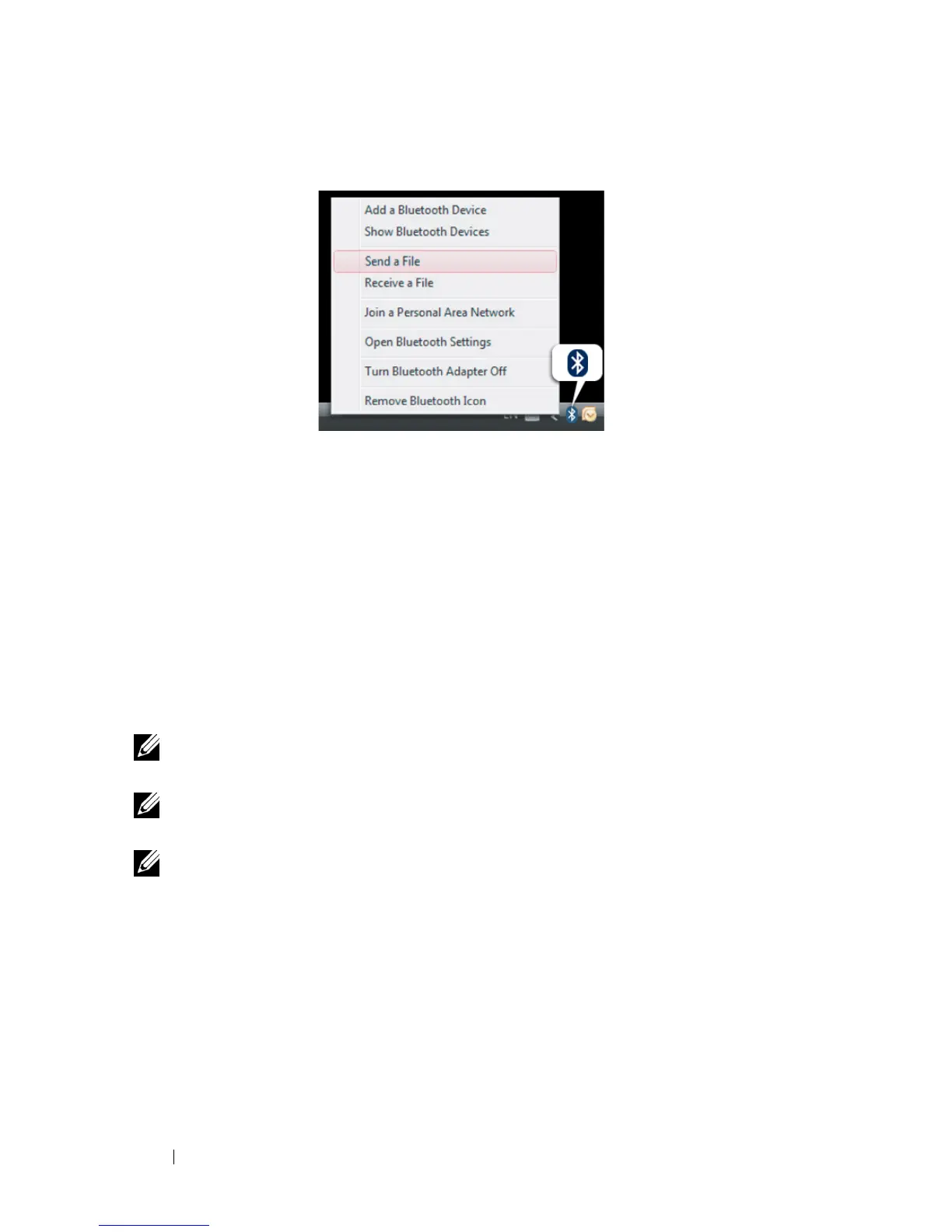
Right click on the Bluetooth icon on the Microsoft
®
Windows
®
system
tray and select
Send a File
.
2
Search for devices and select
Dell PZ310
.
3
Select the photo you would like to print using your Dell Ink-Free Printer
PZ310.
4
Click
Next
to start the file transfer.
Once the photo has been fully received, the printer starts printing
automatically.
NOTE: By default, no passkey is required to connect to the Dell Ink-Free Printer
PZ310. If a passkey is requested, enter 0000 (four zeroes).
NOTE: Printing a file from applications such as image/text editors or presentation
applications is not supported.
NOTE: The steps for sending and printing from your Bluetooth-enabled computer
may vary based on the operating system. However, the principle is the same across
different operating systems.










 To Next Page