EasyManua.ls Logo

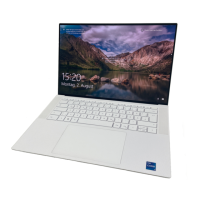
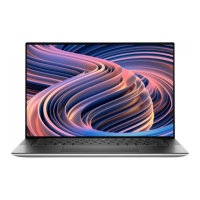
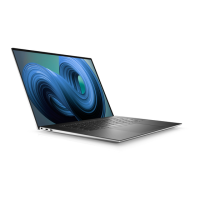
Dell XPS 17 9720 - User Manual

Dell XPS 17 9720
71 pages
Print Icon
To Next Page IconTo Next Page
Loading...
XPS 17 9720
Service Manual
Regulatory Model: P92F
Regulatory Type: P92F003
March 2022
Rev. A00

Table of Contents

Other manuals for Dell XPS 17 9720

Questions and Answers

  • D
    Destiny HaleyJul 29, 2025
    Why is there no display on my Dell Monitor when connected via Dell WD15 dock?
    • B
      benderjoseJul 29, 2025
      If there is no display on your Dell monitor when connecting via the Dell WD15 dock to the system, it's due to a hardware limitation on the Dell WD15 dock while Direct Graphics Controller Direct Output mode is enabled on the system. To fix this, use the default iGPU mode when connecting the Dell WD15 dock or use the latest Dell WD19 or WD22 docking stations.
  • K
    Karen JonesAug 6, 2025
    What to do if the Dell Monitor display output resolution cannot reach 4K@60Hz?
    • L
      Lisa WernerAug 6, 2025
      If your Dell monitor's display output resolution is not reaching 4K@60Hz when connected with a HDMI-to-DP or DP-to-HDMI dongle from the docking station to the system, this is due to a hardware limitation related to limited graphic bandwidth while connecting dongles to the Dell WD19/WD22 Thunderbolt docking station. To resolve this, connect the monitor directly to the HDMI or DP ports on the Thunderbolt docking station.
  • M
    Michael McleanAug 13, 2025
    How to fix the issue when Dell Monitor 8K displays cannot select 8K@60Hz?
    • M
      Mary MilesAug 14, 2025
      The reason Dell Monitor 8K displays cannot select 8K@60Hz is due to a hardware limitation. HDMI 8K@60Hz requires VESA DSC 1.2a PCON IC support, which is not supported on the system. The system is working as designed.
  • C
    Cynthia WheelerAug 21, 2025
    What to do if my Dell XPS 17 9720 battery is swollen?
    • T
      traceybrownAug 21, 2025
      If your Dell Laptop's lithium-ion battery is swollen, immediately stop using the laptop. Unplug the AC adapter and allow the battery to fully discharge. It is crucial to replace and properly dispose of swollen batteries. For replacement options under your warranty or service contract, get in touch with Dell product support.

Summary

Working inside your computer

Safety Instructions

General safety guidelines for working with the computer.

Before working inside your computer

Steps to prepare the computer before performing any internal procedures.

Electrostatic discharge-ESD protection

Understanding ESD risks and preventative measures for sensitive components.

After working inside your computer

Steps to follow after completing internal computer work.

Removing and installing components

Base Cover

Procedures for removing and installing the computer's base cover.

Battery

Safety precautions and procedures for removing and installing the battery.

Storage Drives

Procedures for removing and installing M.2 solid-state drives.

Display Assembly

Procedures for removing and installing the display assembly.

System Board

Procedures for removing and installing the system board.

BIOS Setup and Updates

Entering BIOS Setup

Steps to access and navigate the BIOS setup utility.

System Information and Configuration

View system details and configure basic hardware settings.

Security and Boot Settings

Configure security features and boot order.

Updating the BIOS

Procedures for updating the BIOS via Windows, USB, or F12 menu.

Troubleshooting

Battery Issues

Guidelines for handling swollen Lithium-ion batteries.

System Diagnostics

Using SupportAssist and built-in self-tests for hardware diagnosis.

System Recovery

Procedures for RTC reset and operating system recovery.

Connectivity and Power Reset

Troubleshooting WiFi issues and draining residual power.

Getting Help and Contacting Dell

Self-help Resources

List of online and in-system resources for product support.

Contacting Dell Support

Information on how to contact Dell for sales, technical support, or service.

Dell XPS 17 9720 Specifications

General IconGeneral
MemoryUp to 64GB DDR5 4800MHz
Operating SystemWindows 11 Home or Pro
WirelessKiller Wi-Fi 6 AX1650 (2x2) and Bluetooth 5.2
Camera720p at 30 fps HD camera
Processor12th Gen Intel Core i9-12900HK
Display17.0-inch UHD+ (3840 x 2400) InfinityEdge Touch Anti-Reflective 500-Nit Display
GraphicsNVIDIA GeForce RTX 3060 Laptop GPU 6GB GDDR6
StorageUp to 2TB PCIe NVMe SSD
Battery97Whr
Weight5.34 lbs (2.42 kg)
Ports4 x Thunderbolt 4 (USB Type-C), 1 x SD card reader, 1 x 3.5mm headphone/microphone combo jack
AudioWaves MaxxAudio Pro
Dimensions374.45 x 248.05 x 19.5 mm

Related product manuals