67
Barcode Handy Terminal
[4] Setting the special barcode reading parameters
1. Select “4: BARCODE” at the SET SYSTEM menu and th
t
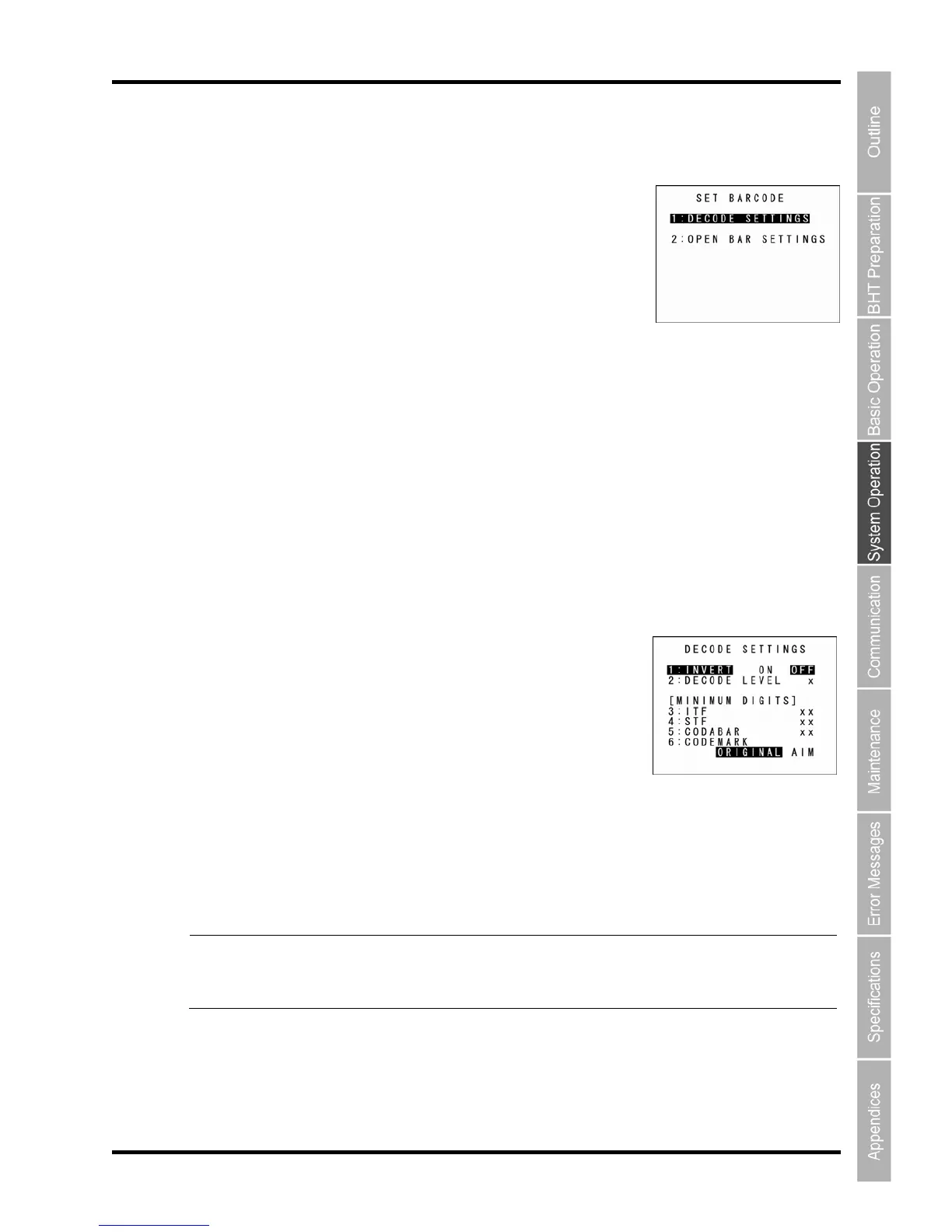
The SET BARCODE menu screen
The highlighted display and displa
“1: DECODE SETTINGS”:
Goes to the screen on which the barcode reading parameters are set.
“2: OPEN BAR SETTINGS”:
Goes to the screen on which th u t ing setting is specified from the system
setting” is set.
2. Use the cursor keys ([▲] [▼]) u to highlight the desired item and then
press the ENT key.
Press the Backspace/clear key to n
“1: DECODE SETTINGS”: Setti g itions and minimum
number of barcode digits to be read
Use the following procedure to set
1. U s ([▲] [▼]) o
to highlight the desired item.
2. Change the settings with the cu
the ENT key.
Press the Backspace/clear key to return to the SET SYSTEM menu.
“1: INVERT”: Black/white inverted barcode reading function
Enables or disables black/white inverted barcode reading.
hite inverted barcode reading.
hite inverted barcode reading.
e black/white inverted barcode reading function is s
invert
Use the follo
w
ing procedure to set the barcode reading conditions.
en press
he ENT key.
displays as shown on the right.
yed values will be the current settings.
e “f nc ion in which the read
or n meric keys ([1] [2])
retur to the SET SYSTEM menu.
ng for barcode readin cond
the barcode reading conditions.
se the cursor key r numeric keys ([1] [2] [3] [4] [5] [6])
rsor keys ([◄] [►]) and then press
“ON”: Enables bla
ck/w
“OFF”: Disables black/w
Point When th et to ON, it is possible to scan
er chance of barcodes being
ed barcode reading disabled).
black/white inverted barcodes. However, there is a high
incorrectly scanned.
This should normally be set to “OFF” (black/white


 To Next Page