09
FAQ& Help
Q3: Can search for the Wi-Fi signal, but couldn’t get the connection?
A3:
Q4: When the product is in use, it flickers, freezes or disconnects?
A4:
1. The Wi-Fi connection may be failing, you’ve to forget the network and
reconnect it. Also, you can change to an some place without Wi-Fi
distribute and retry the connection.
2. For Android user, at the first time of connecting to the Wi-Fi signal, the
phone may tip "Internet may not be available", please click "Keep
Wi-Fi connection" option.
3. For iOS user, please make sure that you’ve turn on the "Cellular data"
and "Native network" option in the settings - “DEPSTECH-View”.
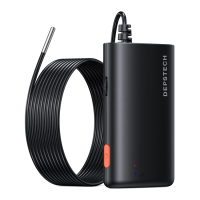
4. For user who used to modified the Wi-Fi-SSID / password before,
please use a reset pin and plug it into the reset port of the
endoscope. You can refer to lable on the bottom to the default Wi-Fi
SSID / Password and reconnect it.
1. Please make sure that the Wi-Fi endoscope is within 5 meters of your
mobile phone and there is no obstacle between them.
2. When using this Wi-Fi endoscope, please stay away from other
hotspots with strong Wi-Fi signal, or turn off other hotspots.
3. Check whether the power of the device is normal and whether the
power indicator is flashing; if the power is insufficient, please fully
charge it before use;
Note:
If the malfunction cannot be solved after the above operations, please
contact us via email support@depstech.com
6. For iOS users (especially iOS 14), please enter the "Settings"
interface of the phone, find and click “DEPSTECH-View”, then turn on
the "Cellular Data" and "Native network"option, otherwise it may not
be able to establish communication with the device.


 To Next Page