15
Telephone’s Functions and Features Display and MenuCards
Note: If you have already used the
plus/minus key to open a menu to set
the display contrast or the volume,
your current setting will automati-
cally be applied after three seconds,
without your using to con-
firm.
ESC Key
This key is used to exit an input win-
dow without changing its contents
and to return to the menu branches.
Programmable Keys
with LED Display
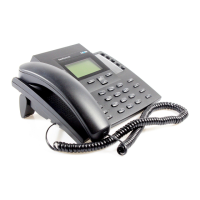
The keys to the right of the display of
the OpenPhone63 (OpenPhone 61:
below the display) can be pro-
grammed with telephone numbers
(destinations) or functions (e.g. a call
diversion, a team function, as a team
key, a trunk key, a busy key or a di-
rect call key or an ISP function).
■ A short press of the key dials
the number or activates the
function.
■ Pressing and holding the key
down lets you program the key
via a MenuCard (see Program-
mable Keys starting on page 68).
Display and MenuCards
Changing the Language
Use the following procedure to set
the display to your national lan-
guage if another one applies:
1. Press the key (long
press).
2. Using the arrow keys,
scroll to the desired
setting (on the OpenPhone 61
you use the keys * and #).
3. Confirm the setting with the
button .
In the Main menu you can change
the language via the MenuCard
4 Phone settings
…
1. First you select the entry
8 Display
and then
Language
.
2. Use the arrow key to
scroll to the desired
op6365_gb.book Seite 15 Mittwoch, 28. August 2002 11:09 11



 To Next Page