Website: www.devicewell.com Email: support@devicewell.cn 12
6.1.2 Key Description
6.1.2.1 Custom function area
F1--- resolution control
Press F1 on the keypad to adjust the screen output resolution. Each time you press the button, you can
adjust the output resolution. The resolutions are 1080P60Hz, 1080P50Hz, 1080P30Hz / 1080P25Hz / 1080P24Hz /
1080I60Hz / 1080I50Hz.
F2--- channel switching control
Press F2 on the keypad to select the input source of the fourth channel. When the HDMI and DP signals are
connected to the back interface of the HDS7105 at the same time, you can choose between IN4-HDMI4 and
IN4-DP4 after pressing F2.
F3--- USB streaming video volume adjustment
Press the F3 button repeatedly, it can be adjusted to OFF / 20% / 40% / 60% / 80% / 100%
6.1.2.2 Audio Control Area
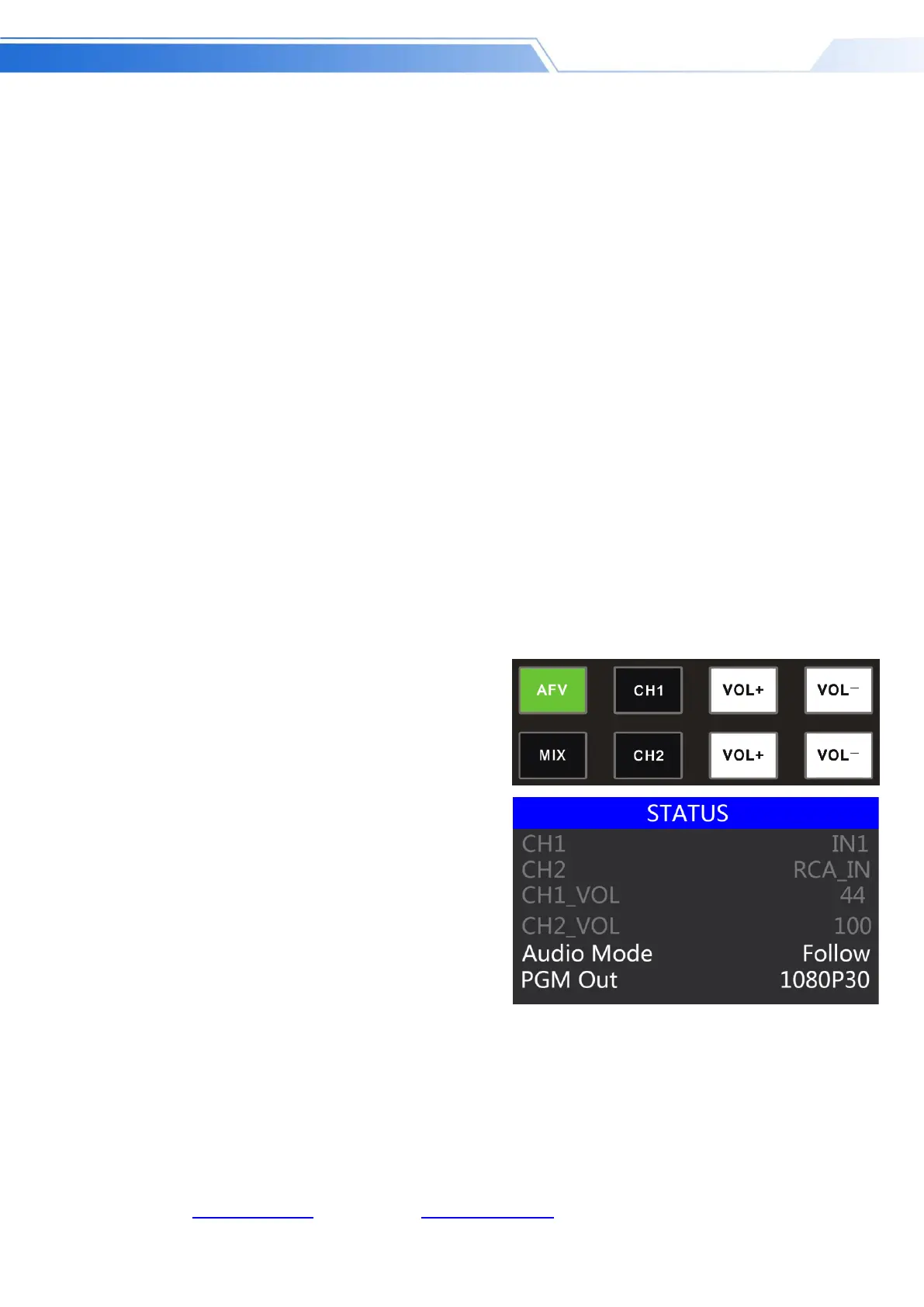
How to use the audio follow mode:
2. The channels of the audio follow mode are IN1-HDMI1, IN2-HDMI 2, IN3- HDMI 3, IN4- HDMI4,
and the corresponding operation panel keys (at this time, 2 on the key panel lights up, indicating
that IN2 is being operated -HDMI2 signal source) as shown below
1. Press the AFV button on the operation panel,
the button will light green at this time, and the
corresponding multiview menu will also display
the current audio status. The Audio Mode in the
menu shows Follow, which indicates that the
audio is in follow mode; as shown in the figure
on the right
(Note: the color of the keys displayed in the
picture is different from the actual effect picture,
please forgive me)



 To Next Page