Website: www.devicewell.com Email: support@devicewell.cn 14
(showing green light) in the button panel, you can select the CH1
and CH2 buttons in the audio control area to select the audio
channel, and keep pressing the CH1 button to select from
IN1-HDMI1, IN2-HDMI 2, IN3-HDMI 3, IN4- HDMI4, RCA_IN,
MIC_IN1, MIC_IN2 select the audio source, the operation of CH2
button to select the audio channel is the same.
You can also press MIX (showing green light) in the key panel,
then press the "up and down" buttons of the menu button to
enter the audio channel selection, press the "down" button to
enter the CH1 channel, click "MENU" to enter the audio source
selection, audio The source can be selected from IN1-HDMI1,
IN2-HDMI 2, IN3-HDMI3, IN4-HDMI4, RCA_IN, MIC_IN1,
MIC_IN2, after confirming the selection, press "MENU" to exit;
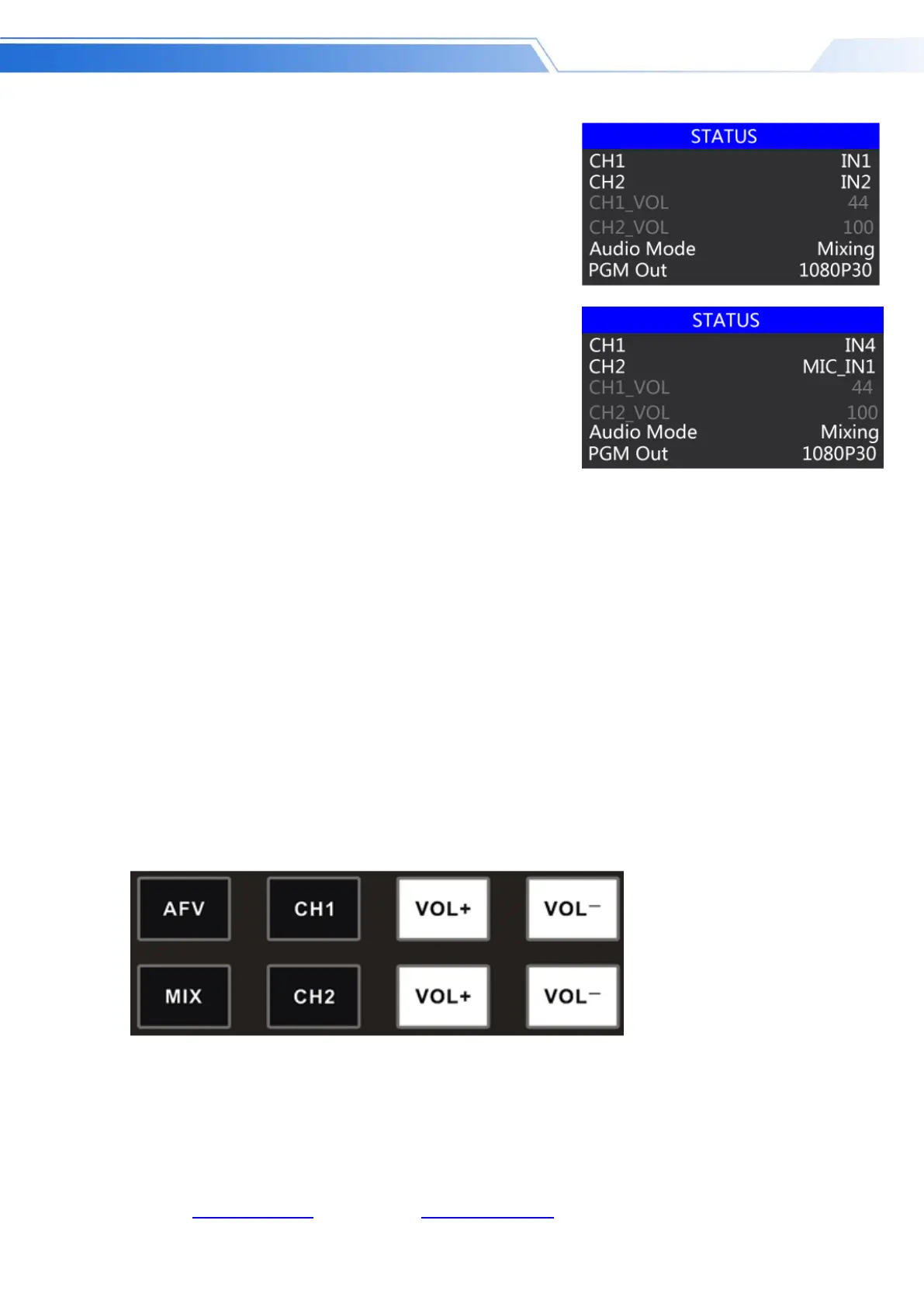
as shown in the right figure, the audio source of the first channel is from IN1-HDMI1 becomes
IN4-HDMI4.
The second audio selection operation is the same. As shown in the right figure, the audio source
of the second channel has changed from IN2-HDMI2 to MIC_IN1.
Note: When there is a white bar displayed in the menu, you can only exit by pressing the "up"
button on the key panel, and you can only operate the operating system menu after exiting
4. The volume adjustment of the audio mixing mode is controlled by the buttons on the
operation panel; press the MIX button (showing green light) in the mixing mode. At this time, you
need to increase or decrease the volume, just operate VOL+ (increase volume) and VOL-
(decrease volume) button to adjust.
Keep clicking the VOL+ and VOL- buttons, and the corresponding menu part can also display the
current volume value.



 To Next Page