GRYPHON
®
- S3 MANUAL
© 2006
26
1. Start a VT100 terminal emulation program on your computer. Be sure to specify the serial
port to which you have the Gryphon connected. Set the terminal emulator’s communication
settings to the following values:
BPS
38400
BITS PER CHARACTER
8
PARITY
NONE
STOP BIT
1
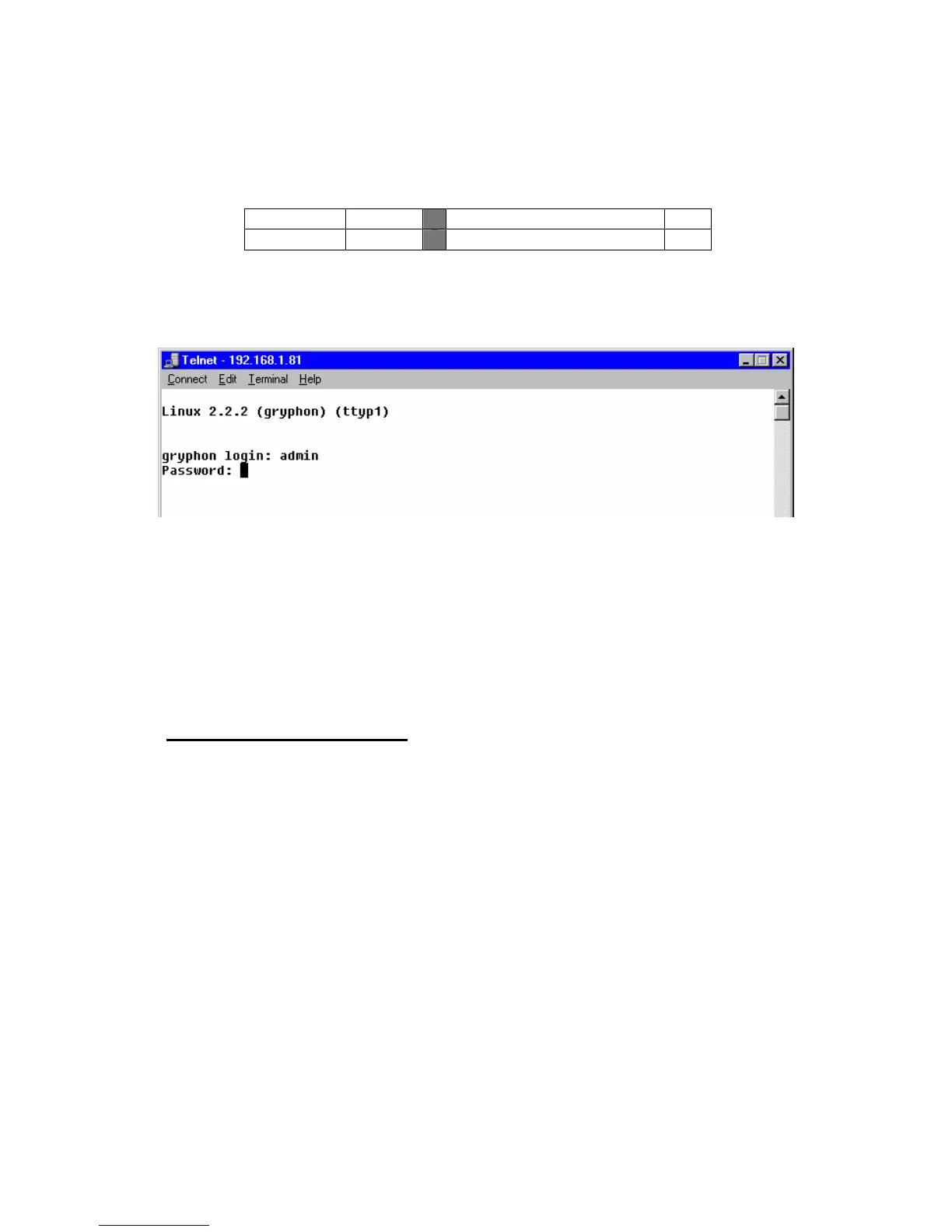
2. Turn the hardware unit on. Following several boot-up and status messages, the following
prompt will appear:
3. At the login prompt, type your user name and password. The default settings are user = root,
password = dgGryphon.
You have now logged in to the Linux operating system.
NOTE TO ADVANCED USERS
: To access the UNIX shell directly, log in as user = root.
4.2.2 Navigating the Web page using the Lynx text-based browser
To start the Lynx text-based browser, at the gryphon# prompt type lynx localhost -- next the
browser will then display the Gryphon Web page (see section 4.1).
The Lynx text-based browser is manipulated through keystrokes. Text at the bottom of the screen
prompts you for information and provides hints for manipulating the browser. Type K for the
keystroke command list. (In order to invoke changes or commands, you may occasionally need to
refresh the browser by hitting CTRL-R.)
The Web page, with its four areas for viewing (System Administration, Modules/Pinouts,
Channels/Stats, and Dearborn Group), appears as shown below.



 To Next Page