GRYPHON
®
- S3 MANUAL
© 2006
35
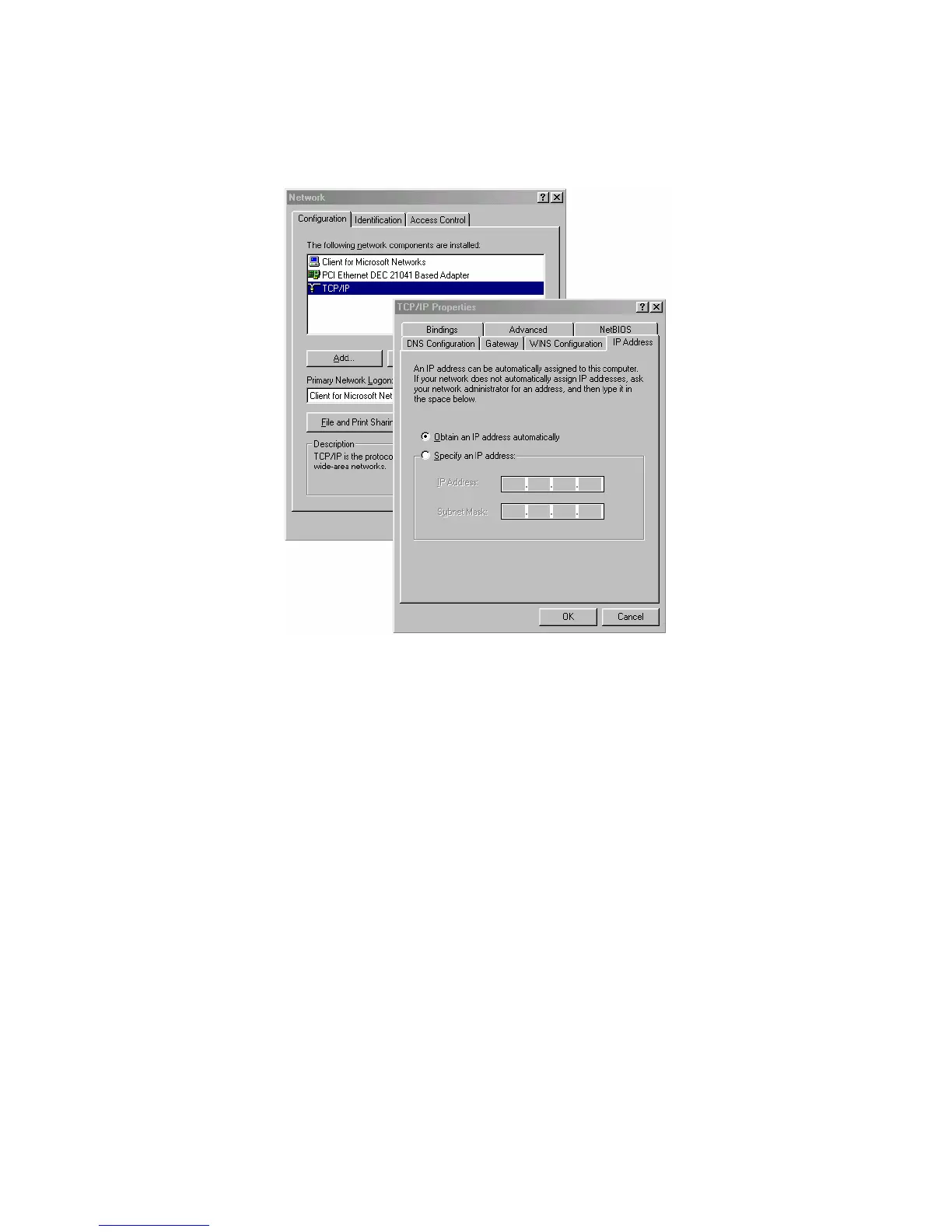
11. Restart your computer. This must be the last task performed to ensure that the computer will
get an IP address from Gryphon.
Setting the DHCP Mode of the PC using Window 2000 or XP
1. Click the Windows Start button, followed by Settings and then Control Panel.
2. Double-click the Network and Dial-up Connections icon. This displays the “Network and
Dial-up Connections” dialog.
3. Click to select/highlight the “network device” in your PC to which the Gryphon will be
connected.
4. Right-click this “network device” item and select Properties. This displays a “…Properties”
dialog (background).
5. Select/highlight the Internet Protocol (TCP/IP) item and click the Properties button. This
displays a “…TCP/IP Properties” dialog (foreground).
6. You must next select the applicable DHCP Mode (either DHCP Client or Static IP) by using
either of the following methods:
a. For DHCP Client mode – Select Obtain IP Address Automatically and Obtain DNS
address automatically (DHCP Server Mode)



 To Next Page