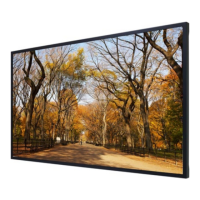
This document is a user manual for the DIAMONDVIEW DV65UM LCD Display, providing comprehensive information on its features, operation, maintenance, and technical specifications.
Function Description
The DIAMONDVIEW DV65UM is an LCD display designed for various applications, offering high-resolution visuals and multiple input/output options. It supports 4K UHD resolution (3840x2160) and can display over 1.07 billion colors, making it suitable for detailed and vibrant content. The display is equipped with features like Picture-in-Picture (PIP) and Multi-Source Views, allowing for simultaneous display of content from different sources. It also includes an On-Screen Display (OSD) menu for easy configuration and adjustment of various settings. The display can be controlled via an OSD keypad, an infrared (IR) remote control, or through RS-232 and Ethernet communication ports for external control. It supports power management features such as Wake Up from Sleep and an ON/OFF Timer setup for automated operation.
Important Technical Specifications
Display:
- Resolution: 3840x2160
- Backlight Illumination: Direct
- Response Time: 9.5 ms
- Viewing Angle: 178 / 178 degrees
- Pixel Pitch: 0.124(H) x 0.372(V) mm
- Color Saturation: 72% NTSC
- Aspect Ratio: 16:9
- Brightness: 500 cd/m²
- Contrast Ratio: 5000:1
- Max. Displayed Color Depth: 10-bits / color
Input / Output:
- Input Connectors: HDMI 1.4 x2 (4K/ 30Hz), HDMI 2.0 x2 (4K/ 60Hz), DisplayPort 1.2 x2 (4K/ 60Hz), OPS, VGA / PC audio in / IR extender
- Output Connectors: Audio Out / S/PDIF Out
- HDCP Support: DisplayPort, HDMI
- Audio: L/R speakers @ 10W each, Full-range; Max input Channel / Each channel: 2.5 Vpp; Channel: 2; Input Impedance: 100 KΩ; Po (@Vin=1Vpp.RL=4 Ohm): 10 W; THD: <10%
Performance:
- Adjustment: Linear
- Auto Adjust: Clock, Phase, H-Position & V-Position
- Screen Scaling: VGA, SVGA, XGA, FHD, WQXGA, QHD, WUXGA, UHD
- Power Management: VESA DPMS
- Color Adjustment: 5000K, 6500K, 7500K, 9300K, User
- OSD Language: English, Chinese
Power Consumption:
- Typical: 160 (Ref.) W
- Max(Non-OPS) (Note5): 220 W
- Stand By: ≤ 0.5 W
Size and Weight Objectives:
- Dimension (W x H x D): 1454.1 x 829.1 x 92.0 (Without handle) mm
- Active Area: 1628.48(H) x 803.52(V) (65” diagonal) mm
- Bezel Width (L/R/T/B): 10.9 / 10.9 / 10.9 / 10.9 mm
- Net weight: 32.7 KG
- Gross weight: 43.25 KG
Environment:
- Storage temperature: Min -20 ~ Max60 °C
- Operating temperature: Min 0 ~ Max 40 °C
- Humidity: 35%~85% RH
Function:
- OSD key: 7 keys
- Wall mount: 400 x 400 VESA
- Communication port: D-Sub 9 Pin In, Ethernet In
Supported Timings: The manual provides extensive tables of compatible video sources, including various resolutions, frame rates, line rates, and pixel rates for PC, Apple Mac, SDTV, EDTV, HDTV, and UHDTV signals, along with references to industry standards like VESA DMT and CEA-861-F.
Usage Features
Operating the Display:
- Power On/Off: The display can be powered on/off using the main power switch, the keypad, or the remote control.
- Signal Source Selection: Users can select the desired input source (HDMI, DisplayPort, VGA, OPS) via the keypad, remote control, or OSD menu.
- Volume Adjustment: Volume can be increased or decreased using the remote control or keypad.
- OSD Menu Navigation: The OSD menu allows users to adjust various settings, including picture (aspect ratio, contrast, brightness, hue, saturation, backlight, color temperature, RGB range), audio (volume, treble, bass, balance, internal speakers, audio source), OSD settings (position, transparency, timeout, rotation, language), and setup (auto adjust, H/V position, phase, clock, overscan, power LED, OPS power down check, real time clock).
- Real Time Clock: The display features a real-time clock with timer modes (User Mode, Workday Mode, Everyday Mode) to schedule power on/off times for specific days or periods.
- Advanced Setup: Includes settings for Smart Light Control, IRFM (Image Retention Free Mode), Wake Up From Sleep, DisplayPort versions, EDID setup, and Factory Reset.
- Communication Menu: Configures RS-232 and Ethernet communication ports, including baud rate, IP address settings (dynamic or static), power status alert, source status alert, and signal lost status.
- Assigning an IP Address: Detailed instructions for configuring dynamic or static IP addresses for network control.
- LAN Port Unlocking and Enabling: Explains how to access the display's web interface for network configuration, including setting up network parameters, admin username/password, and SMTP settings for email alerts.
Remote Control:
- The remote control provides comprehensive functionality, including power on/off, source selection, menu navigation, volume control, and direct access to various display settings. It also features a lock/unlock function for the keypad and remote.
Maintenance Features
Safety Precautions:
- Installation: Emphasizes the importance of professional installation and adjustments.
- Handling: Advises against removing the monitor's back cover, inserting objects into cabinet slots, spilling liquids, placing objects on the monitor, and handling with wet hands.
- Environment: Recommends avoiding high-temperature, high-humidity, dusty, or outdoor environments. It also warns against installing near heat sources, in direct sunlight, or on unstable surfaces.
- Cleaning: Instructs users to wipe the surface lightly with a soft, clean, lint-free cloth. For additional cleaning, a lightly moistened cloth can be used. It explicitly warns against using any kind of liquid cleaner that could damage the display or cause personal injury, and against using alcohol, solvents, or ammonia.
Avoiding Image Retention:
- Operation Usage: Recommends operating the display for 18 of 24 hours a day, with moving images or video type signals. For static images, the operating time should be 5 minutes for static display and 10 seconds for moving image.
- Display Content: Periodically changing the display content is recommended. Moving picture or black patterns are strongly recommended for screen saver.
- Image Retention Prevention: To prevent "burn-in" or image retention, users should make sure to change the image on the display periodically. It is recommended to turn off the display for at least 6 hours in a 24-hour period to avoid image retention. The "IRFM" function in the OSD menu (under "Adv. Setup" Menu) should be used.
- Static Content Avoidance: Advises against displaying static (fixed) images for long periods of time and to consider using a screen saver to avoid displaying static (fixed) video content continuously.
Troubleshooting:
- The manual provides a troubleshooting guide for common issues such as no display, image not centered, image not looking right, remote control not working, poor picture color, and touch no function. It offers solutions like checking power plugs, main power switch, signal sources, LED status light, picture settings, and USB cable connections.
Remote Control Battery Replacement:
- Detailed instructions with illustrations are provided for removing the old battery, inserting new AAA batteries (observing polarity), and closing the battery cover.
- Battery Disposal: Advises following local rules for discarding used batteries.
- Battery Safety: Warns against keeping old or leaked batteries inside the remote control, which can result in metal rust or fatal damage.
Wall Mount Installation:
- Provides instructions for installing a VESA-compliant wall mount (400mm x 400mm) using specific screw lengths (maximum 15mm/0.59" long, 8mm/0.3" Metric).
- Safety Notes: Emphasizes ensuring the bracket is fixed to a solid wall/pillar, avoiding weak cement/plywood. It warns against pulling or shaking the display after assembly, installing in direct sunlight or high-temperature/humidity places, and provides guidelines for mounting position and ensuring the screen is centered on the bracket.

 Need help?
 General

 To Next Page