Using the Menus
Navigating through the Menu System
1. With the power on, press MENU. The Image Settings menu will display.
2. Within the menu, use ,,, , and ENTER to navigate through the menus and adjust options.
3. Press MENU to return to the previous menu. To exit the menu system, press EXIT.
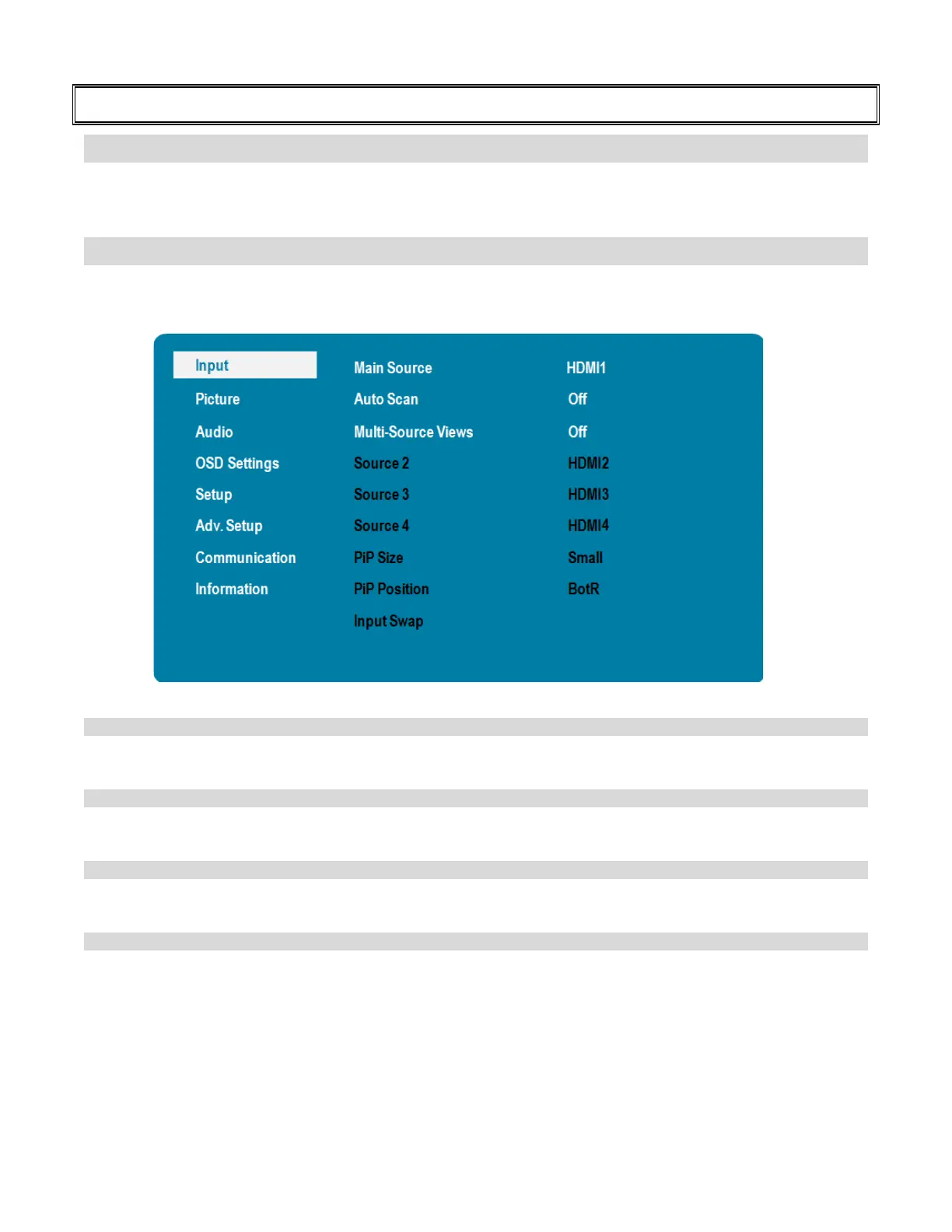
Input Menu
Save and recall up to four configurations of single or multi-source layouts. Source selection and location are
saved within each preset.
Options: DisplayPort1, DisplayPort2, HDMI1, HDMI2, HDMI3, HDMI4, VGA, OPS;
Select whether the display will automatically scan for a Main Input source
Options: Off, Main, Multi, All;
Select the Multi-Source View mode
Options: Off, PiP, Dual View, Quad View;
Options: DisplayPort1, DisplayPort2, HDMI1, HDMI2, HDMI3, HDMI4, VGA, OPS
Note: This function is only available when Multi-Source Views is set to PiP, Dual
View or Quad View. If HDMI4 was selected as another source, OPS cannot be
selected. If OPS was selected as another source, HDMI4 cannot be selected.


 To Next Page