10
connect. Some network may be secured with password, enter the password
before connecting. If the connection is successful, the message Connected
to…(WiFi Network Name) will appear under the WIFI Setting.
Note:
a) The available network list is constantly refreshed automatically.
b) When the Wi-Fi is enabled, the device will connect automatically to your configured networks
when they are in range.
c) If the device detects a network that has never been configured, it will display a notification icon.
Launching the Web browser
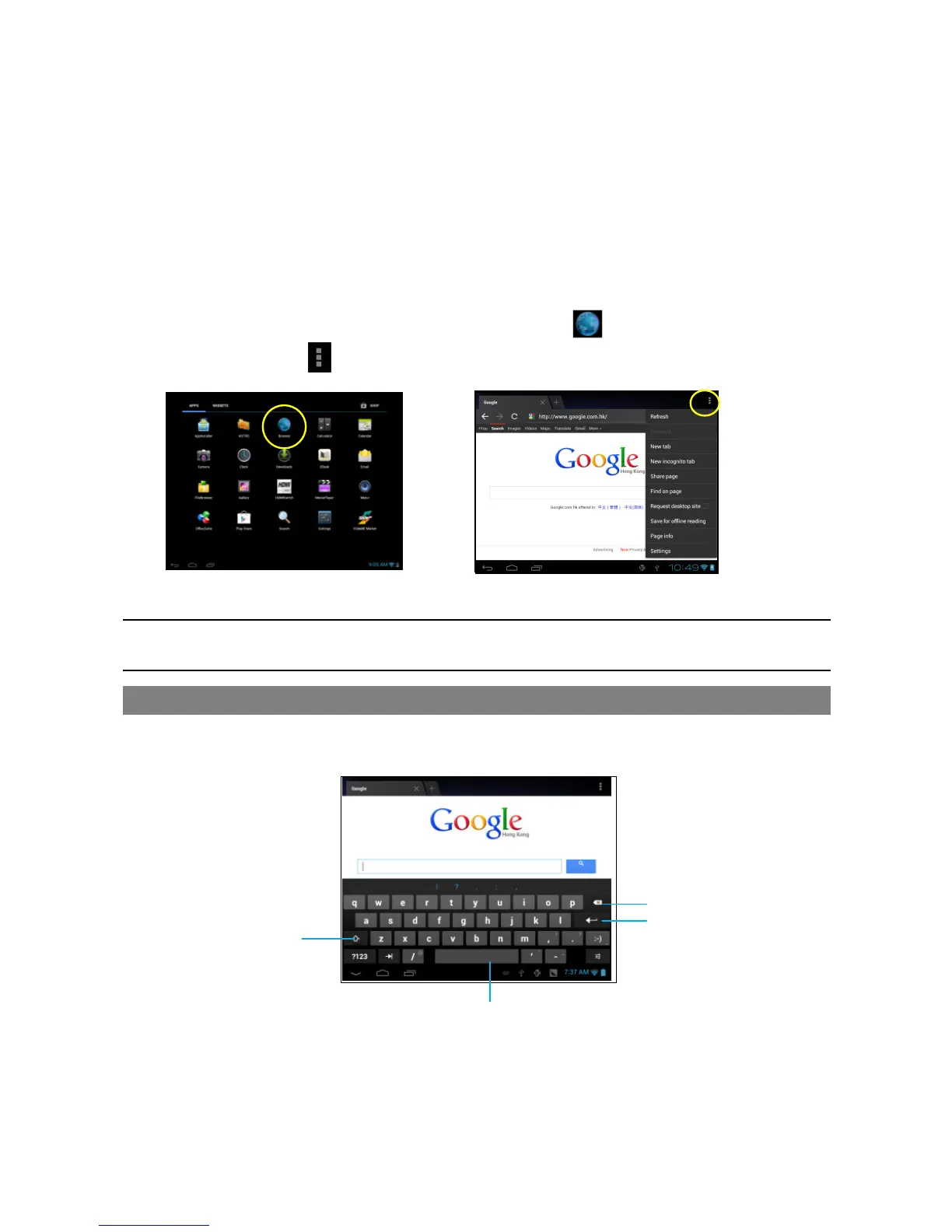
To launch the Web browser, you tap the Browser icon in the Applications screen.
To display menus, tap .
To enter a new address, tap the address bar and then type in address.
Note: Not all wireless networks offer access to the Internet. Some Wi-Fi networks only link several
computers together, without any Internet connection.
Using the Virtual Keyboard
Tapping on any text input field can open the virtual board. With the virtual keyboard, you can
enter a website address or any text required.
Using the Web Browser
You can scroll the screen up and down by tapping on the page and dragging it up
or down (be careful not to tap a link until you are ready!).
To open a link, simply tap it.



 To Next Page