12
Playing Music
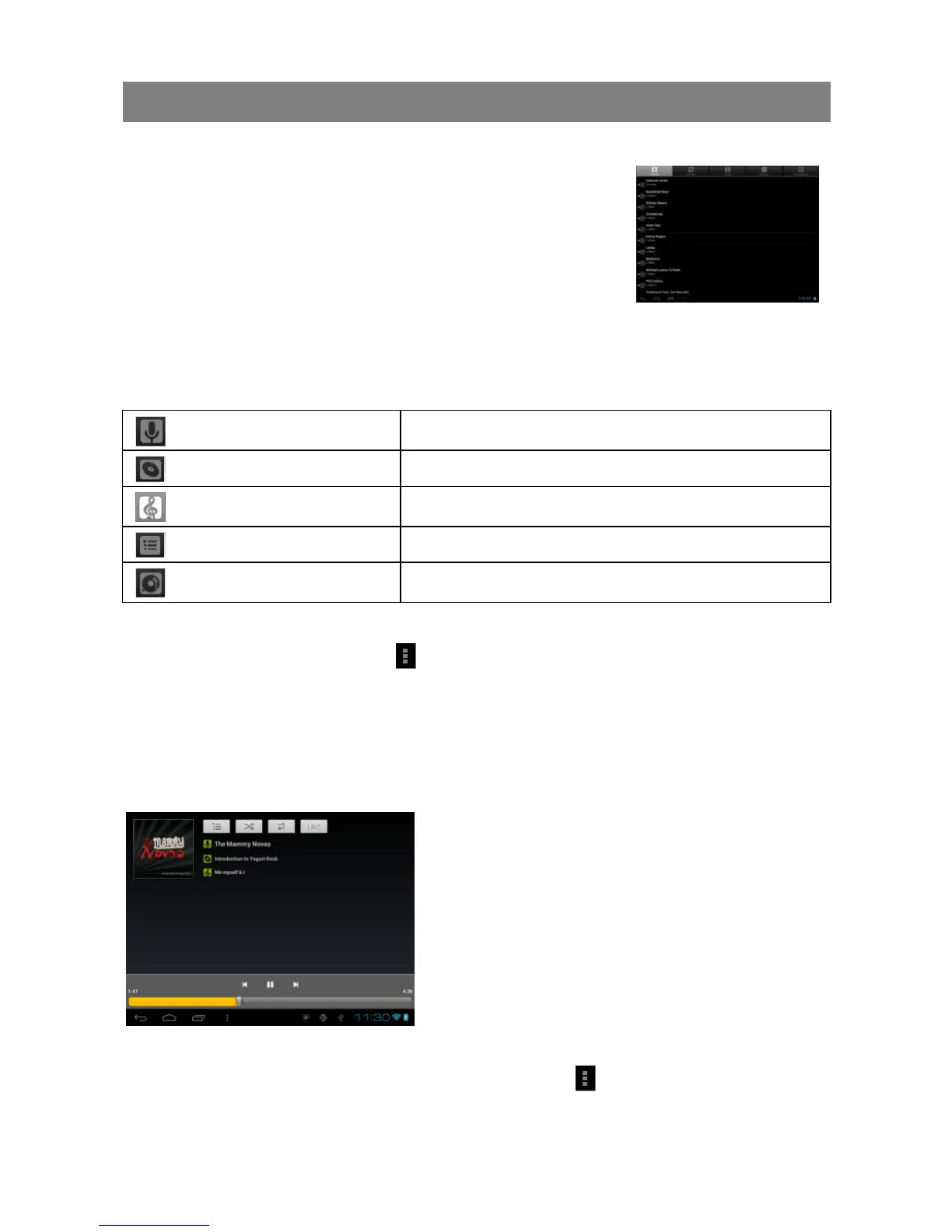
Tap the Music icon in the application page to launch the music player.
Music Library
You should enter the music library once you start the music
player. The Music Library shows your music files sorted by
categories (Artist, Album, etc.) if your music files contain
these song information tags. If some of your music files do
not contain information tags, they will be classified as
(Unknown) in the Music Library. When new music is copied to the device, the Music
Library will be updated automatically.
You can drag your finger up and down on the file list to scroll through it.
Tap a song to play.
Artist
List music files by artist.
Album
List music files by album.
Songs
List all music files.
Playlists
List your favorite songs.
Now Playing
Go to the Now Playing screen.
Shuffle songs
In the library, tap the Menu icon to display options – Play all, Party shuffle and
Shuffle all.
Play all – play tracks in normal order.
Party shuffle – shuffle 7-8 songs as a group each time.
Shuffle all – shuffle all songs stored in the device.
Playback Screen
Playback menu
During playback of a music file, tap on the MENU icon to bring up a context menu:
a. Now Playing List
b. Shuffle songs /Not shuffle
c. Repeat /Not repeat
d. Display lyric
e. Artist Name
f. Album Name
g. Title (holding your tap on the title can search for
information about the track from the Internet.)
h. Previous song/Rewind
i. Play/Pause
j. Next song/Fast Forward
k. Progress bar



 To Next Page