7
To turn off the device, press and hold the Power button until you see the option
“Power Off”, tap on “Power Off” and then tap on “OK”.
Note: Pushing down the Power button for about ten seconds will directly reset the device.
Tip: For the sake of power saving, this device may sleep with the screen display off when
there is no touch action for a while (depending on the actual setting of Screen Timeout). You
can briefly press the Power button to wake it up.
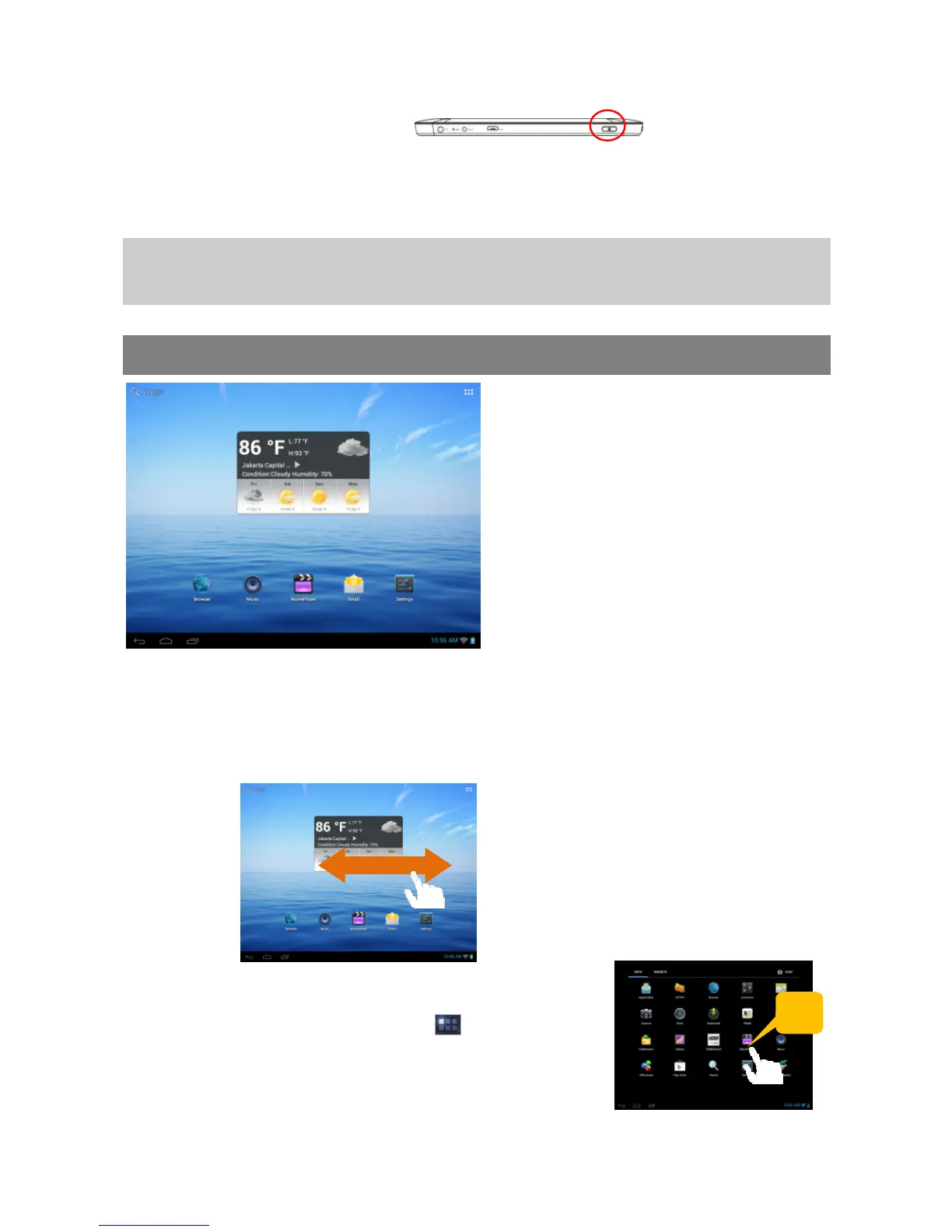
Home Screen
The extended Home Screen
Slide your finger horizontally on the screen to go to the left or right panel of the extended
Home Screen.
Customizing Home Screen Items
To add a Home Screen item (shortcuts, widgets, folders
etc.), you can tap the application icon to display all
applications and then hold your tap on an item until it is
placed on home page.
To move a Home Screen item, hold your finger onto it until it is highlighted, then drag it to
Hold



 To Next Page