16
To open a file or folder, tap the file/folder.
You can go back or forward one level in the interface by tapping on the Back
icon .
Wherever you are in the interface, you can go back directly to the Home screen by
tapping .
Tap the Home icon to go to the root directory.
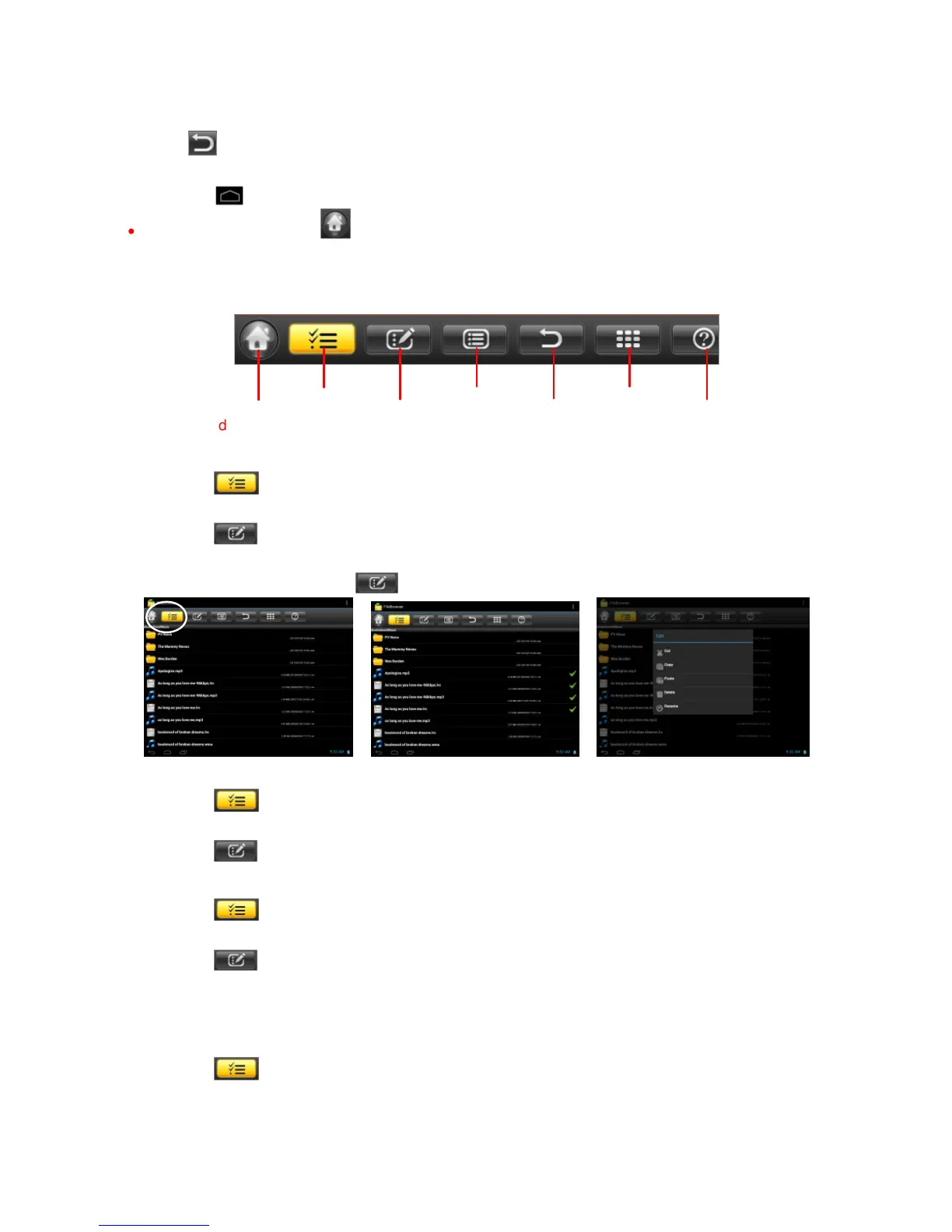
The Toolbar
Copy/Move Files and Folders
(1) Tap “ ” to enter the file selection mode.
(2) In the file list, tap the file to select it.
(3) Tap “ ” and then choose “copy” or “cut” from the menu.
(4) Navigate to the location where you wish to copy or move the file/folder to.
(5) Select the Editor icon from the toolbar and then choose “Paste.”
Delete Files and Folders
(1)
Tap “ ” to enter the file selection mode.
(2)
In the file list, tap the file to select it.
(3)
Tap “ ” and then choose “delete” from the menu.
Rename Files and Folders
(1)
Tap “ ” to enter the file selection mode.
(2)
In the file list, tap the file to select it.
(3)
Tap “ ” and then choose “Rename” from the menu.
(4)
Type in a new name for the file.
Select Multiple Items
You can select more than one file or folder together.
(1)
Tap “ ” to enter the file selection mode.
(2)
In the file list, tap multiple files to select them.
Using the ASTRO



 To Next Page