Digital Ally, Inc. | Video Playback and Management
6-1
FirstVu HD Operation Guide | 860-00177-00 Rev J
Go Back To Table of Contents
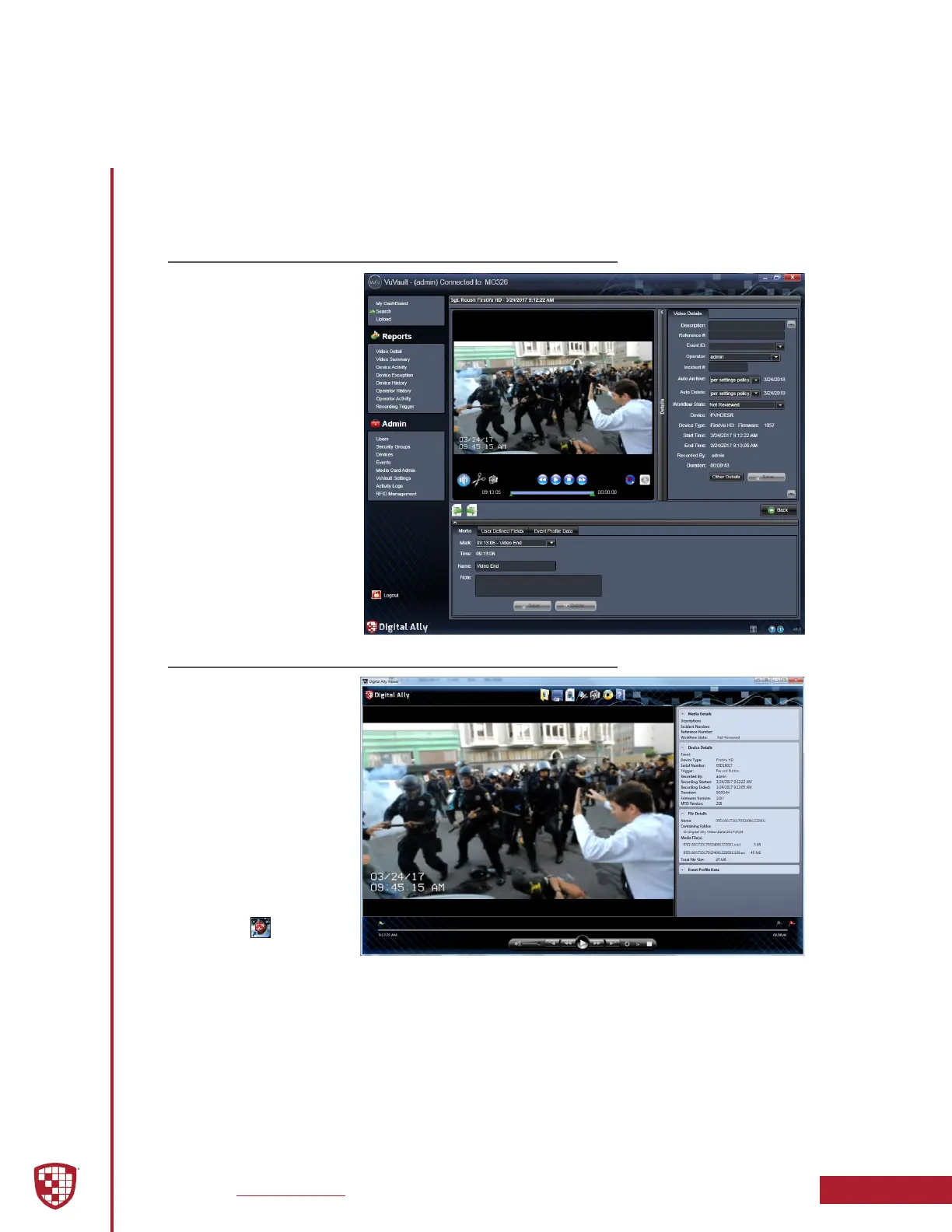
6.1 Using VuVault
VuVault
®
is Digital Ally’s
robust back-oce video
management solution.
The VuVault
®
media
player can be opened by
double-clicking on a video
entry in My Dashboard
or Search screens, or
by selecting Play from
the right-click menu.
For more information
about using the VuVault
®
player, please consult the
“VuVault User’s Guide”.
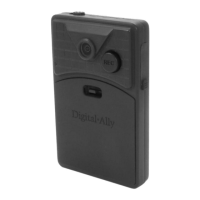
6.2 Using the Digital Ally Viewer
The Digital Ally Viewer is
a user-friendly software
package to allow basic
playback of video, audio,
and metadata les, as
well as many advanced
features. The Digital Ally
Viewer software installer
is located on your
FirstVu HD internal drive.
Once installed, open
the program by double
clicking on the Digital
Ally Viewer icon, or
by selecting the program
from the Start Menu >
Programs > Digital Ally > Digital Ally Viewer. Once opened, the program will prompt you to
navigate to your video storage location and select a video.
You may also open video les in the Digital Ally Viewer by using Windows Explorer
to navigate to the video storage location, or on the FirstVu HD internal drive when
connected to the computer via USB cable, and double-clicking on the .mtd le.
Section 6
Video Playback and Management


 To Next Page