Digital Ally, Inc. | Device Conguration using Mini Conguration Manager
4-4
FirstVu HD Operation Guide | 860-00177-00 Rev J
Go Back To Table of Contents
Audio Mode
The audio mode determines how audio will be recorded to your device. If Enabled,
audio information is recorded during the recorded event and during the congured
pre-event time.
If you select Enabled (w/o Pre-Event), audio will be recorded during the event but not
recorded during Pre-Event. If Disabled, no audio will be recorded.
Settings: Enabled [default], Disabled, Enabled (w/o Pre-Event)
Frames Per Second
This parameter sets the number of frames per second the FirstVu HD will record. The
higher the setting, the better the video quality, and the larger the size of the event les.
Settings: 5 FPS, 10 FPS, 15 FPS, 30 FPS [default]
Vibrate Record
Select the number of seconds between vibrations while the FirstVu HD is recording. If set
for 0 seconds, the vibrate function will be disabled.
Settings: 0-600 seconds [default = 10 seconds]
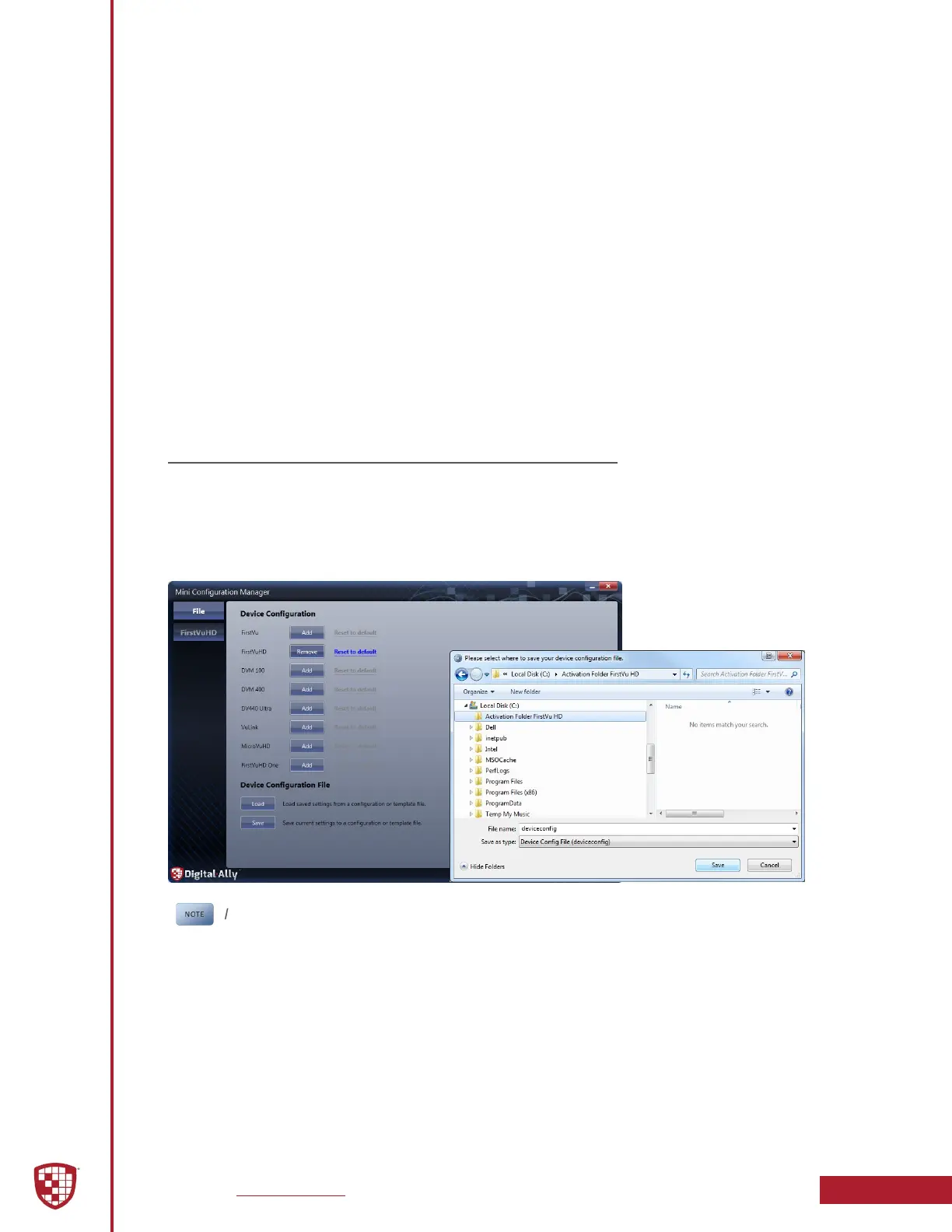
4.4 Save Conguration File
To save the congured settings to your FirstVu HD or a data storage location, press
the Save button in the lower part of the Device Conguration screen. This will bring
up the Browse for Folder dialog box to select the location to save the le. After the
conguration le has been transferred to your FirstVu HD, reboot your FirstVu HD by
turning the power switch OFF, wait until blue LED stops ashing, then turn back ON.
If you have also congured a VuLink
®
device using the Mini-Conguration
Manager, the necessary information to communicate with VuLink
®
is also
contained within the conguration le. For more information about VuLink
®
,
consult the “VuLink
®
Installation and User Guide”.


 To Next Page