5
INFO
WLAN
Festnetz
Internet
Power
/
DSL
Info
WLAN
Power
/
D SL
Fixed Line
Internet
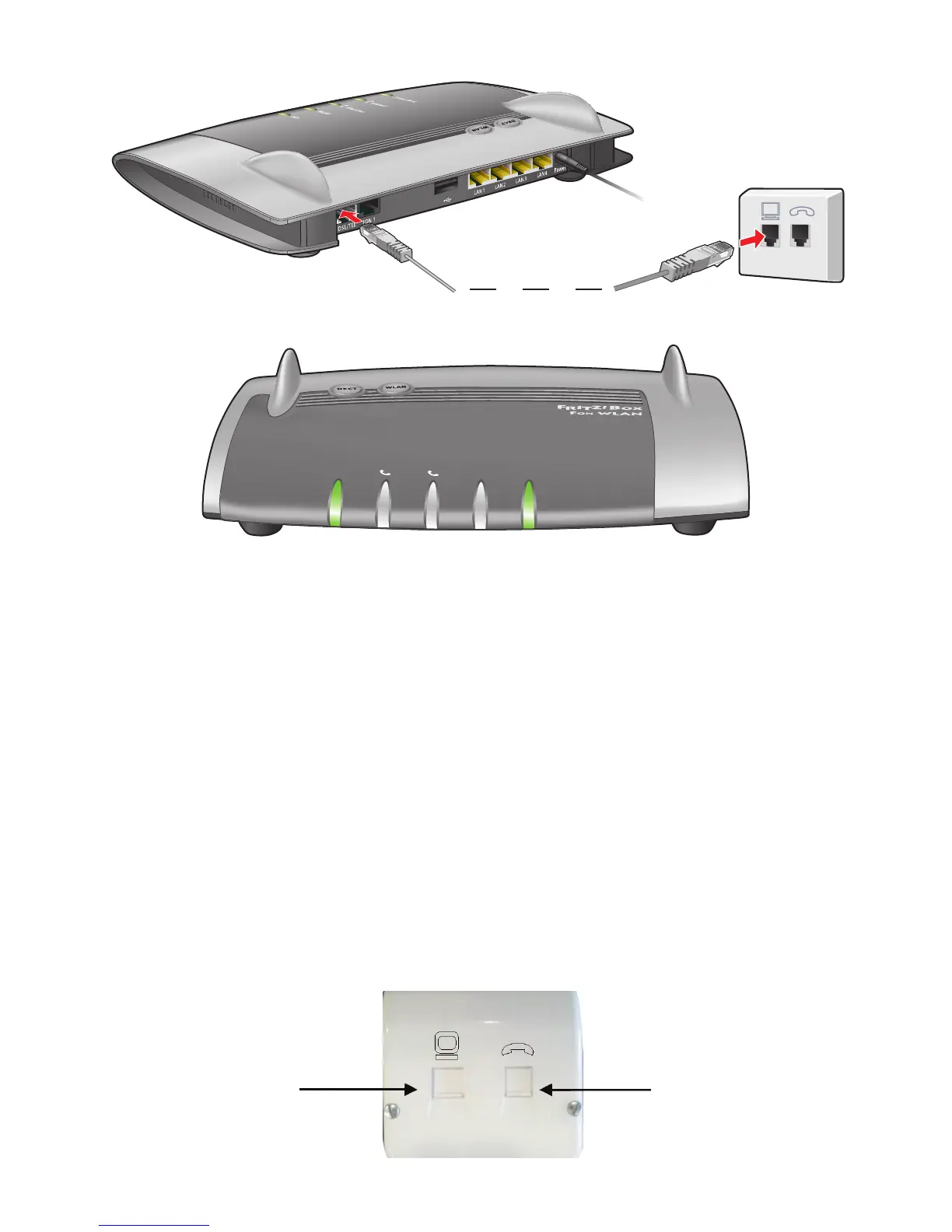
Step 3: Connect the DSL Phone Cable
• ConnectthelargerRJ45connectorontheDSLphonecable(D)tothe
DSL/ TEL port on the back of the Fritz!Box (B)
• ConnectthesmallerRJ11connectorontheDSLphonecable(D)tothe
installed dedicated Fibre data socket as shown on left below.
• Waitupto5minsforthePower/DSLlightonyourFritz!Boxtogo
steady green. The VoIP “Internet” light will only activate if you have opted
for a Digiweb Broadband Talk VoIP package.
• IfthePower/DSLlightonyourFritz!Boxfailstogosteadygreen,please
check your cable connections are firmly connected and ensure that you
are connected to the correct dedicated Fibre data socket.
• UponcompletingtheabovechecksandwherethePower/DSLlighton
yourFritz!Boxfailstogosteadygreen,pleasecontacttheTechnical
Support team as per contact details provided in this Quick Start Guide.
Fixed Line
Internet
WLAN
Power/DSL
Example of a Data &
Landline Socket
Data Landline


 To Next Page