20 21
Stop motion playback
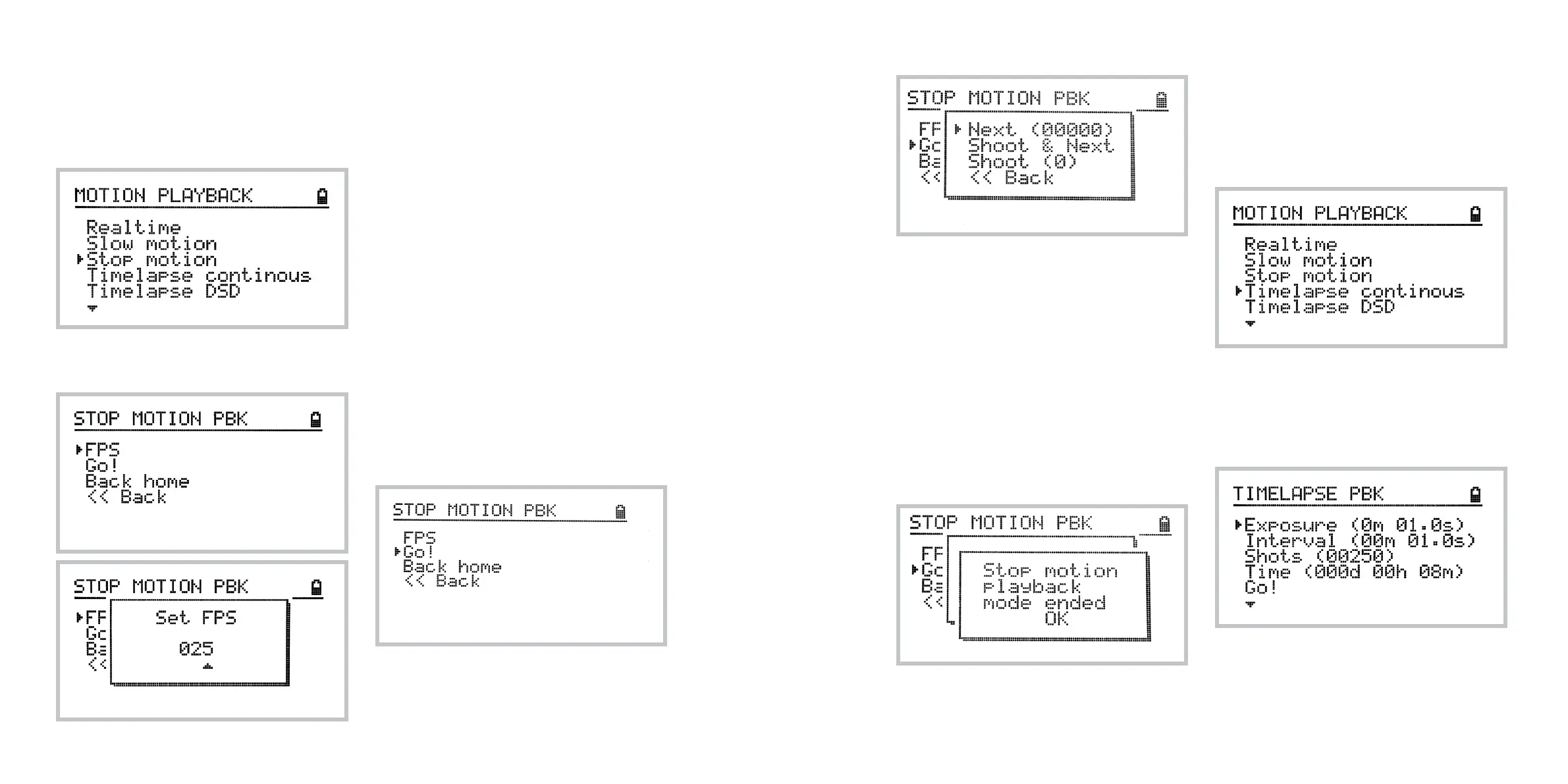
To access slow motion playback mode navigate to:
Home » Video » Motion Playback » Stop Motion
FPS option lets you select the desired FPS (frames
per second) value to match your shooting standard.
The controller will perform all necessary math oper-
ations to divide the recorded motion into the required
amount of segments and steps so that your stop-
motion sequence matches the original recording.
For example, if your total recorded time is three
seconds and you work at 25 FPS, the total track
will be divided into 75 steps.
Also note that this may be useful for compositing.
You will be able to record one real time video shot,
do another pass in stop motion mode and then com-
posite those two passes seamlessly!
You may also enter dierent FPS rates to slow down
a stop motion sequence - for example, setting 50
FPS while shooting for 25 FPS footage will double
the exposures and may be useful in some situations.
When you’re ready with your shot select the Go!
option from the menu.
The following popup screen lets you take advan-
tage of easy loop shooting.
The Next option advances to the next step
without triggering the shutter. The number in
parentheses indicates the current shot number.
The Shoot & Next option will trigger the shutter
and move to the next position.
The Shoot option will trigger the shutter as many
times as pressed. The number in parentheses indi-
cates the number of shots taken since last move.
The following screen confirms end of motion play-
back mode.
Timelapse continuous playback
To access timelapse continuous playback navigate to:
Home » Video » Motion Playback » Timelapse
contiunuous
The continuous timelapse playback menu has similar
features to standard timelapse. However, the direction
feature is not present here because the playback is
always performed starting at the home position along
the recorded path.
You may set the Exposure time, the Interval time,
and the total Shots. Adjusting the Time parameter
will re-calculate the total Shots automatically.



 To Next Page