8860 Installation and Programming Guide | Digital Monitoring Products 9
CONNECT THE KEYPAD TO WI-FI
Connecting the keypad to Wi-Fi allows you to use video features with your keypad. DMP video features and events are
available on the 8860 keypad and the Virtual Keypad mobile device app.
Note: Videos are not stored locally on the keypad.
Connect the Keypad to Wi-Fi
1. Select Options from the Carousel menu.
2. Select Wi-Fi Settings.
3. Select the Wi-Fi network you would like to connect to.
4. Enter the password and select CMD.
Note: The keypad needs to be connected to Wi-Fi to enable video features and remote update capabilities.
Update the Keypad Locally
1. Connect the keypad to the Wi-Fi network before proceeding.
2. Select Options from the Carousel menu, then select Installer Options.
3. Enter 3577 and enter CMD. Select Check for Updates. Follow the on-screen prompts to complete update.
Update the Keypad Remotely
1. Navigate to Dealer Admin™.
2. Select the user and system.
3. Next to the keypad name, select Update.
Live View
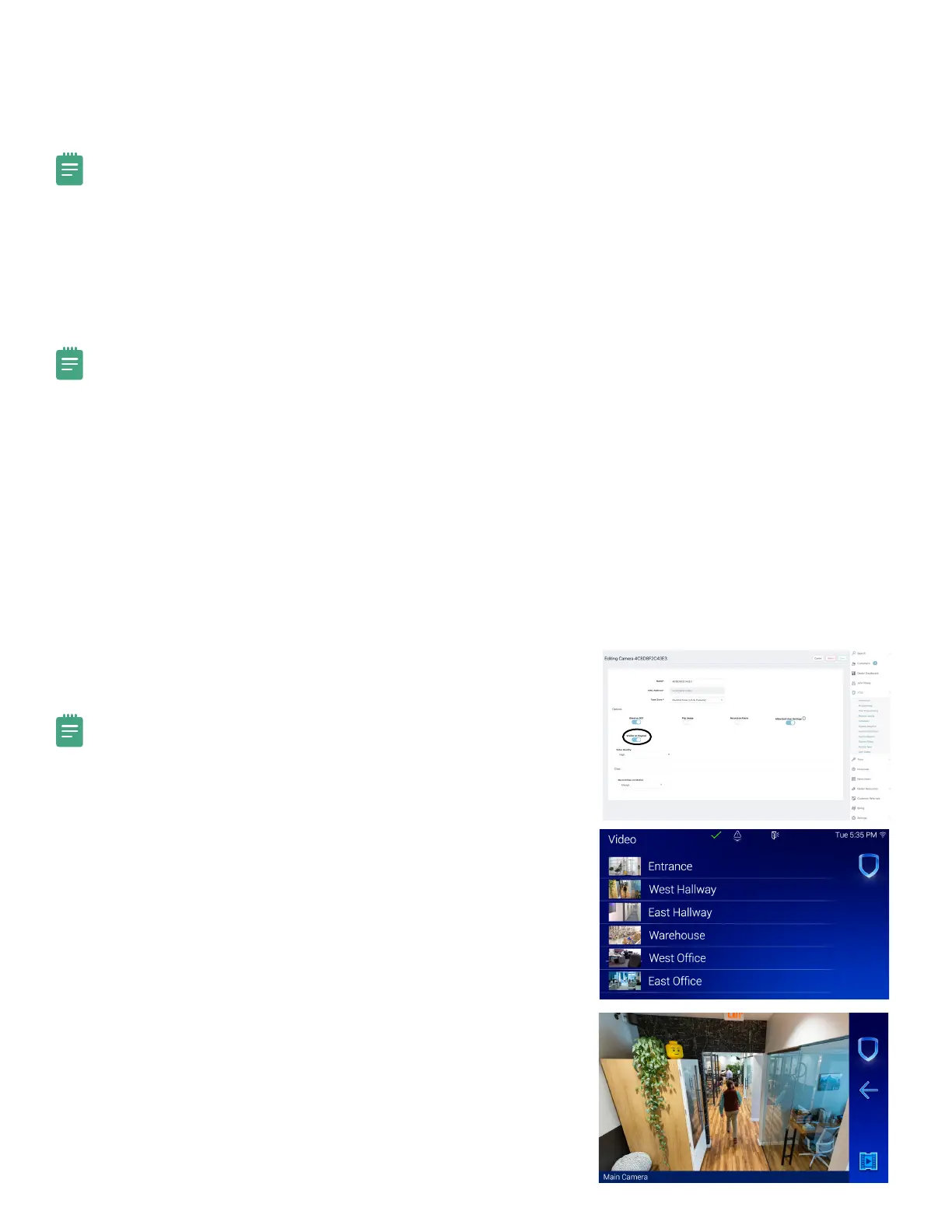
This function allows you to see all system cameras added in Dealer Admin™.
Note: Visible on Keypad must be toggled On in Dealer Admin™ for each
camera to be added to the Camera List.
1. In the Carousel menu, tap Video.
2. Select a camera to display on the keypad.
3. Swipe the screen left to go to the next camera. Swipe the screen right
to go to the previous camera. Pinch to zoom.



 To Next Page