Page 11 of 25
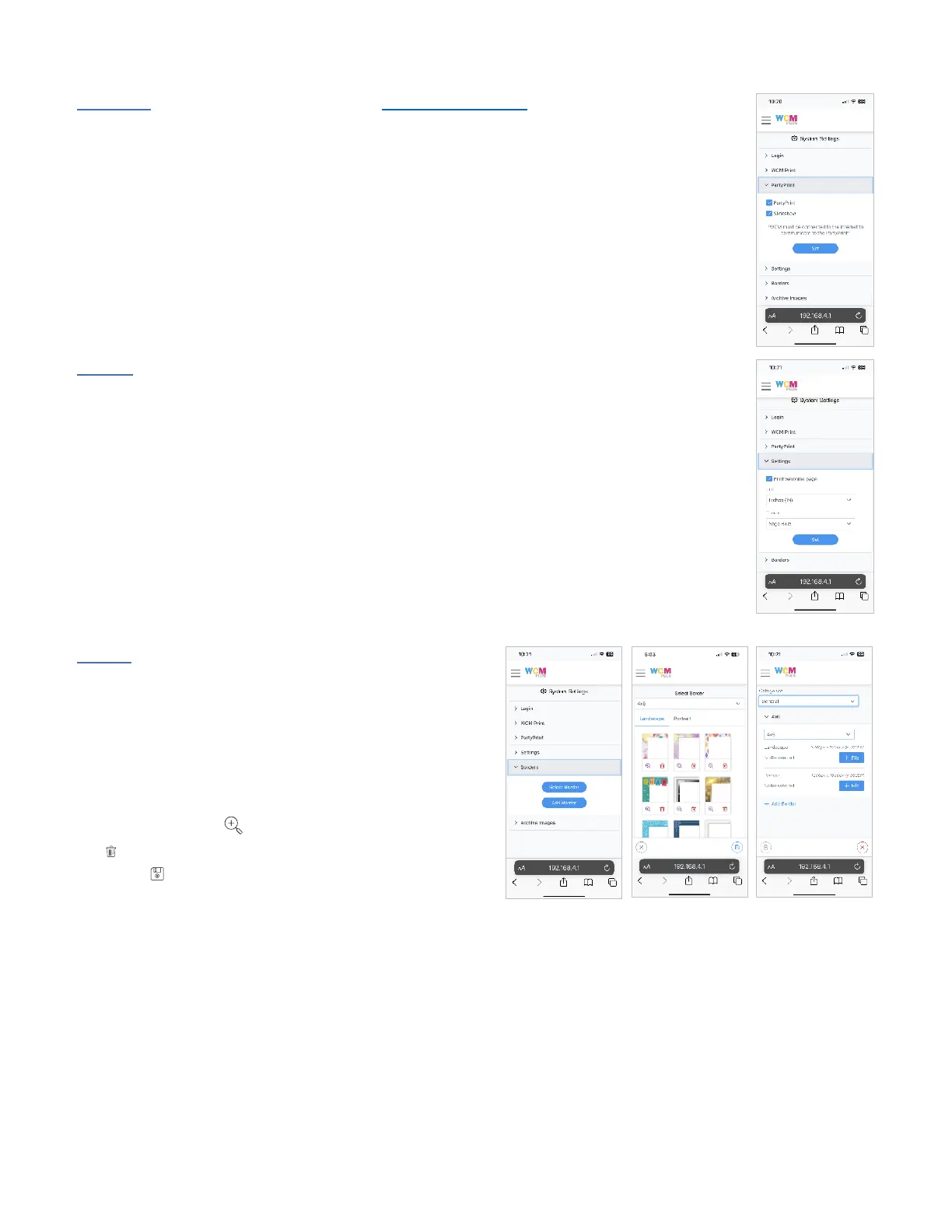
Party Print – If you subscribe to Party Print (www.partyprint.com) you can use WCM-Plus to
manage printing and slideshow displays. Selecting the checkbox for PartyPrint will provide an
activation code that will associate the WCM-Plus with the Party Print system. Selecting the
checkbox for Slideshow allows a TV/Monitor to be connected to the WCM-Plus using a micro-
HDMI to HDMI cable and present a slideshow from Party Print events.
Settings – provides controls for turning the test page on or off, selecting the unit of measure,
and the Theme (look) of the WCM-Plus admin portal.
Select the Print welcome page checkbox to print a startup “test” welcome page and unselect
the checkbox if you do not wish to print the welcome page. This page provides a color print to
confirm the printer is configured correctly, a QR code to easily connect to the WCM-Plus
hotspot, the printer status of each printer connected to the WCM, and a second QR code to
easily connect to the WCM-Plus admin portal.
Unit lets you choose how you prefer to see print sizes, whether in inches or centimeters
Theme provides several selections for how the WCM-Plus portal looks, including a dark theme.
Borders – provides several border options to select from.
Borders are available in the WCM Print feature, but when
selected here will apply the selected border to prints using
AirPrint®/IPP or Hotfolder.
Tap Select Border to choose from several available
borders. You must select the print size that will be used
and choose a border in both portrait and landscape
orientations. Tap the icon to preview the border. Tap
the icon to delete a border. Tap the border to select and
then save .
Custom borders can be added and are applied as an overlay.
See the Borders section for detailed information about borders.


 To Next Page