20
WiFi Transfer and USB Control
V
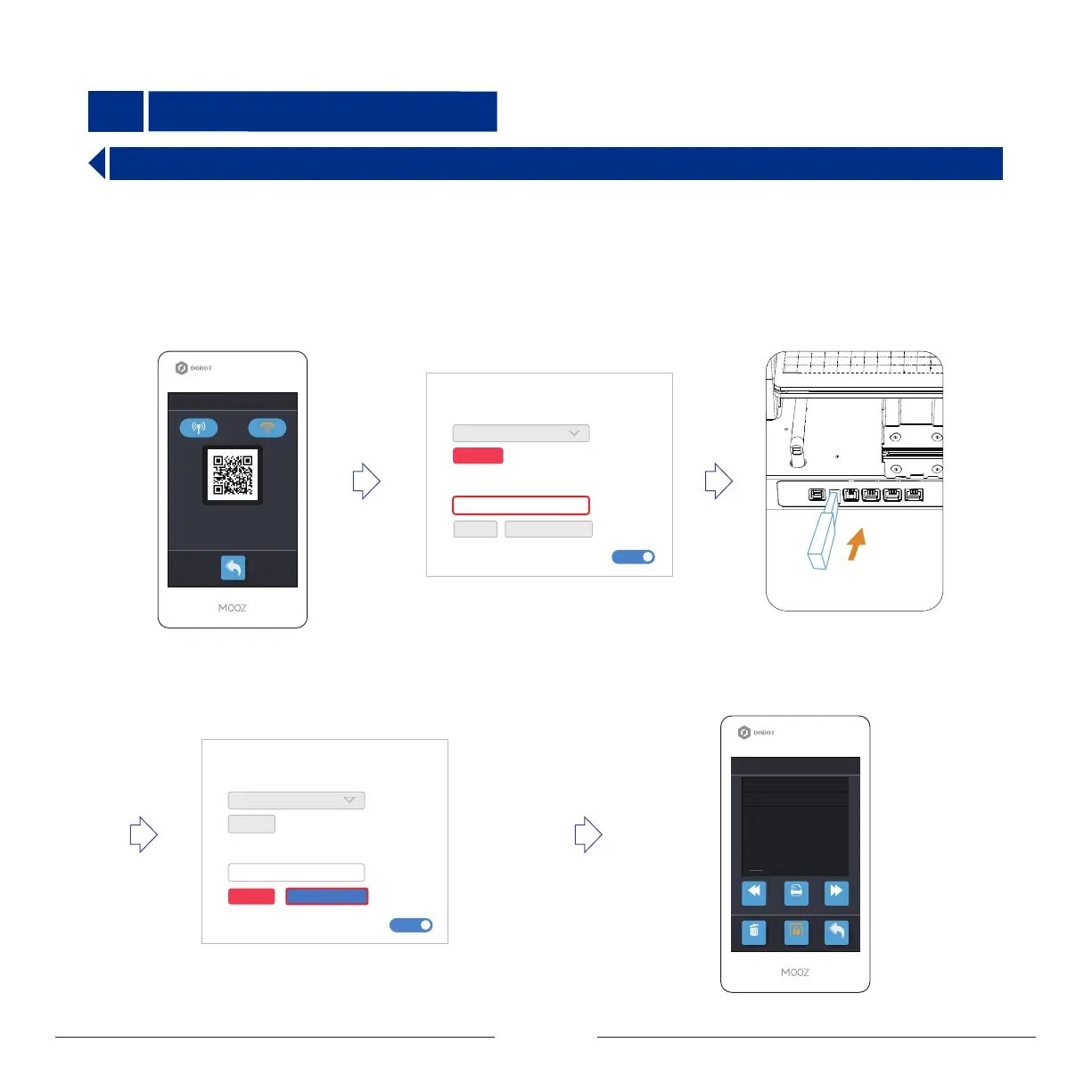
5.1 WiFi Transfer
You can transfer a G-code file from PC to MOOZ-2 PLUS via WiFi.
Prerequisites:MOOZ-2 PLUS and PC must be in the same LAN segment.
Step 1 : Click Setting>WiFi>Router on the
touch screen to select an available wireless
network and connect it. A WiFi address will
be displayed on the screen after the
connection is successful.
Step 2 :Open MOOZStudio and input
the WiFi address generated on the touch
screen into the box as shown in the
figure below. Click Connect.
Step 3: Insert USB flash drive into
USB interface on MOOZ-2 PLUS.
Step 4 : .Click Transfer Gcode to transferring G-code file. When the
progress bar shows 100%, the transmission is successful. The name
format of the transferred file will be automatically modified to
gcode_X.gcode, X represents the serial number.
Step 5 : Disconnect the WiFi connection and click File on the
touch screen to select the file for printing.
File
Model.gcode
........ .gcode
.........
.........
.........
.........
.........
Prev Print
Delete
Open
Next
Return
WiFi
AP Router
address:192.168.20.85:8686
Wireless Server is ready!! Please open
the APP and scan the QR code to
connect the machine
Connection
Port:
COM3
Wifi:
192.168.20.85:8686
Connect
Protective Shield:
Transfer Gcode
Connect
Connection
Port:
COM3
Connect
Wifi:
192.168.20.85:8686
Protective Shield:
Transfer Gcode
Connect
Open
Open


 To Next Page