6
Bind Devices
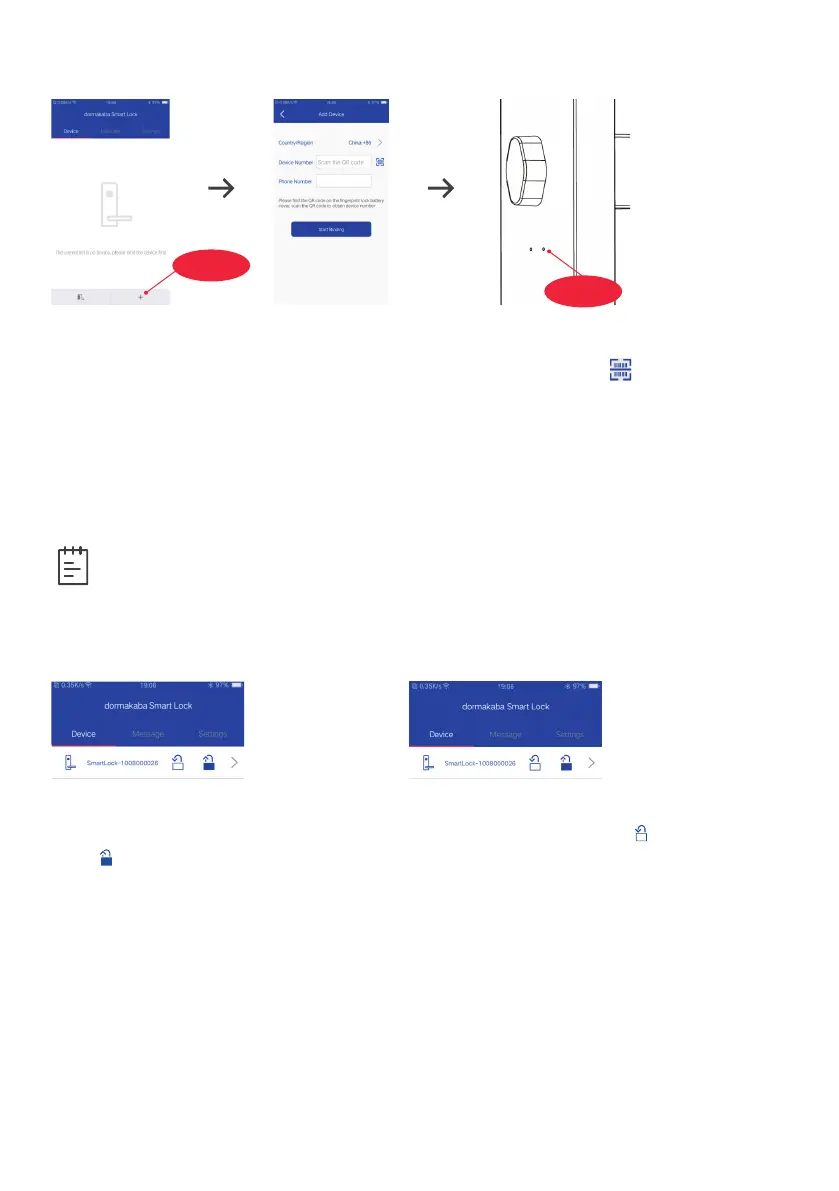
1. Enter the device interface and click the binding icon “+” on the bottom;
2. On the device binding interface, click the code scanning icon ” “, Scan the Device
Number QR code which you will find on the back of the battery pack and enter
the mobile phone number and click “start binding”.
3. When the app sending request of binding and the lock prompts “In operation”,
press “M” button (right hand side) on the back lock body.
4. Choose the default name or input a new name, following the instruction
“Please name this device” and click “save” button to confirm.
Device Management
Refresh device information: Enter device management interface and press one
binding device until a selection menu pops up. Click “Refresh Device Information” to
synchronize the data in app and smart lock system.
Unbind the device: Enter device management interface and press one binding device
until a selection menu pops up. Click “Unbind the Device” and then click“OK” to delete
the device from the app device list.
Bind icon
Unlocking: enter management
Interface and click the unlocking
icon “ “.
The smart lock is unlocked.
Locking: enter management Interface,
and click the locking icon ” “.
The smart lock is successfully locked.
Note
• One app can be bound with maximum 10 devices.
D button
M button



 To Next Page