7
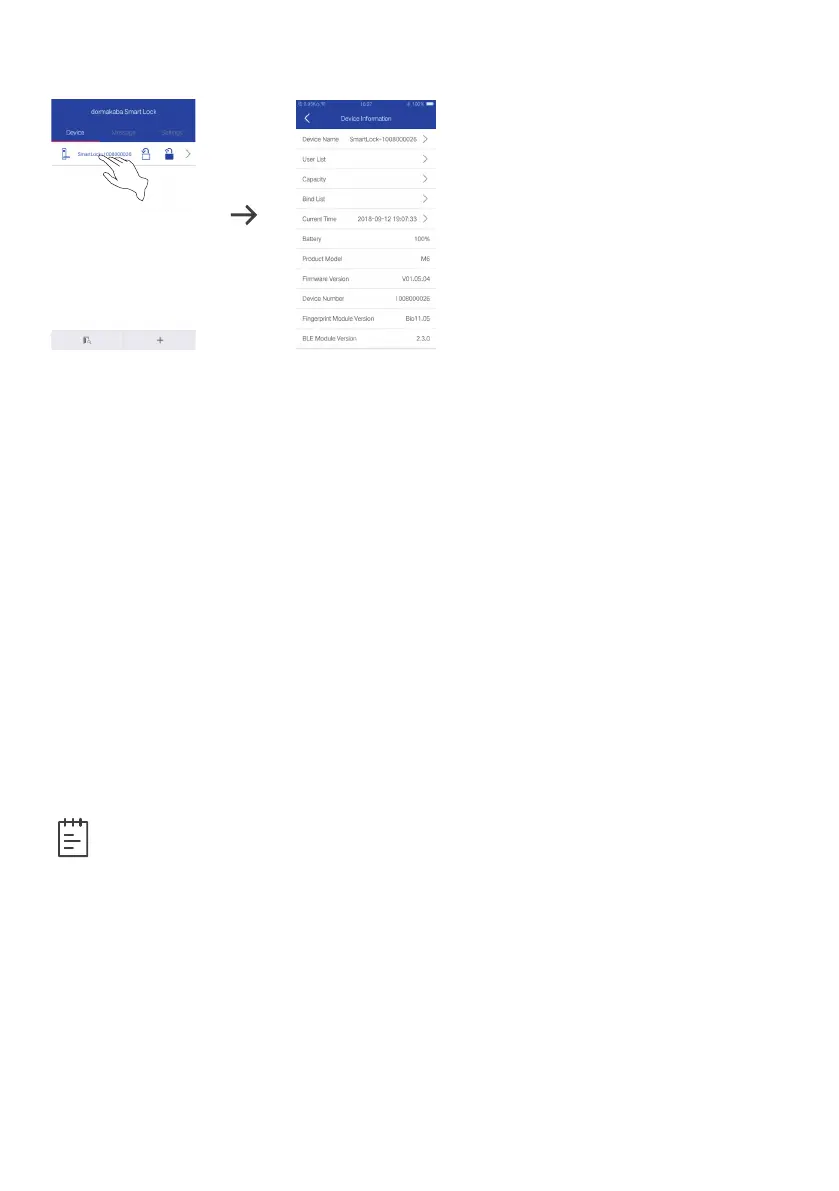
View the Device Information
1. Click the binding device after bound with the smart lock successfully.
2. Enter the “Device Information” Interface, view and modify the smart lock
name and view the smart lock user list, capacity, binding list, current time,
power capacity, product model, firmware version number and device number
(scroll view on the device information interface).
Time synchronization: enter the “device information” interface, click “current time”
to synchronize smart lock and app time, and the function is only available to
administrator’s account.
Binding list: Enter the “Device Information” interface and click “Bind List” to
display the mobiles bound with the smart lock. Click the deleting icon “” on the
right of the user you want to delete and then click “OK” to confirm the operation.
Shake to unlock: Enter the “Device Information” interface and shake your mobile to
unlock.
Note
• Shaking to unlock can be enabled only when the mobile is connected with the
lock successfully and the distance between them must be within 10 meters.
• The first mobile successfully bound with the smart lock is the administrator.
Only the administrator has the right to synchronize the time and unbind other
devices on the bind list.



 To Next Page