DQ Technologies, Inc., phone: 512.248.8324 - www.dqtech.com
18
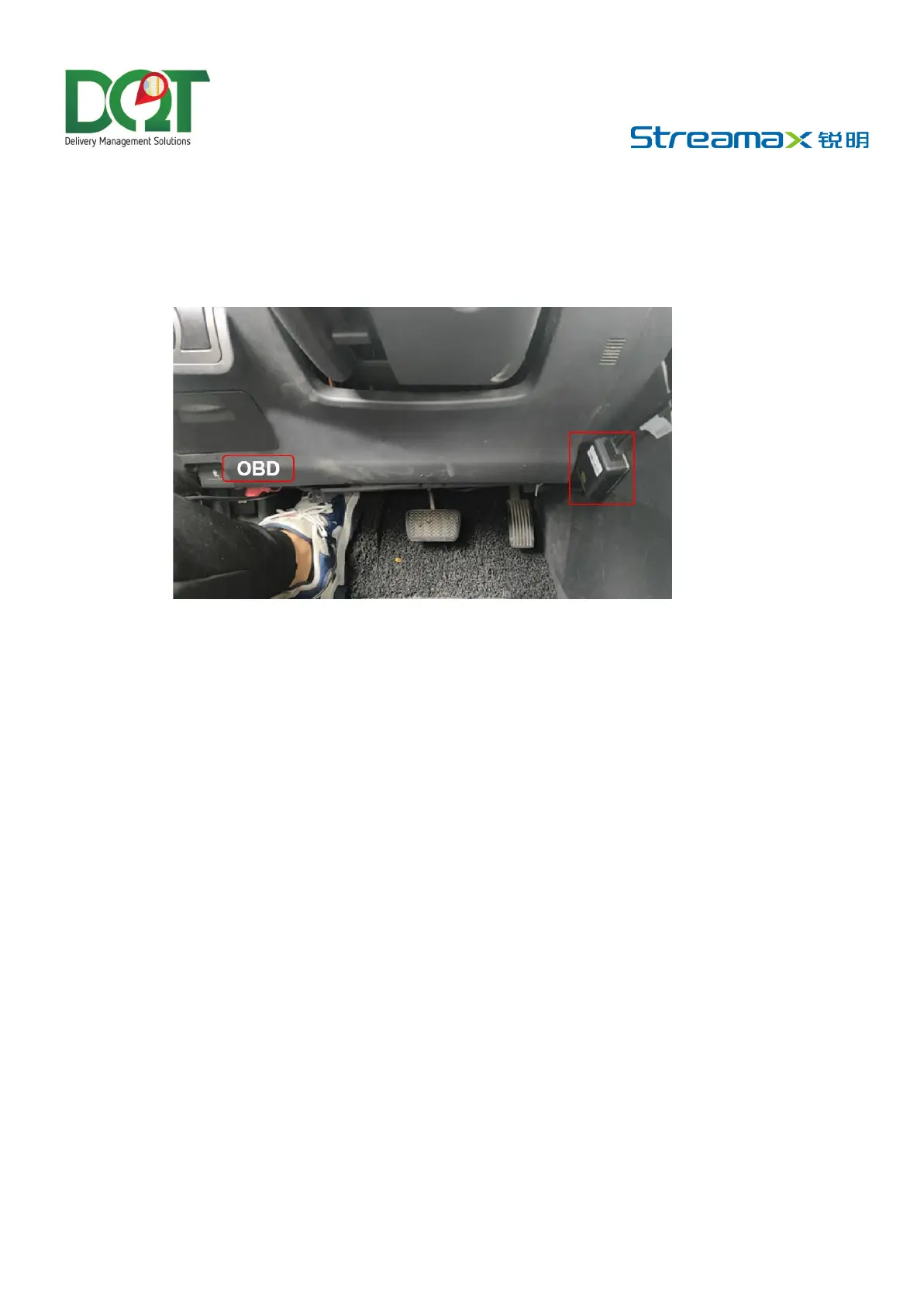
Fixing position 2 of the power supply box:
Attach the power supply box to the right-side panel of the driver's seat, ensuring the cabling
is exposed. Installing it on the left side panel is not recommended, as it may interfere with
the door. Once you have chosen the mounting position, remove the backing from the 3M
tape on the power supply box and secure it to the right-side panel of the driver's seat, as
shown below:
AD Plus2.0 Calibration
ADAS Calibration
Connection with App
• Start the vehicle and wait for the power status light of the Dashcam to turn on. The Dashcam is
working normally, and the Wi-Fi is in AP mode if the power status light is green and normally on
and the Wi-Fi status light is green.
• Log in to the Veyes app with your mobile phone/tablet within 3 minutes of the Dashcam being
turned on.
• Enable Wi-Fi and GPS on your mobile phone before connecting the device with the truck Veyes
App.
• Launch the truck Veyes app on your mobile phone and tap Search.
• The screen listing the Wi-Fi hotspots found is displayed.
• For the first logging, the name of the Wi-Fi hotspot is named after the cipher chip ID of the AD
Plus2.0 (usually the default is ST-xxxxxxxxxx).
• Search for a Wi-Fi hotspot named after the cipher chip ID of the AD Plus2.0 or the license plate
number you have entered. The login screen is displayed.



 To Next Page