14
4.1 Loading a patch
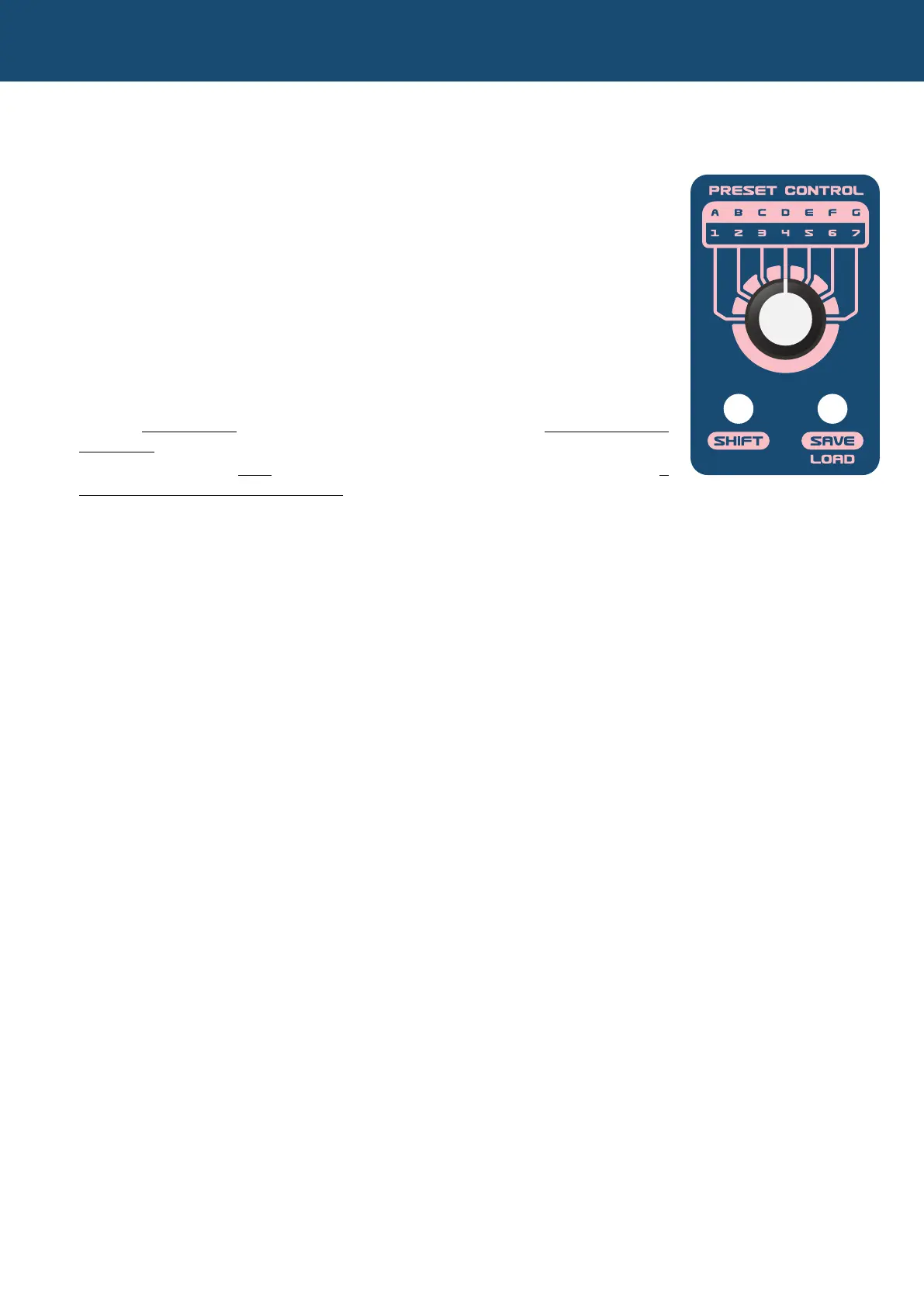
The Nymphes has 49 factory preset patches and 49 user patches. Each of the 49
storage locations, A1 through G7 can contain both a factory preset patch or a user
patch. How to load either a preset or user patch is described below.
To load a patch, simply run through the following steps:
1) Press the LOAD button which will then slowly blink.
2) With the SHIFT button lit, turn the rotary selector to choose bank A through G. If
you are already in the bank you want, you can skip this step.
3) With the SHIFT button off (not lit), turn the rotary selector to the desired patch
number 1 through 7.
4) For this last step, it’s important to understand you have 2 options:
a. If you quickly click the LOAD button, it will rapidly blink, and a user patch will
be loaded or
b. If you press and hold the LOAD button until it starts rapidly blinking, a
factory preset patch will be loaded
Tips:
- You can quickly reload your current preset by double clicking the load button
- If you switch to a different preset than the one you are already at, the LOAD button will start blinking at a
different interval.
4.2 Saving a patch
To save a user patch in any of the 49 storage locations, just follow these steps.
1) While holding SHIFT, press the SAVE button which will start ashing after being pressed.
2) With the SHIFT button lit, turn the rotary selector to choose bank A through G. If you are already in the bank
where you want to store your patch, you can skip this step.
3) Next, turn off the SHIFT button (it should be unlit), and turn the rotary switch to your desired patch location 1 - 7.
4) Finally, press the SAVE button which will ash, showing your patch is now saved.
Tips:
- You can quickly save your current preset by clicking SHIFT+SAVE and then SAVE again.
- If you switch to a different preset than the one you are already at, the SAVE button will start blinking
at a different interval.
- Save and Load have a different LED blinking pattern
4. Saving and Loading


 To Next Page