11
Do not place the charging dock in an area with direct sunlight or where other
objects could block its signalling area, as this may hinder the robot from returning
to the charging dock.
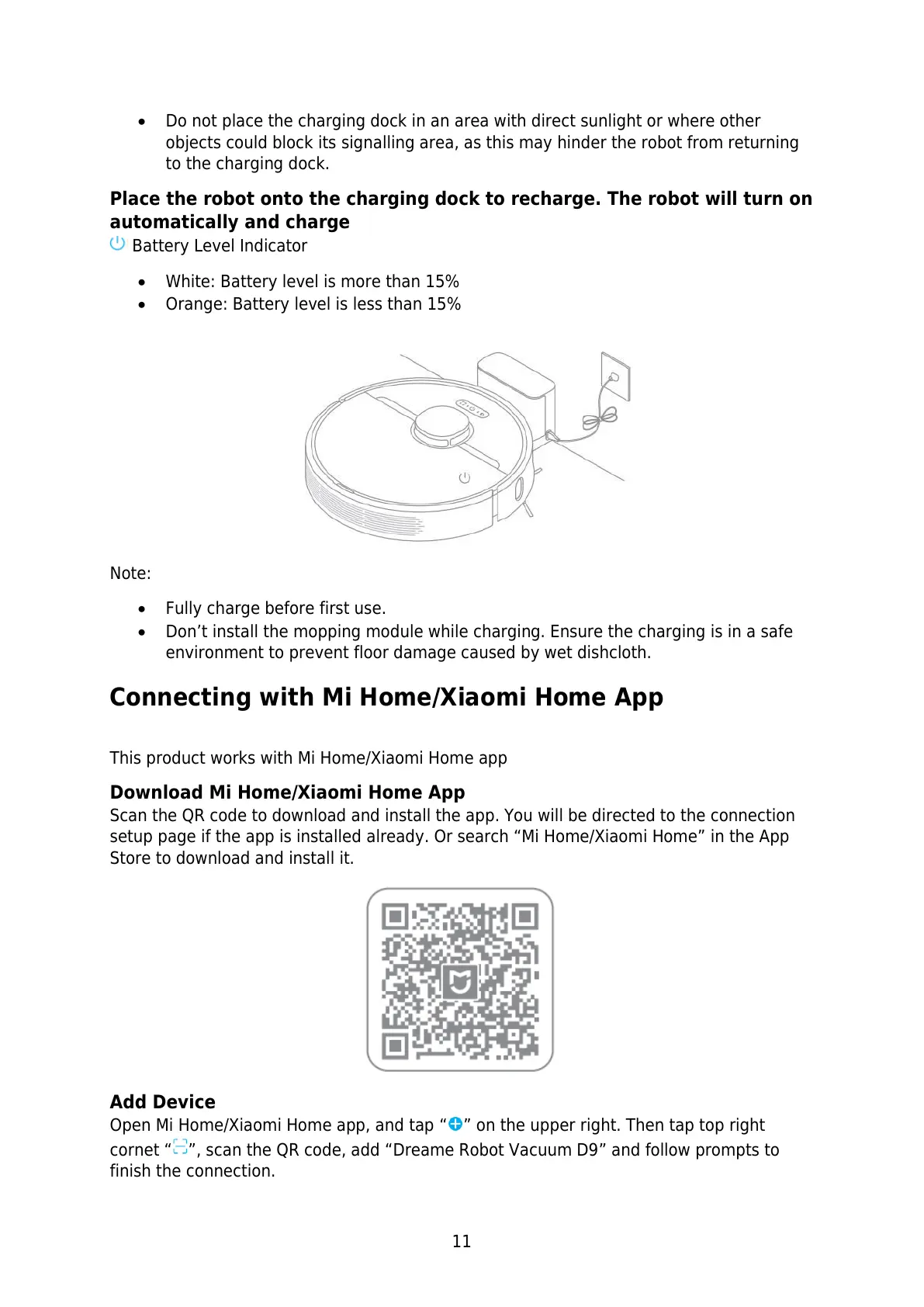
Place the robot onto the charging dock to recharge. The robot will turn on
automatically and charge
Battery Level Indicator
White: Battery level is more than 15%
Orange: Battery level is less than 15%
Note:
Fully charge before first use.
Don’t install the mopping module while charging. Ensure the charging is in a safe
environment to prevent floor damage caused by wet dishcloth.
Connecting with Mi Home/Xiaomi Home App
This product works with Mi Home/Xiaomi Home app
Download Mi Home/Xiaomi Home App
Scan the QR code to download and install the app. You will be directed to the connection
setup page if the app is installed already. Or search “Mi Home/Xiaomi Home” in the App
Store to download and install it.
Add Device
Open Mi Home/Xiaomi Home app, and tap “ ” on the upper right. Then tap top right
cornet “ ”, scan the QR code, add “Dreame Robot Vacuum D9” and follow prompts to
finish the connection.





 To Next Page