
 To Next Page
T
Travis MillerSep 23, 2025
What to do if the upper cover of Dreame D10s Plus base fails to be closed?
- TTaylor SellersSep 23, 2025
Check whether a dust collection bag is installed. If not, install one.

What to do if the upper cover of Dreame D10s Plus base fails to be closed?
Check whether a dust collection bag is installed. If not, install one.
What to do if my Dreame Vacuum Cleaner robot cannot recharge?
If your Dreame Vacuum Cleaner robot cannot recharge, ensure that both ends of the power cord are plugged in correctly to the base. Also, the robot may be in poor contact with the charging contacts, so clean the charging contacts on both the base and the robot.
How to fix Dreame D10s Plus Vacuum Cleaner that cannot connect to Wi-Fi?
If your Dreame Vacuum Cleaner can't connect to Wi-Fi, there might be a few reasons. First, reset the Wi-Fi and download the latest version of the Dreamehome app, then try reconnecting. Also, ensure the location permission on the Dreamehome app is enabled. Check that the robot is in an area with good Wi-Fi coverage and that it's connected to a 2.4GHz Wi-Fi network, as 5GHz is not supported. Finally, double-check that you've entered the correct Wi-Fi username and password.
What to do if my Dreame D10s Plus Vacuum Cleaner no longer cleans efficiently or leaves dust behind?
If your Dreame Vacuum Cleaner robot is no longer cleaning efficiently or leaves dust behind, the dust bin may be full. Please clean the dust bin and auto-empty vent. Also, the filter may be blocked, so please clean it. Finally, check the main brush for any foreign objects and clean it if necessary.
How to fix a Dreame Vacuum Cleaner that does not turn on?
If your Dreame Vacuum Cleaner robot does not turn on, it may be due to a low battery level. Recharge the robot in the base and try again. Alternatively, the battery temperature may be too low or too high. It is recommended to operate the appliance at a temperature between 32°F (0°C) and 104°F (40°C).
Why doesn't my Dreame D10s Plus robot resume cleaning after charging?
Your Dreame Vacuum Cleaner might not resume cleaning after charging if it is set to Do Not Disturb mode (DND). Make sure the robot is not set to Do Not Disturb mode as this will prevent it from resuming cleaning. The robot does not resume cleaning when it is manually recharged or placed onto the base.
Why is my Dreame D10s Plus robot making a strange noise?
If your Dreame Vacuum Cleaner robot is making a strange noise, a foreign object may be caught in the main brush, side brush, or one of the main wheels. Stop the robot and remove any debris.
What to do if no water comes out of Dreame Vacuum Cleaner water tank?
Check whether there is water inside the water tank. Clean the mop if it becomes dirty. Make sure the mop pad is installed correctly according to the user manual. Clean the blowhole on the top of the water tank.
What to do if no water comes out of the Dreame D10s Plus Vacuum Cleaner water tank?
If no water or only a little bit comes out of the water tank of your Dreame Vacuum Cleaner: * Check whether there is water inside the water tank. * Clean the mop if it becomes dirty. * Make sure the mop pad is installed correctly according to the user manual. * Clean the blowhole on the top of the water tank.
Why Dreame D10s Plus Vacuum Cleaner does not perform scheduled cleaning?
If your Dreame Vacuum Cleaner robot does not perform scheduled cleaning, it is because scheduled cleaning will not start unless the robot has at least 15% battery left.
Guidelines for safe operation and limitations of use for the robot.
Lists and identifies the various accessories included with the robot.
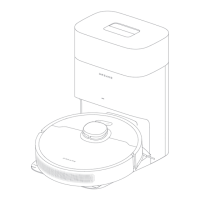
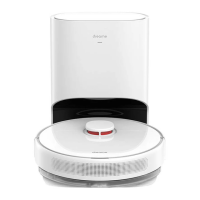
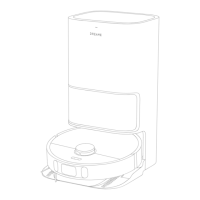
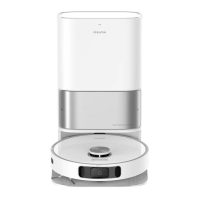
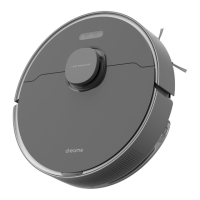
Explains the different parts and controls of the robot unit.
Identifies and describes the sensors located on the robot.
Details the parts and indicators of the auto-empty base.
Further explanation of auto-empty base parts like dust bin and filter.
Advice on tidying up the environment for optimal robot cleaning performance.
Tips for ensuring clear paths and good lighting for the robot's sensors.
Steps for removing protective strips, installing the side brush, and initial charging.
Positioning the base and connecting to the Dreamhome app for robot control.
Steps to connect the robot to Wi-Fi and how to reset the connection.
Guide to initiating the robot's mapping process for efficient navigation.
Covers turning on/off, cleaning, pausing, DND, and spot cleaning functions.
Details on scheduled cleaning, app functions, and using the mopping feature.
Table outlining recommended maintenance frequency for robot parts.
Step-by-step instructions for cleaning the robot's dust bin and filter.
Procedures for cleaning the water tank and mop pad.
Instructions for removing and cleaning the robot's main brush.
Guidance on cleaning the side brush and the main/universal wheels.
How to clean the laser, visual sensors, charging contacts, and vents.
Steps for discarding the old dust bag and replacing it with a new one.
Instructions for clearing blockages in the robot's air duct.
Procedures for restarting the robot and maintaining battery health.
Solutions for problems like the robot not turning on or recharging.
Troubleshooting steps for navigation problems and general robot malfunctions.
Advice for when the robot is not cleaning efficiently or leaves dust.
Solutions for Wi-Fi connection problems and failure to perform scheduled cleaning.
Addresses common operational questions and lists product specifications.
Detailed instructions on how to safely remove and dispose of the robot's battery.
Outlines the warranty period and conditions that may void the warranty.
Information regarding waste electrical and electronic equipment disposal.
 General
| Shape | Round |
|---|---|
| Product color | Black |
| Dust container type | Dust bag |
| Smartphone remote support | Yes |
| Battery capacity | 5200 mAh |
| Battery technology | - |
| Suction power | 5000 Pa |
| Brush type | Roller brush & Side brush |
| Noise level | 60 dB |
| Navigation type | Mapping |
| Water tank capacity | 0.235 L |
| Dust capacity (base) | 4 L |
| Dust capacity (total) | 4.57 L |
| Dust capacity (vacuum cleaner) | 0.57 L |
 Weight and Dimensions
| Width | 350 mm |
|---|---|
| Height | 96.8 mm |
| Weight | 3240 g |
| Base station weight | 4350 g |
| Base station dimensions (W x D x H) | 403 x 403 x 483 mm |