Drobo B810n Getting Started Guide 26
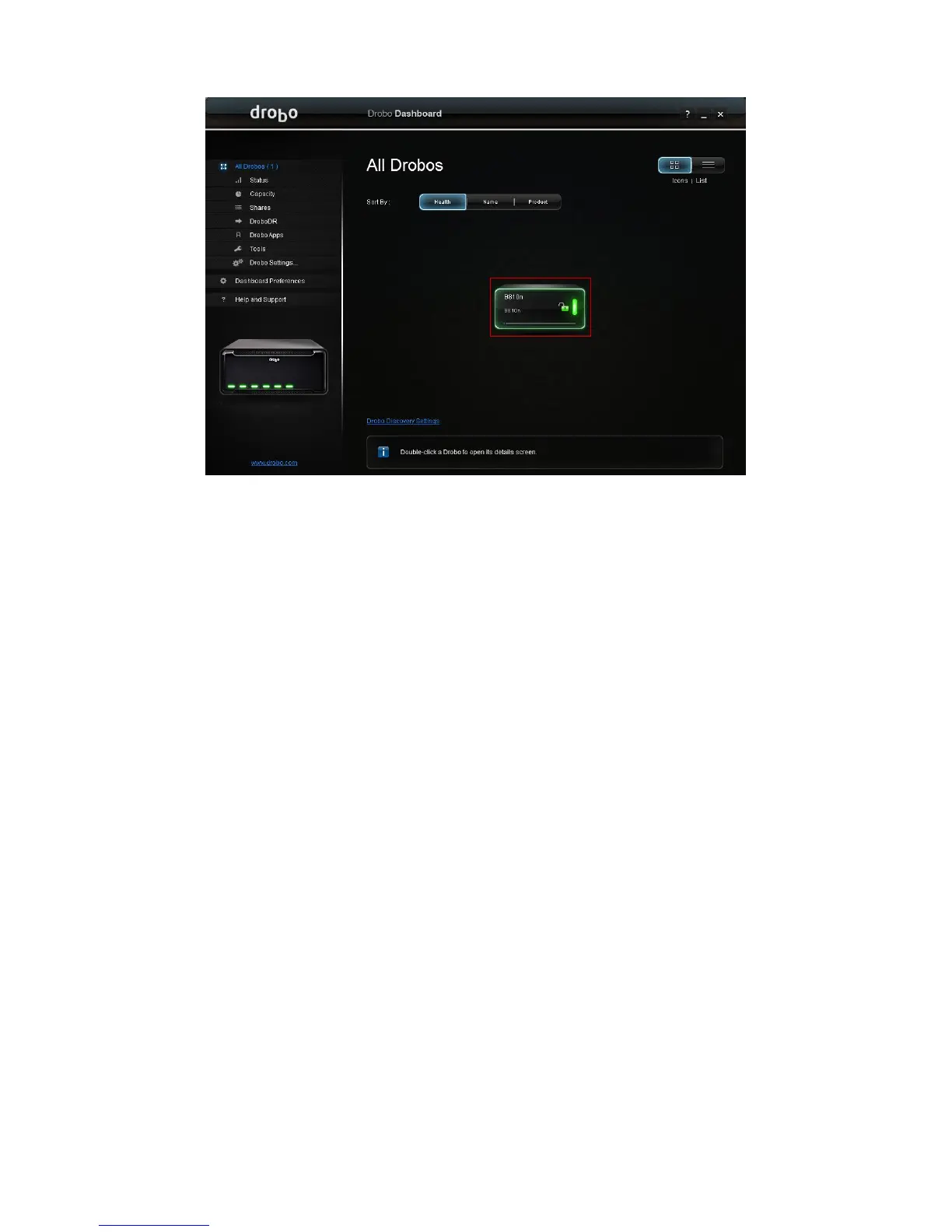
2. Then, click the Shares option on the Navigation menu. This opens the Share Settings window.
3. You will see the Public share that is created automatically under the Select a share section and
ready to use.
4. You can setup additional shares and users from the Share settings window.
Now, you can start using your Drobo B810n.
2.8 Using Drobo B810n with Time Machine or
backup software
2.8.1 Overview
Drobo B810n introduces the ability to create a dedicated backup volume for use with OS X Time
Machine, Windows Backup and Restore, or other backup software. The backup volume is
compatible with encrypted backup options. This article will show you how to set it up.
2.8.2 Creating a backup volume
These steps will create a fixed-size backup volume that will appear as a new disk, separate from your
main Drobo volume. Having this dedicated, fixed-size backup volume will prevent backup software
from filling your main Drobo volume with daily backups.


 To Next Page