Drobo B810n Getting Started Guide 28
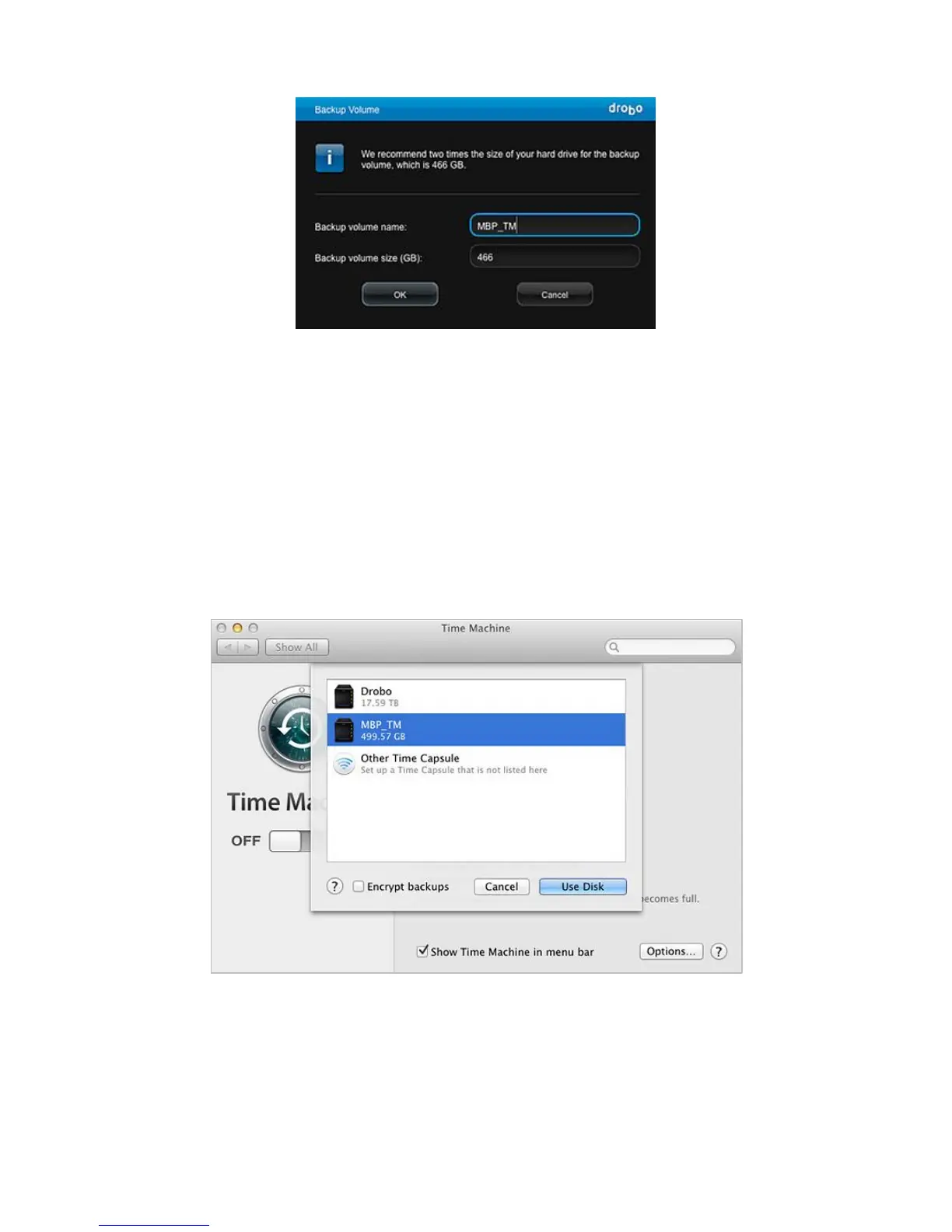
5. Click the OK button.
6. When you see the "Confirm Restart" dialog, take a moment to stop any activity on the Drobo
B810n, because it must restart. When you are ready, click Yes to continue.
7. Wait until you receive the message that "Volume management changes have been made
successfully," then click the OK button.
8. Now you will see the backup volume you created listed under Volumes. You may now close the
Drobo Dashboard.
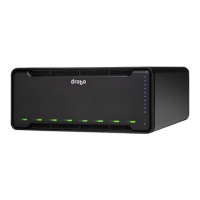
9. To finish the process, open the settings for your third-party backup software, such as Time
Machine, and select the backup volume that you created as the destination volume.
2.9 Safely shutting down your Drobo B810n
If you plan to shut down your Drobo B810n for any reason, it is very important that you always do so
safely. Improper Drobo device shutdowns may cause file corruption and/or data loss.


 To Next Page