Drobo B810n Getting Started Guide 32
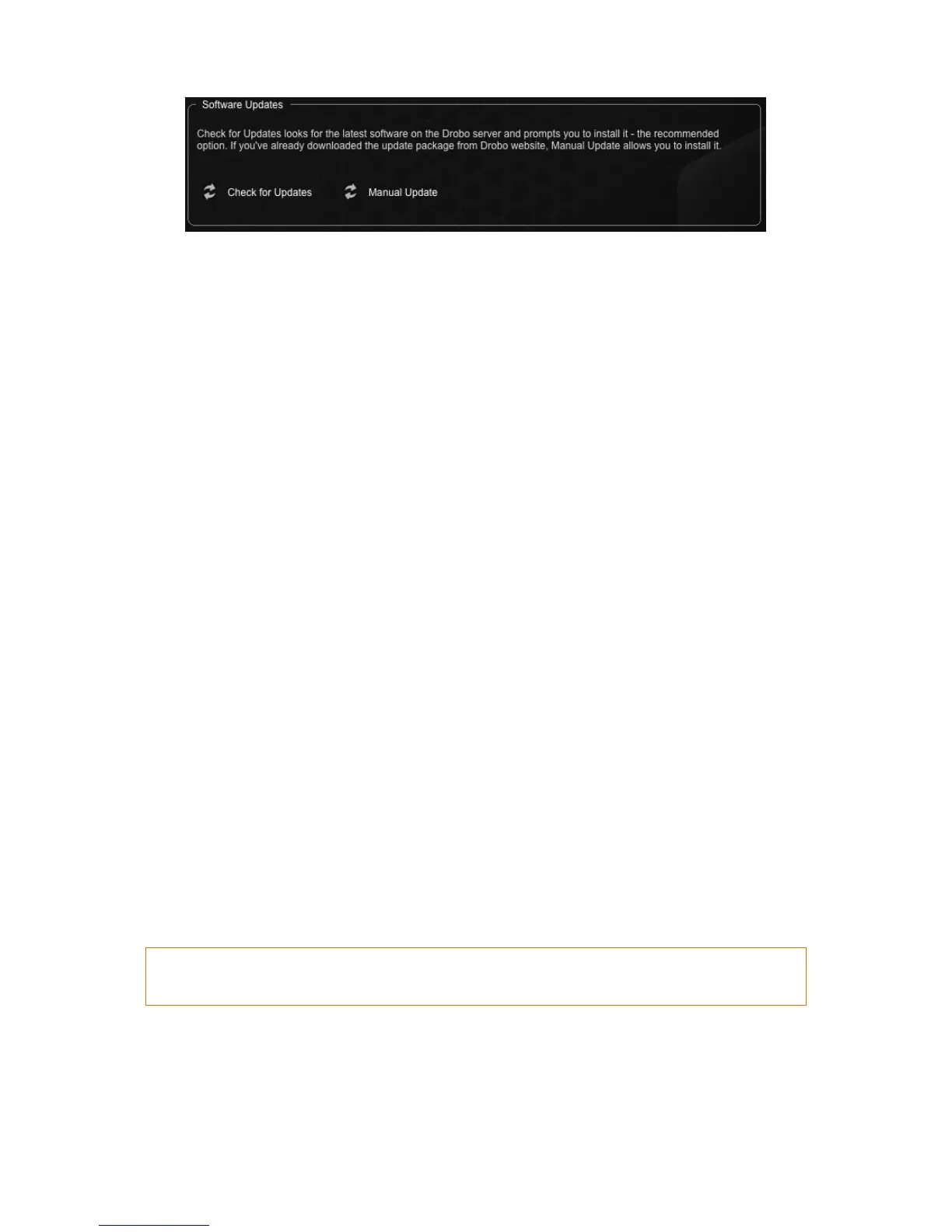
4. If a software update is available, a dialog box opens, asking if you would like to install the
update. Click the Yes button and follow the prompts to install the update.
3.3 Using online user guide
After you have set up your Drobo B810n, you are ready to use it to store and back up data. To learn
how to manage and use your Drobo B810n, refer to the Online User Guide for your product available
at the Drobo B810n page.
You can also access the user guide from the Drobo Dashboard by clicking the Help & Support
option on the Navigation menu. This will lead to the Help and Support page. From here, click the
View Drobo User Guide link to open the Online User Guide in a web browser.
3.4 Using context-sensitive help
On the top right corner of the Drobo Dashboard, you will find the Help button (?). Click this button
to view the context-sensitive help. The Help window opens in your Internet browser providing
information particular to the page from which you clicked for help.
3.5 Using knowledge base
Our searchable knowledge base provides answers to almost any questions related to your Drobo
B810n related specific support needs.
To access our knowledge base follow the steps below.
1. From the Drobo Dashboard, click the Help and Support option on the Navigation menu. The
Help and Support page opens.
2. In the Check Drobo online resources area, click the Search Knowledge Base link to open the
Drobo Knowledge Base web page.
3.6 Registering your Drobo B810n
If you did not register your Drobo B810n during setup, you can do so from the Drobo Dashboard. For
more information on registering your Drobo B810n, see Registering your Drobo B810n.


 To Next Page