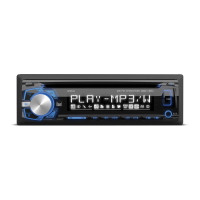
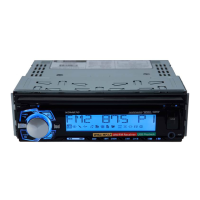
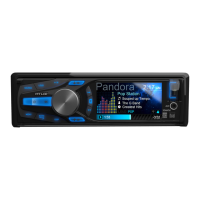
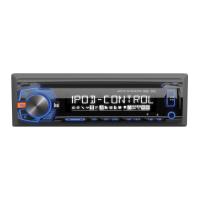
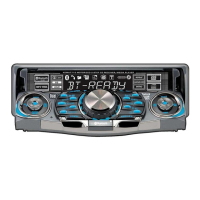
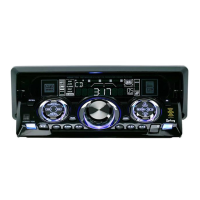
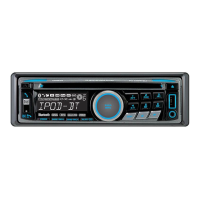
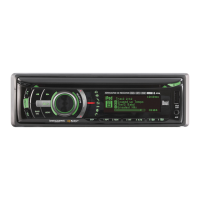
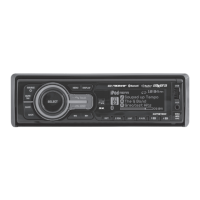
The Dual XDM290BT is an AM/FM/CD/USB receiver designed for in-car audio entertainment, featuring Bluetooth connectivity for wireless audio streaming and hands-free calling. This unit allows users to enjoy various audio sources, including traditional radio, compact discs, USB devices, and auxiliary input, all controlled through a user-friendly interface.
Function Description:
The XDM290BT serves as a central audio hub for vehicles, offering a range of functions to enhance the driving experience. It includes an AM/FM tuner for radio reception, a CD player for disc-based audio, a USB port for playing MP3 files from mass storage devices, and an auxiliary input for connecting external audio sources like MP3 players. The integrated Bluetooth functionality enables wireless connection to smartphones for audio streaming and hands-free phone calls.
Usage Features:
General Operation:
The unit can be powered on by pressing the power button or any other button (except EJECT) and turned off by pressing the power button. Users can switch between different audio modes (AM/FM, CD player, auxiliary, USB, Bluetooth) by pressing the MODE button. The volume is adjusted using a dedicated volume knob. The display shows various information, including the clock, ID3 tag information during MP3 playback, elapsed time, track number, and file/folder names, which can be rotated by pressing the DISP button. A reset button is available under the volume knob for initial installation or abnormal operation. The clock can be set by pressing and holding DISP, then using the TUNE buttons to adjust hours and minutes. The clock display can be set to 12-hour AM/PM or 24-hour format depending on the frequency spacing mode (USA or European).
Audio Controls:
The volume knob can be pressed momentarily to access audio settings such as Bass, Treble, Balance, Fader, EQ, Loudness, and Source Level. Each setting can be adjusted by rotating the volume knob left or right. For example, Bass and Treble can be adjusted from -6 to +6, while Balance and Fader offer left/right and front/rear adjustments, respectively. The EQ setting allows users to choose from predefined sound curves like USER, ROCK, BEAT, CLASSICS, JAZZ, POP, and FLAT. Loudness can be toggled ON/OFF, and Source Level adjusts the current source volume from -6 to +6.
A setup menu is accessible by pressing and holding the volume knob for more than 3 seconds. Within this menu, users can configure various options. "Auto Station Store" (in Tuner mode) allows the unit to seek and save 6 strong stations. "Local/Distance Tuning" can be toggled ON/OFF to activate local or distance tuning. "Tuner Frequency Spacing" can be set to USA (200kHz for FM, 10kHz for AM) or EURO (50kHz for FM, 9kHz for AM). The "Auxiliary Input" can be enabled or disabled. "Beep Confirmation" for button presses can also be toggled. "Programmable Turn On Volume" allows setting a specific volume level (1-30) for when the unit turns on, or it can be turned OFF. The "Power On Message" (e.g., "GOOD MORNING") can be enabled or disabled. "Scrolling Option" controls how information scrolls on the display, with options for 15-second intervals, once, or continuously, or showing only the first 10 characters. A "Demonstration Mode" can be enabled or disabled. Bluetooth functionality can be turned ON or OFF. "Auto Answer" for incoming phone calls can be set to automatically answer after 2-3 rings or require manual answering.
AM/FM Tuner Operation:
To seek the next strong station, users can press and hold the TUNE buttons. Manual tuning is achieved by momentarily pressing the TUNE buttons to change the frequency step by step, or by pressing and holding to advance quickly. The BAND button selects between FM1, FM2, FM3, AM1, and AM2 bands. Up to 18 FM and 12 AM stations can be stored as presets by selecting the desired station and holding a preset button (1-6) for more than 2 seconds. Stored stations can be recalled by pressing the corresponding preset button. The auto-store function, activated by holding the volume knob for more than 3 seconds, automatically stores the 6 strongest stations in the current band.
CD Player Operation:
A standard-sized CD is inserted label-side up into the CD slot, initiating automatic playback. The EJECT button ejects the CD, and if not removed within 10 seconds, the disc is reloaded. The unit does not need to be powered on to eject a CD. Track selection is done using the TRACK buttons to skip to the next or previous track. Fast forward and reverse are activated by pressing and holding the TRACK buttons. Playback can be paused and resumed using the PLAY/PAUSE button. The INT (Intro) function, accessed via the INT button and volume knob, allows playing the first 10 seconds of each track or tracks within a folder. The RPT (Repeat) function, accessed via the RPT button and volume knob, offers options to repeat all tracks on the CD, the selected track, or all files in the selected folder. The RDM (Random) function, accessed via the RDM button and volume knob, allows playing all tracks in random order or all tracks in a folder in random order. The unit is compatible with CD-ROM (ISO), CD-R, CD-RW, CD-DA, and MP3 data discs, but not with certain recording methods or MP3 PRO/playlists/WAV formats. MP3 playback order is based on the recording order of files in the root folder. The unit supports ISO9660 levels 1 and 2, Yellow Book modes, multi-session discs, and various character display information for track, directory, song, and artist names.
USB Operation:
The USB port supports playing MP3 files from most USB mass storage devices. Upon connecting a USB device, "USB READ" appears, and playback begins. If no valid MP3 files are found, "NO FILE" is displayed, and the unit reverts to the previous mode. Track selection, fast forward/reverse, and pause/resume functions are similar to CD operation. A file/folder search mode is available by pressing SELECT, allowing users to browse folders and files using the volume knob and SELECT button. The "ROOT" folder contains files in the root directory. The GO BACK button navigates back through the folder structure or exits the search menu. The unit supports MP3 files with filename extension .mp3 and displays ID3 tags up to version 2.4. It is recommended to limit folders to less than 30 songs due to variations in USB device transfer speeds. USB devices must be "mass storage class" and formatted to FAT or FAT32 file systems.
Bluetooth Operation:
The XDM290BT features Bluetooth for wireless connectivity. To pair a new device, ensure Bluetooth is activated on the device. The unit broadcasts its pairing signal as "DUAL BT" with a passcode "1234". If a device is already connected, it can be disconnected by pressing and holding the Bluetooth button to pair a new device. Most Bluetooth devices auto-connect when in range. If a previously paired device doesn't connect, users can press and hold the Bluetooth button to reconnect. The volume knob can be used to cycle through a list of paired devices or recent calls. The unit supports hands-free calling; incoming calls appear on the display with a ring tone. Calls can be received by pressing the Bluetooth button or refused by pressing and holding it. If "Auto Answer" is ON in the setup menu, calls are received automatically. During an active call, pressing the Bluetooth button ends the call, and the unit resumes the previous mode. The unit supports A2DP (advanced audio distribution profile) for wireless audio streaming and AVRCP (audio video remote control profile) for controlling music from the head unit. Functions include skipping tracks and toggling play/pause.
Dual iPlug P2 Smart App Remote Control:
The Dual iPlug P2 Smart App, available for Apple and Android smartphones, allows remote control of the receiver via Bluetooth. This app enables users to change modes, stations, songs, volume, and settings without direct line-of-sight to the unit.
Voice Activation:
The receiver includes a voice activation button for easy access to Siri® or Google Assistant™ via the car's Bluetooth. Pressing this button switches the receiver to Bluetooth mode and activates the smartphone assistant, allowing for hands-free interaction. Users must manually switch back to the desired mode after the voice activation operation.
Maintenance Features:
Troubleshooting:
The manual provides a troubleshooting guide for common issues. For instance, if the unit doesn't turn on, users should check the yellow, red, and black wire connections for proper voltage and ground, and inspect the fuse. If there's power but no sound, speaker wire connections should be checked, and bare wires insulated. For excessive skipping, the media should be checked for physical defects or read errors, and the eject or reset buttons pressed. If "ERR FILE" or "NO FILE" appears, the media or device should be checked for valid MP3 files. If a disc isn't accepted, the CD mechanism position or transit screws should be checked. "NO SUPPORT" on display indicates an invalid ID3 tag version (only versions 1.0 to 2.0 are supported).
FCC Compliance:
The device complies with FCC rules, ensuring it does not cause harmful interference and accepts any interference received. Users are warned against unauthorized modifications to avoid voiding their authority to operate the equipment. Troubleshooting steps for radio or television interference include reorienting the antenna, increasing separation between equipment, connecting to a different circuit, or consulting a technician.


 To Next Page
 General