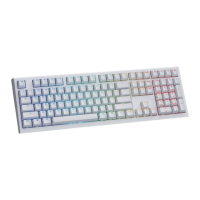
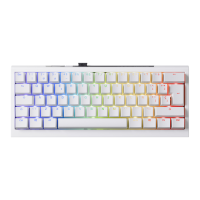
Recording steps:
RGB LED Zone Customization Modes
Note:
● When starting recording mode, Caps Lock will display the current LED Color.
● CM1、CM2 can work with other LED light modes at the same time. CM1 and CM2 can be turned on along
with other lighting modes. In addition, CM1 has the priority over CM2 when the zone overlaps.
Press Fn + Alt + T for 3 seconds to turn o ALL backlit modes.
● If there is no activity in 30 seconds in the recording mode, the recording session will terminate
without saving.
● Caps Lock LED color follows the “100% Full Backlit mode” .
1. Press Fn + Alt + Caps Lock for 3 seconds, the buttons G (CM1) and B (CM2) will illuminate then press G to set
CM1 and press B to set CM2.
2. When starting recording mode, Caps Lock will display the current LED color. The color can be adjusted by
hitting Caps Lock + Z / X / C / V. After setting the desired color, hitting any key on the keyboard will set that key
to the selected color.
3. Repeating the above steps allows the user to set dierent colors to dierent keys. If the key has been set,
press again to cancel the setting.
4. To finish recording, press Caps Lock + Left Shift (REC over) to finish recording. The color of the Caps Lock key is
the value you set.
● Adjust to the color first, then set the individual keys to be set to that color.
28


 To Next Page