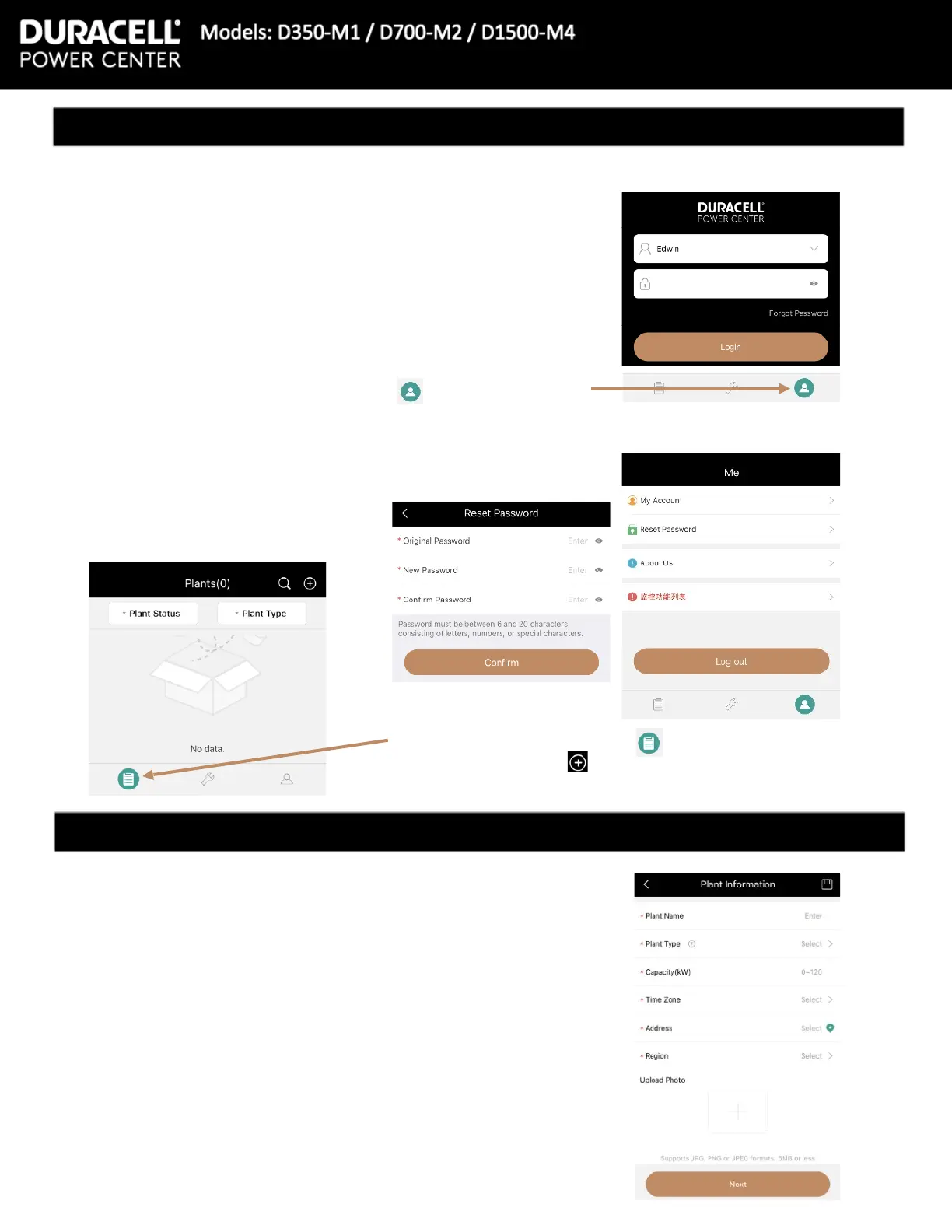
5 Press the [Reset Password] button
Type the Original Password, the preferred New Password, and
again in the Conrm Password eld.
6 Press the [Conrm] button
8 Please enter this information:
Plant Name, Plant Type (residential, commercial, Large
Commercial), Capacity (kW), Time Zone, Address, Region, and
Photo uploads are optional.
9 Press the [Next] button at the bottom of the screen.
7 Next press the Plants button on the bottom left
Once there, press the button in the top right
1 Open the Duracell Micro Inverter app
2 Enter the [Username] and [Password] for the account or enter
the information provided by the Tech Support Agent
Note: In the Address section, the current location map will come up. Type the
correct address unless it is provided on the bottom of the screen. Press the
conrm button on the top right. Region will ask for country, state, county, and
city.
3 Press the [Login] button at the bottom of the screen
4 Once logged in, press the Me button on the bottom right
Mobile App Commissioning Manual


 To Next Page