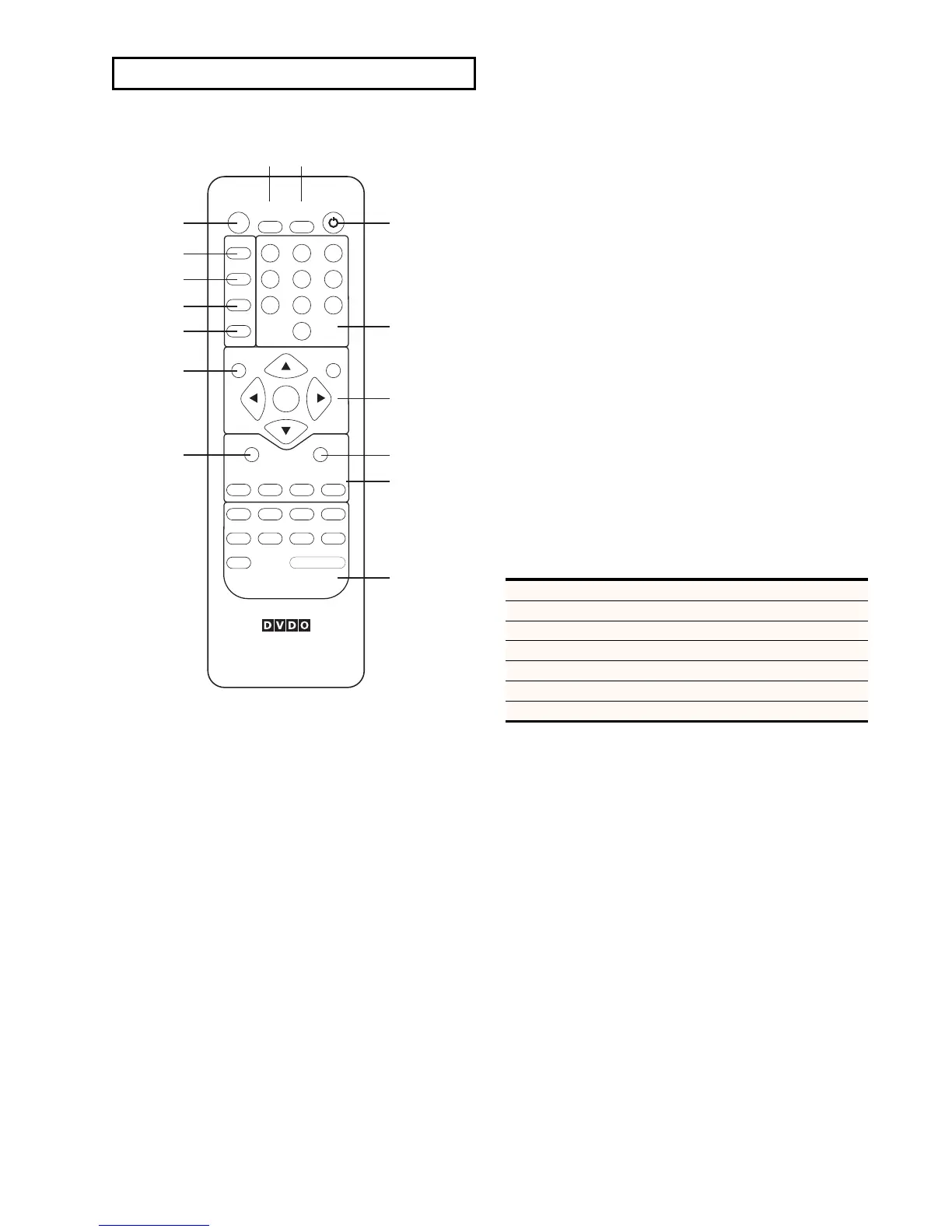
The iScan HD+ Infrared Remote Control (IRC) offers more func-
tionality and convenience than the front panel control buttons.
Unlike the front panel controls, the remote control has a com-
plete set of navigation buttons:
Left, Right, Up, Down, Enter,
and Exit. The remote control buttons have slightly different
behavior than the corresponding front panel buttons. The remote
control buttons and their control actions are described below.
On-Screen Display (OSD)
The on-screen display (OSD) of the iScan HD+ is self-explanatory.
It is activated from the remote control or from the front panel.
We have designed the OSD’s behavior to be consistent with the
front panel and commands issued from the remote control.
Output Setup
This button has the same functionality as the Output Setup
button on the front panel. (See Output Setup, page 8.) Use the
navigation control buttons to select the desired function and
adjust the settings.
Configuration
The Config button has the same functionality as the
Configuration button on the front panel. (See page 13.)
It activates the OSD. Use the navigation control buttons to
select the desired function and adjust the settings.
Picture Control
This button has the same functionality as the Picture Control
button on the front panel. (See Picture Control, page 11.) Use
the navigation control buttons to select the desired function
and adjust the settings.
Input Adjust
This button has the same functionality as the Input Adjust but-
ton on the front panel. (See
Input Adjust Control, page 12.) Use
the navigation control buttons to select the desired function
and adjust the settings.
Menu
This button activates the top level OSD menu, which lists the
controls in the table below.
Use the navigation control buttons to select the desired function
and adjust the settings.
Zoom
This button puts the iScan HD+ into Zoom mode. Unlike the
Zoom function activated from the front panel, you can use the
navigation buttons to zoom up, down, left and right. There is
currently no OSD for this mode.
Pan
This button puts the iScan HD+ into Pan mode. Unlike the Pan
function activated from the front panel, you can use the naviga-
tion buttons to pan up, down and left and right. There is cur-
rently no OSD for this mode.
Aspect Ratio Buttons
There are four buttons to directly set the input aspect ratios:
䊳
4:3
䊳
LBX (Letterbox)
䊳
16:9
䊳
PRESET
The
Preset button acts just like the PRST function described earlier
(page 10). It defaults to 16:9 and stores a custom aspect ratio that
you’ve defined using Zoom, Pan and Borders functions.
15
Controls FPD shows
Input Select INPT
Input Aspect Ratio I_AR
Input Adjust IADJ
Picture Control PICT
Configuration CNFG
Output Setup OSET
REMOTE CONTROL OPERATION



 To Next Page