GX`
< When connecting with IP Router or Hub >
If you have already been provided a dynamic IP address from a DHCP Server or IP Router in your local area
network, you don’t need to write a static IP address. Use ‘Obtain an IP address automatically on’ or write an
IP address & Subnet mask that the DHCP Server or the IP Router provides.
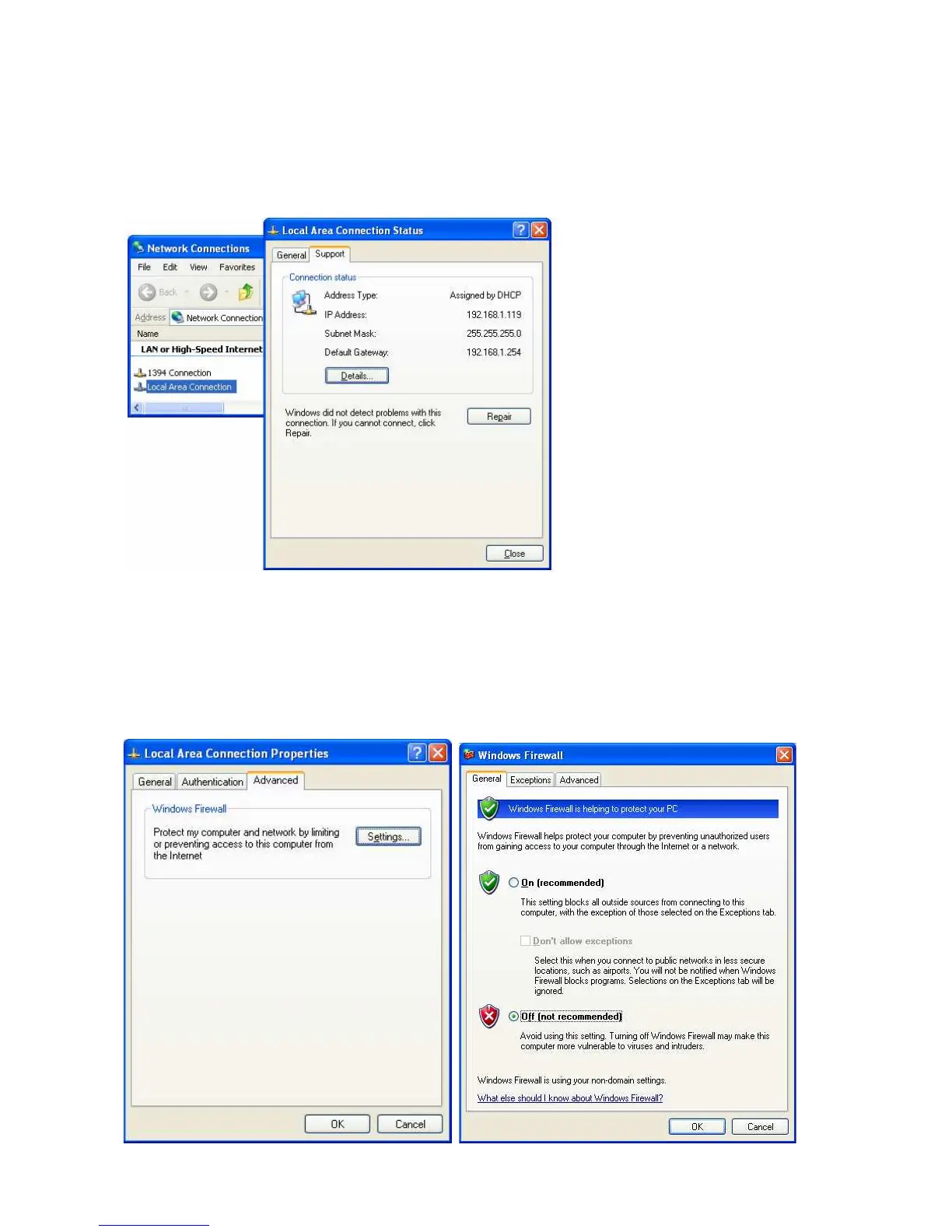
Select ‘Control Panel’ > ‘Network Connections’, and select ‘Status’ properties by right clicking the mouse.
After clicking the Support tab, you should see an IP Address. (ex: 192.168.1.127)
< Disable Windows Firewall >
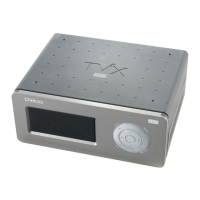
14) Move to ‘Control Panel’ > ‘Network Connections’, and select ‘Properties’ by right clicking the mouse.
Click the ‘Advanced’ tab. Disable ‘Internet Connection Firewall’.
15) If you use service pack 2, click ‘Settings’ at ‘Windows Firewall’.
16) Check ‘Off’ and then click ‘OK’


 To Next Page