GY^
5 Easy Usage of TViX HD
5.1 Play Video Files
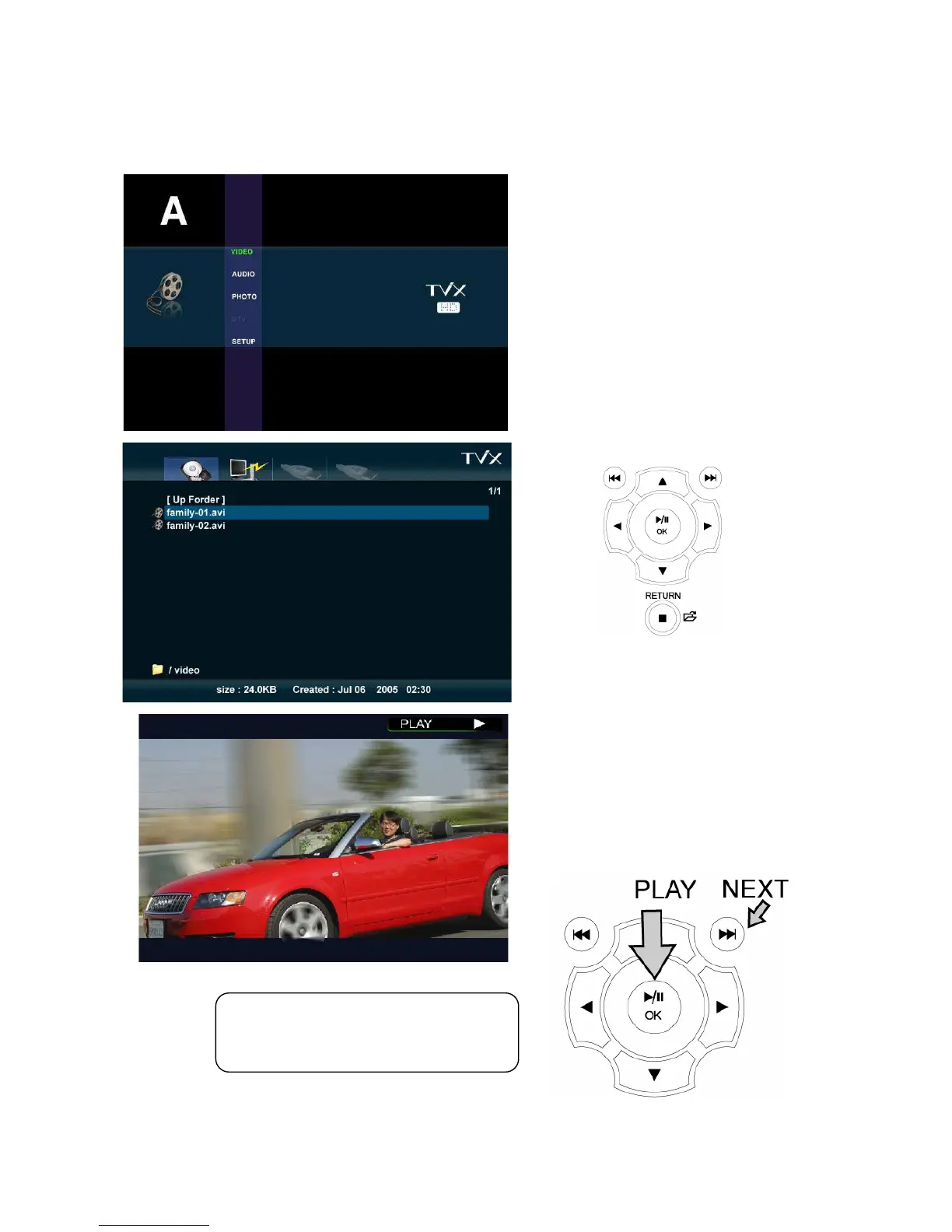
When installation is successfully finished, you
will see screen A.
You may copy a video file into the VIDEO folder
in advance.
1. SETUP, VIDEO, AUDIO, PHOTO icons is
shown.
2. Select the Video icon by using the Left/Right
button. If you want to change the partition of
the HDD, press the Jump/Repeat button.
3. After selecting the icon, press the OK button.
4. You will see 2 files in the Video folder.
5. Using the up/down button, select the Video
file.
By pressing the OK button, you will be able to
play the video file.
TIPS
If you want to play the next video, press
the NEXT(ඖඖ|) button.


 To Next Page