EasyManua.ls Logo

DXG DXG-533V - User Manual

DXG DXG-533V
82 pages
Print Icon
To Next Page IconTo Next Page
Loading...
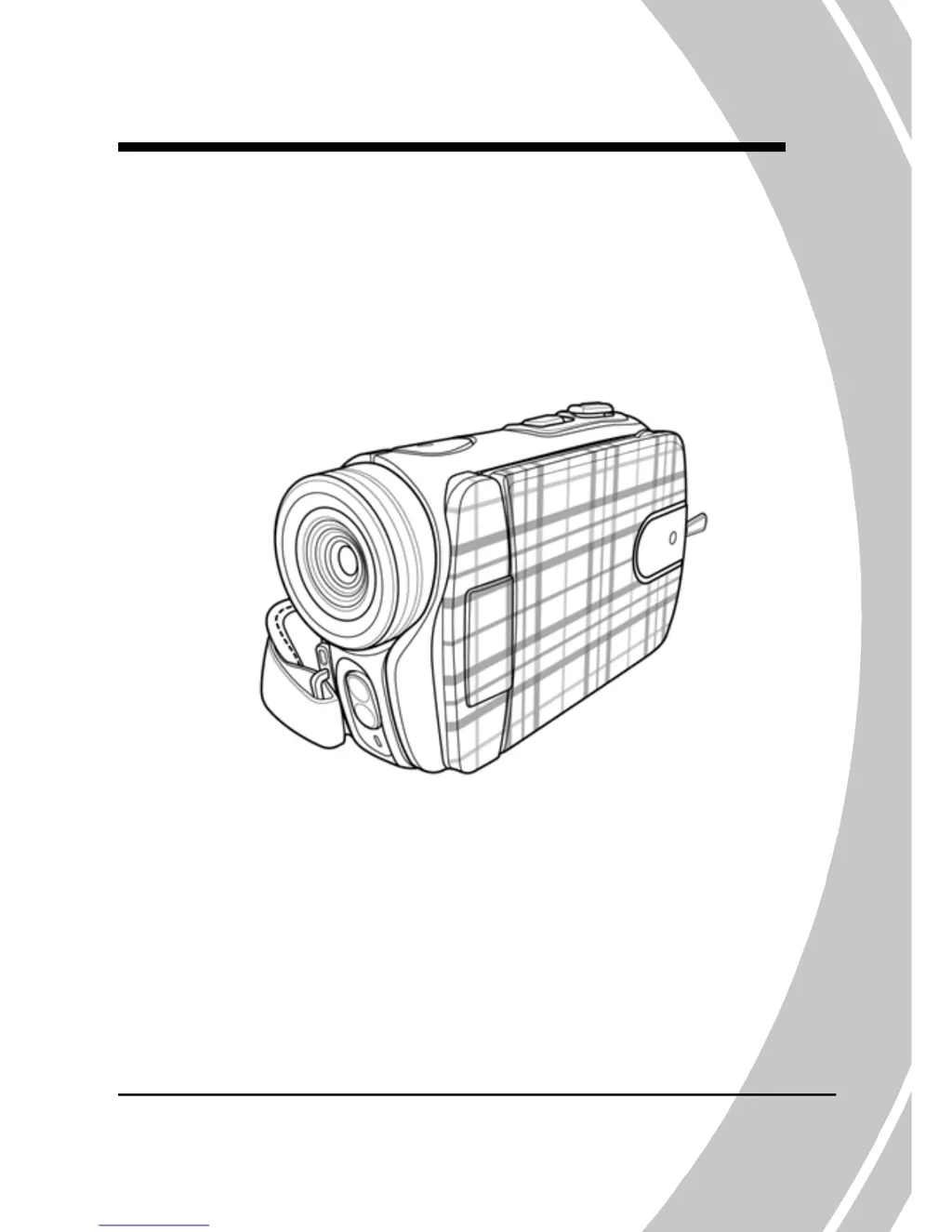
DXG-533V and DXG-535V HD
User’s Manual
DXG USA

Table of Contents

Other manuals for DXG DXG-533V

Questions and Answers

  • S
    Steve SmithJul 29, 2025
    Why does my DXG DXG-533V suddenly turn off?
    • A
      ashawJul 29, 2025
      There are two common reasons why your DXG Camcorder might be turning off unexpectedly. One possibility is that the auto power off function is enabled, so simply turn the power back on. Alternatively, the camera could be running out of battery power, so try replacing the batteries.
  • K
    Kim ScottAug 3, 2025
    What to do if my DXG Camcorder says memory card cannot be used?
    • S
      Stephanie CameronAug 4, 2025
      If your DXG Camcorder says a memory card cannot be used, the card might be locked; try unlocking it. Another reason could be that the memory card contains images taken by other cameras that are not in DCF format. In this case, format the memory card, but be sure to back up any important files first, as described in section 4.5.5.
  • M
    Madeline BowmanAug 8, 2025
    Why is my DXG DXG-533V image out of focus?
    • A
      Albert JonesAug 8, 2025
      If the image from your DXG Camcorder is out of focus, it could be that the subject is beyond the camera's focus range. Try taking the picture within the available focus range, and consider using normal or macro mode as described in section 3.2.2.
  • K
    Kelly GarnerAug 13, 2025
    What to do if my DXG Camcorder captured image is not stored in memory?
    • D
      David KeithAug 13, 2025
      If your DXG Camcorder is not storing captured images, it's possible the power was cut off before the image could be saved. Replace the batteries immediately when the battery indicator turns red to avoid this issue.
  • U
    uburnsAug 18, 2025
    Why does my DXG Camcorder turn off when capturing image using self-timer?
    • M
      michaelmclaughlinAug 18, 2025
      If your DXG Camcorder turns off when using the self-timer, the camera is likely running out of battery power. Replace the batteries to resolve this issue.
  • L
    Lisa NguyenAug 25, 2025
    What to do if all DXG Camcorder buttons are inactive?
    • J
      Jacqueline BrownAug 25, 2025
      If all the buttons on your DXG Camcorder are inactive, it's possible a short circuit occurred when connecting the camera to another device. Try removing the batteries from the camera and then reinserting them.

Summary

1 Introducing the camera

1.1 System Requirements

PC specifications needed to use the video camera.

1.4 About the camera

2 Getting started

2.1 Inserting an SD card

Steps for inserting an SD card into the video camera for storage.

2.2 Inserting the batteries

Instructions on how to properly insert batteries into the video camera.

2.5 Initial Setup and Configuration

2.6 Shoot;Playback video

2.6.1 Shooting a video clip

Detailed steps for recording video clips with the camera.

2.6.2 Playing the video clip

How to playback recorded video clips on the camera.

2.7 Taking;viewing pictures

2.7.1 Taking a still picture

Guide on how to capture still images using the camera.

2.7.2 Viewing images

Instructions for viewing captured still images on the camera.

2.8 Connectivity Options

2.8 Connecting to a computer

How to connect the camera to a PC for file transfer.

2.9 Connecting to a standard TV

Steps to connect the camera to a standard TV using the AV cable.

2.11 Connecting to an HDTV

How to connect the camera to an HDTV using an HDMI cable.

3 Using the camera

3.1 Movie and voice recorder mode

How to use the camera for recording video clips and voice memos.

3.6 USB mode

4 Using the menus

4.1 Movie menu

Accessing and using the camera's menu options in Movie mode.

4.2 Movie playback menu

Managing movie files stored in the camera's memory or SD card.

4.1 Movie menu

4.2 Movie playback menu

4.3 Photo menu

4.4 Photo playback menu

4.5 System menu

4.5.5 Format

Formatting storage media (memory card or internal memory).

5 Installing the software

5.1 Presto! Video Works

Installing the video editing software included with the camera.

5.2 Presto! Mr. Photo

Installing the photo editing software included with the camera.

Appendix

Specifications

Technical specifications of the DXG-533V/DXG-535V camera.

Troubleshooting

Solutions to common problems encountered while using the camera.

DXG DXG-533V Specifications

General IconGeneral
Resolution5.0 MP
Video Resolution640 x 480
Digital Zoom4x
Display2.4" LCD
StorageSD card
Optical Sensor TypeCMOS
BatteryLithium-ion

Related product manuals