EasyManua.ls Logo

DXG DXG-579V - User Manual

DXG DXG-579V
78 pages
Print Icon
To Next Page IconTo Next Page
Loading...
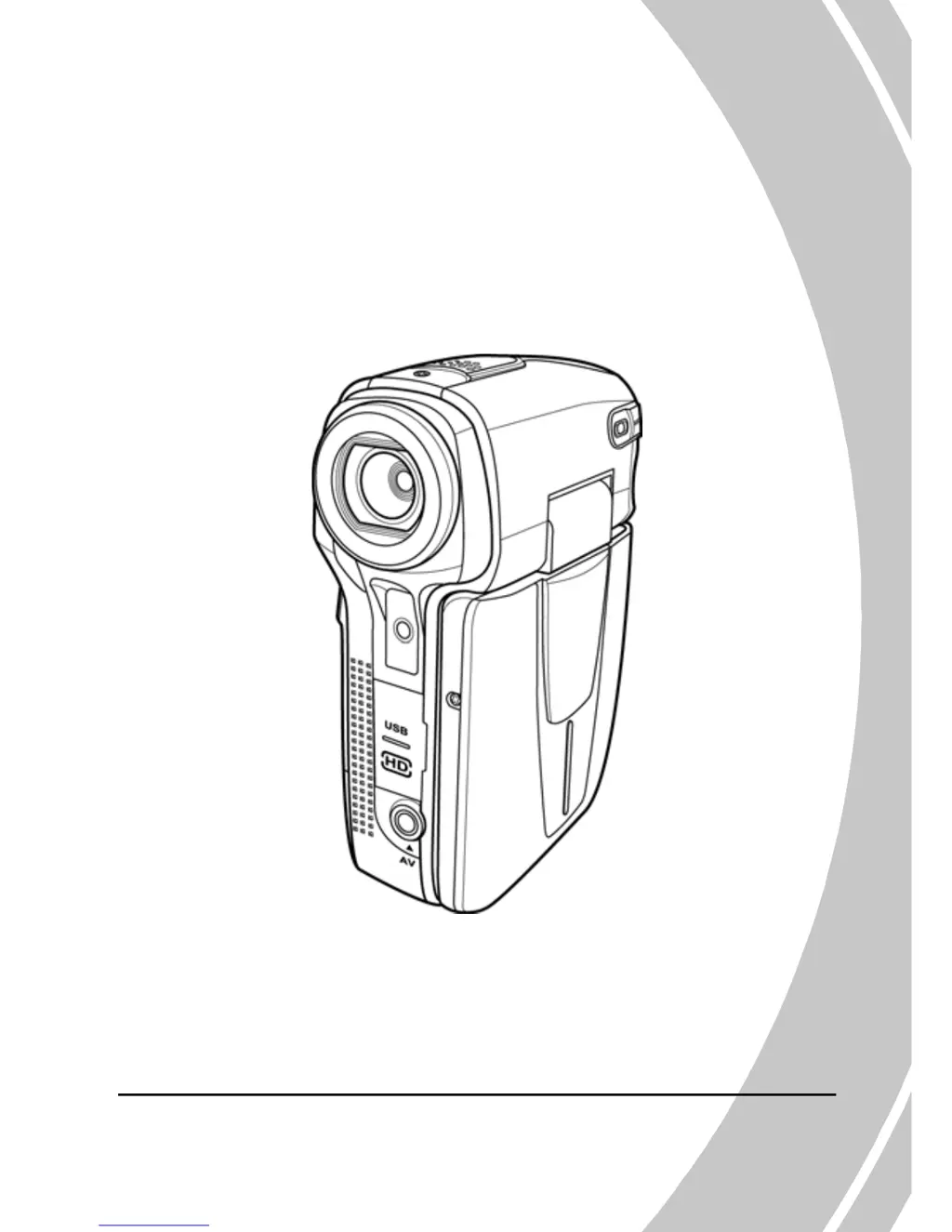
HD-DV Camcorder
User’s Manual

Table of Contents

Other manuals for DXG DXG-579V

Questions and Answers

  • C
    Cheryl RobertsJul 30, 2025
    Why does my DXG Camcorder say memory card cannot be used?
    • M
      Michelle MillerJul 30, 2025
      Your DXG Camcorder might display this message because the memory card is locked. Unlock the memory card to resolve this. Alternatively, the memory card may contain non-DCF images from other cameras. In this case, format the memory card after backing up your files.
  • M
    Michael MartinAug 4, 2025
    What to do if my DXG DXG-579V Camcorder image is out of focus?
    • H
      Haley LopezAug 4, 2025
      If your DXG Camcorder image appears out of focus, it could be because the subject is beyond the focus range. Try taking the picture within the available focus range and consider using normal or macro mode.
  • C
    Cindy GordonAug 9, 2025
    Why does my DXG DXG-579V Camcorder suddenly turn off?
    • A
      arellanobarbaraAug 9, 2025
      Your DXG Camcorder might be turning off suddenly because the auto power off function is enabled. Simply turn the power back on. Alternatively, the camera could be running out of battery power, so try replacing the batteries.
  • A
    awhiteheadAug 14, 2025
    How to fix inactive buttons on DXG Camcorder?
    • S
      Sean BryantAug 14, 2025
      If all the buttons on your DXG Camcorder are inactive, it might be due to a short circuit caused by connecting the camera to other devices. To fix this, remove the batteries from the camera and then reinsert them.
  • G
    Gabriel JamesAug 19, 2025
    What to do if DXG DXG-579V Camcorder turns off when using self-timer?
    • H
      hernandezconnieAug 19, 2025
      If your DXG Camcorder turns off when capturing an image using the self-timer, the camera is likely running out of battery power. Replace the batteries.
  • T
    Tiffany CalderonAug 25, 2025
    What to do if captured image is not stored in DXG Camcorder memory?
    • A
      Andrew FloresAug 25, 2025
      If the captured image is not being saved in your DXG Camcorder, it might be because the power was cut off before the image could be saved. When the battery indicator turns red, immediately replace the batteries.

Summary

1 Introducing the camera

1.1 System requirements

Details PC specifications required to operate the video camera.

2 Getting started

2.1 Inserting an SD card

Step-by-step guide for inserting an SD card into the camcorder.

2.2 Inserting the batteries

Instructions on how to correctly insert the AAA type batteries.

2.6 Shoot;Playback video

Covers recording and playing back video clips.

2.6.1 Shooting a video clip

Step-by-step instructions for recording a video clip.

2.7 Taking; viewing pictures

Instructions for capturing and viewing still images.

2.7.1 Taking a still picture

Steps to capture a still image with the camcorder.

3 Using the camera

3.1 Movie and voice recorder mode

Details on using the camera for video and audio recording.

3.1.1 Movie and voice recorder mode

Explanation of icons and symbols in Movie and Voice recorder modes.

3.2 Photo mode

Instructions for capturing still pictures.

3.2.1 Photo mode icons

Explanation of icons and symbols displayed in Photo mode.

3.3 Movie Playback mode

How to review recorded movie files.

3.3.1 Movie Playback mode icons

Explanation of icons and symbols in Movie Playback mode.

3.4 Photo Playback mode

How to review recorded image files.

3.4.1 Photo Playback mode icons

Explanation of icons and symbols in Photo Playback mode.

4 Using the menus

4.1 Movie menu

Details on accessing and using the Movie mode menu options.

4.1.1 White balance

How to adjust white balance for different lighting conditions.

4.1.2 Video resolution

Guide to selecting video resolution settings.

4.1.3 Color effect

How to apply color effects like B&W or Sepia.

4.1.4 Night mode

Instructions for using the night mode for low-light shooting.

4.5.5 Format

How to format the storage media, erasing all data.

5 Installing the software

Appendix

Troubleshooting

Solutions to common problems encountered with the camcorder.

DXG DXG-579V Specifications

General IconGeneral
BrandDXG
ModelDXG-579V
CategoryCamcorder
LanguageEnglish

Related product manuals