EasyManua.ls Logo

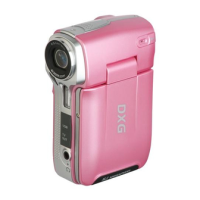
DXG DXG-565V - User Manual

DXG DXG-565V
98 pages
Print Icon
To Next Page IconTo Next Page
Loading...
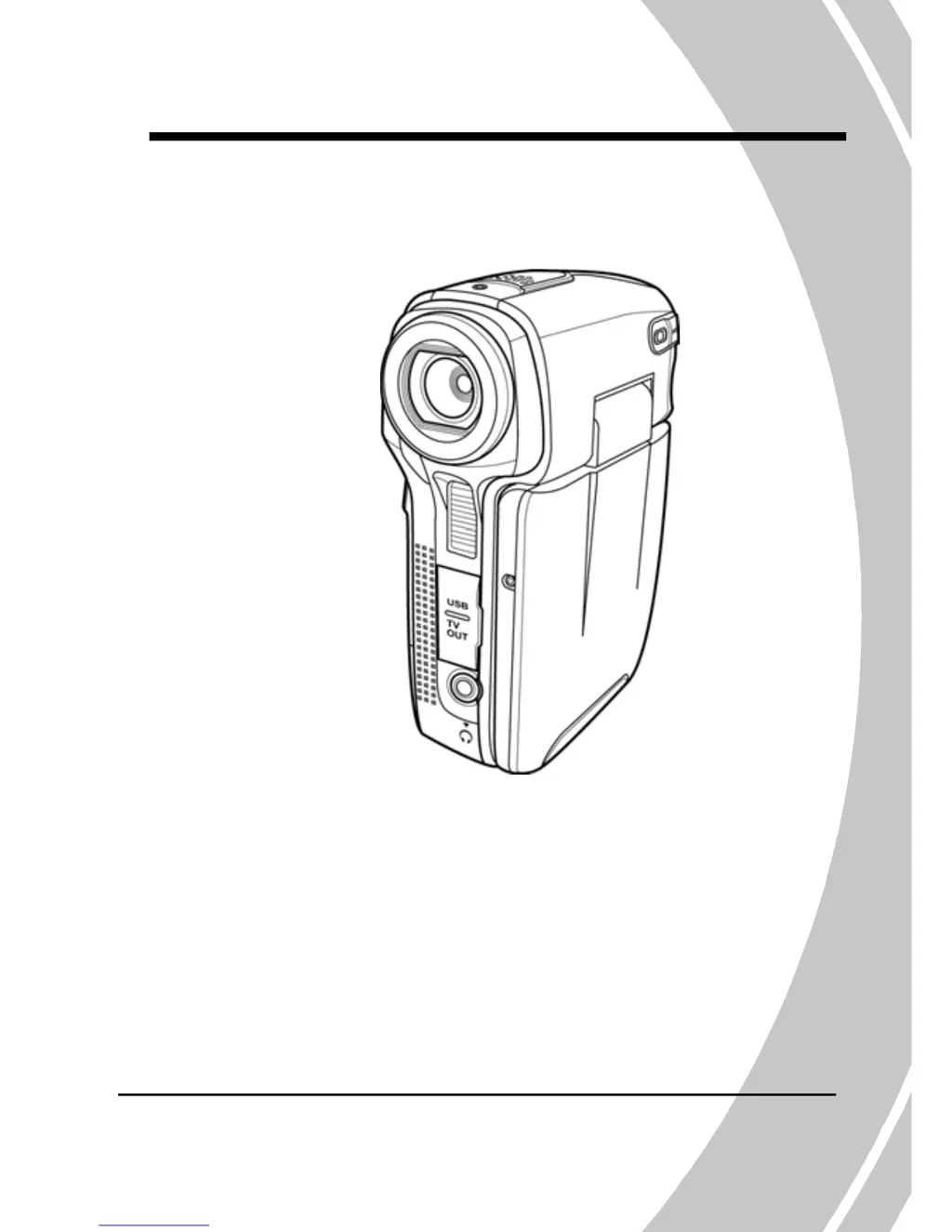
DXG-565V
User’s Manual
DXG USA

Table of Contents

Other manuals for DXG DXG-565V

Questions and Answers

  • B
    butlerlindseyJul 28, 2025
    What to do if my DXG DXG-565V memory card cannot be used?
    • M
      mckinneyangelaJul 28, 2025
      If your DXG Camcorder says the memory card cannot be used, it might be protected, so unlock it. Also, the memory card may contain non-DCF images taken by other cameras. In that case, format the memory card, but be sure to back up your files first.
  • J
    John MillerAug 1, 2025
    Why my DXG DXG-565V cannot turn on?
    • B
      brobersonAug 1, 2025
      If your DXG Camcorder won't turn on, the batteries may not be inserted correctly, so ensure they are properly inserted. Also, the batteries might be out of power, so try replacing them.
  • O
    ostoutAug 6, 2025
    What to do if my DXG Camcorder suddenly turns off?
    • L
      Linda RobinsonAug 6, 2025
      If your DXG Camcorder suddenly turns off, it could be because the power off function was enabled. In this case, turn the power on again. Alternatively, the camera might be running out of battery power, so replace the batteries.
  • B
    Brandy SantosAug 10, 2025
    What to do if my DXG DXG-565V Camcorder image is out of focus?
    • E
      Erin KentAug 10, 2025
      If the image from your DXG Camcorder is out of focus, it might be because the subject is beyond the focus range. Try taking the picture within the available focus range and choose normal or macro mode.
  • N
    Nicholas LewisAug 14, 2025
    What to do if all buttons are inactive on my DXG Camcorder?
    • M
      michellepattonAug 14, 2025
      If all the buttons on your DXG Camcorder are inactive, a short circuit might have occurred when connecting the camera with other devices. Remove the batteries from the camera and insert them again.
  • E
    Elizabeth GriffinAug 19, 2025
    What to do if my DXG DXG-565V turns off when capturing image using self-timer?
    • A
      Anthony CobbSep 12, 2025
      If your DXG Camcorder turns off when capturing an image using the self-timer, the camera is likely running out of battery power. Replace the batteries.
  • H
    hkellerAug 23, 2025
    What to do if the captured image is not stored in memory of my DXG Camcorder?
    • A
      asmithAug 23, 2025
      If the captured image is not stored in memory on your DXG Camcorder, it could be because the power was cut off before the image was saved. When the battery indicator turns red, charge the battery immediately.

Summary

Precautions

General precautions

Lists critical safety guidelines regarding environment, handling, and repair.

Operation conditions

Details environmental and operational limits for the camera.

Before You Start

Power supply

Guidance on battery usage and correct insertion to prevent damage.

1 Introducing the camera

1.1 System requirements

Lists the PC hardware and software specifications needed for camera operation.

Camera Controls and Operation

Power, Menu, and Mode Selection Controls

Details the function of the Power Switch, Menu button, and Mode Dial.

Directional Pad for Navigation

Explains the operation of the Directional Pad for menu navigation.

Shutter, Macro, Playback, and Display Buttons

Describes the Shutter, Macro, Playback, and Display/Help buttons.

Scroll Wheel for Adjustments and Playback

Explains the use of the scroll wheel for adjustments and playback.

2 Getting started

2.1 Inserting an SD card

Step-by-step guide to inserting an SD card into the camera.

2.2 Inserting the batteries

Instructions for correctly inserting AAA batteries into the camera.

2.5 Before you start

Preparation steps before using the camera for the first time.

2.5.1 Setting the date and time

Guide to configuring the camera's date and time settings.

2.5.2 Setting the language

Instructions for selecting the preferred display language for the camera.

2.6 Shoot;Playback video

Instructions for recording and playing back video clips.

2.6.1 Shooting a video clip

Step-by-step guide on how to record video clips with the camera.

2.6.2 Playing the video clip

Instructions for viewing recorded video clips on the camera.

2.7 Taking;viewing pictures

Instructions for capturing and reviewing still images.

2.7.1 Taking a still picture

Guide on how to capture still photographs using the camera.

2.7.2 Viewing images

Instructions for reviewing still images stored on the camera.

2.9 Voice recording

Instructions for recording and playing back voice memos.

2.9.1 To make a voice recording

Steps for recording audio using the voice recording function.

2.9.2 To playback a voice file

Instructions on how to listen to recorded voice files.

2.10 Connecting to a computer

Guide to connecting the camera to a PC for file transfer or webcam use.

2.11 Connecting to a TV

Instructions for connecting the camera to a television for playback.

2.12 Connecting earphones

How to connect earphones to the camera for private listening.

3 Using the camera

3.1 Movie mode

Instructions for using the camera in video recording mode.

3.1.2 Quick access menu

How to use the quick access menu for adjustments in Movie mode.

3.2 Photo mode

Instructions for capturing still images.

3.2.2 Using the macro function

Guide to using the macro function for close-up photography.

3.2.3 Using the zoom function

Instructions on how to use the digital zoom feature.

3.8 USB mode

Instructions for connecting the camera to a PC via USB.

4 Using the menus

4.7.3 Format

How to format the storage media, deleting all data.

6 Installing software and drivers

6.1 Drivers

Information on installing camera drivers for PC connectivity.

Troubleshooting

Troubleshooting Common Issues

Provides solutions for common problems like camera not turning on or memory issues.

DXG DXG-565V Specifications

General IconGeneral
BrandDXG
ModelDXG-565V
CategoryCamcorder
LanguageEnglish

Related product manuals