MULTIPLE LINES
Press ENTER to start the next line of text on a multi-line label.
This is a two
↵ line label on the display will be printed as:
and the display will indicate two lines: (show line display)
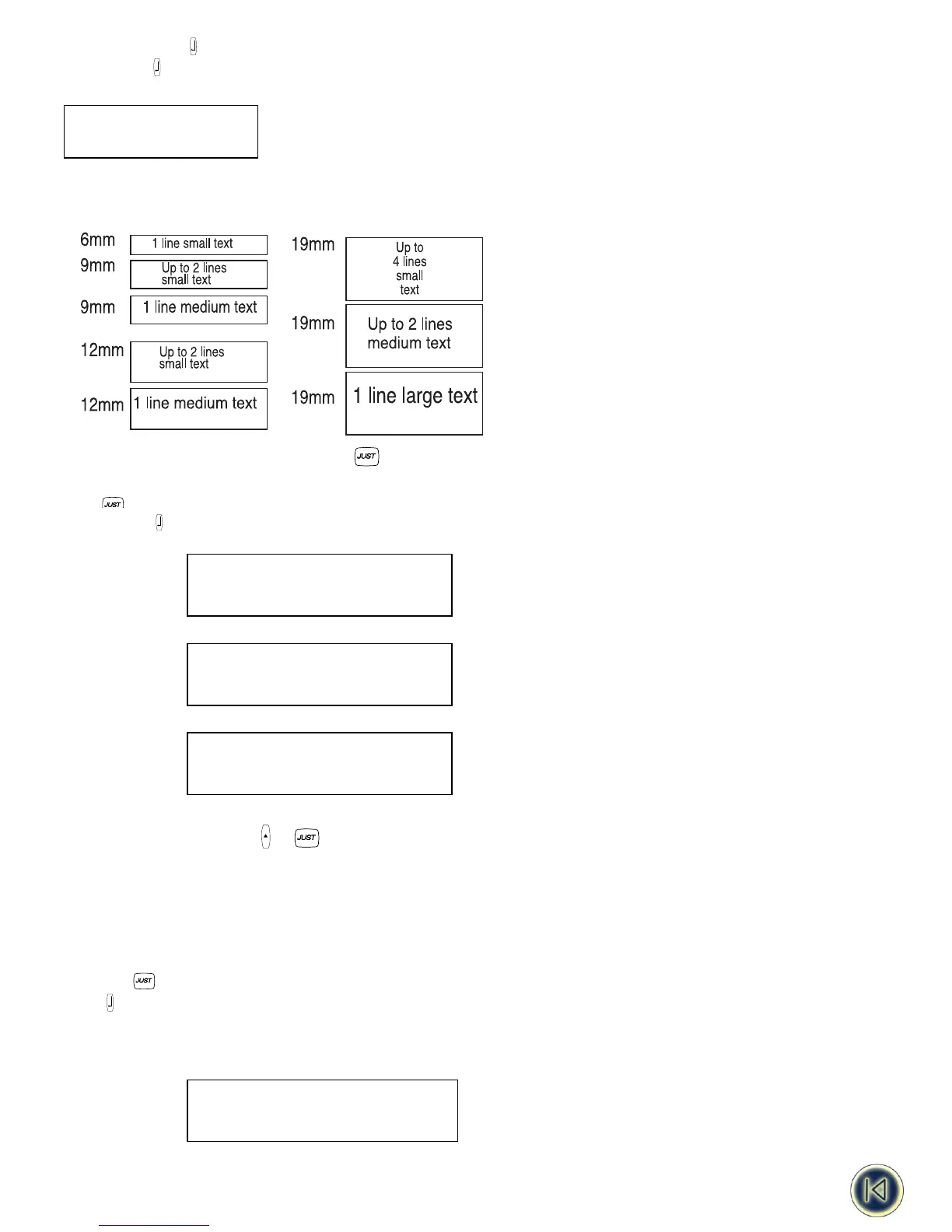
You can print up to four lines on one label, depending on the width of the tape you are using:
JUSTIFYING TEXT IN MULTI-LINE LABELS
For multi-line labels, you can choose three options for your text alignment: left-justified, centre-justified, or right-justified.
Press repeatedly to toggle between these three options, which are shown on the left of the display.
Press ENTER to make your selection.
left justified:
centred:
right justified:
ALIGNING TEXT ON A LABEL +
For fixed-length labels, you can also choose how you position your text in relation to the edge of the label: left, centred, or
aligned right.
Left-aligned will place the blank space within the label after the text (on the right).
Right-aligned will place the blank space within the label before the text (on the left)
Centre-aligned will split the blank space within the label equally on both sides of the text.
Press H + to toggle between the different alignment combinations (left, centred, right).
Press to make your selection
Note that you can combine these alignments with different justifications of your multi-line labels (see following table for nine
possible combinations).
left-justified
left-aligned:
STAIRCASE
emergency lighting
BX-243






 To Next Page