EasyManua.ls Logo

Dynex DX-32L150A11 - User Manual

Dynex DX-32L150A11
38 pages
Print Icon
To Next Page IconTo Next Page
Loading...
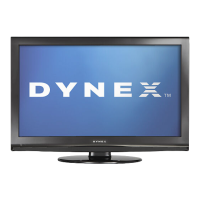
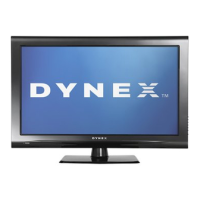
32", 37", 40", and 46" LCD TVs
DX-32L150A11
DX-37L150A11
DX-40L130A11
DX-46L150A11
USER GUIDE
DX-32L-37L-46L150A11_10-0012.book Page 1 Thursday, January 14, 2010 8:30 AM

Table of Contents

Other manuals for Dynex DX-32L150A11

Questions and Answers

  • R
    Randy WestAug 12, 2025
    Why is my Dynex DX-32L150A11 LCD TV remote control not working?
    • M
      Madison RoseAug 12, 2025
      If your Dynex LCD TV remote control isn't working, first, ensure the TV's power cord is plugged in. Then, check for any obstructions between the remote and the TV's remote control sensor, located on the front of the TV. Next, make sure the batteries are correctly installed in the remote. If the problem persists, try replacing the batteries with new ones.
  • J
    Jimmy ThomasAug 16, 2025
    What to do if my Dynex LCD TV has no picture and no sound?
    • M
      Melanie ThomasAug 16, 2025
      If your Dynex LCD TV has no picture and no sound, ensure the power cord is properly plugged in. Then, press the POWER button on either the TV or the remote control. Verify that you've selected the correct video input source. As a final step, try changing to another channel, as the station itself might be experiencing technical difficulties.
  • K
    katieclineAug 19, 2025
    How to fix a Dynex LCD TV with a good picture but no sound?
    • S
      Sandra CooperAug 19, 2025
      If your Dynex LCD TV has a good picture but no sound, first, make sure that the sound is not muted. Then, verify that the sound mode is set to either Stereo or Mono.
  • C
    Calvin FoxAug 25, 2025
    Why is the picture on my Dynex DX-32L150A11 LCD TV dark, poor, or not showing, but the sound is good?
    • P
      patrickralphAug 25, 2025
      If you're experiencing a dark, poor, or absent picture on your Dynex LCD TV while the sound is working, try adjusting the brightness settings. Also, ensure that the correct picture mode is selected. Finally, check that the antenna or cable TV is securely and correctly connected.
  • J
    Jennifer JohnsonAug 27, 2025
    What to do if my Dynex DX-32L150A11 LCD TV only shows snow?
    • K
      kennedyrobertAug 27, 2025
      If your Dynex LCD TV screen displays only snow (noise), first try switching to another channel, as the broadcast station may be experiencing issues. Ensure that your antenna or cable TV connection is both correctly and securely connected. Finally, check the signal strength.
  • S
    Stacy HarrisAug 31, 2025
    How to remove dotted lines or stripes on Dynex DX-32L150A11 screen?
    • Z
      Zachary HallAug 31, 2025
      To address dotted lines or stripes appearing on your Dynex LCD TV screen, try adjusting the antenna. Also, move the TV away from potential noise sources like cars, neon signs, or hair dryers.
  • G
    Gregory HurstSep 3, 2025
    Why does my Dynex DX-32L150A11 LCD TV show double images?
    • M
      Manuel WilsonSep 3, 2025
      If your Dynex LCD TV is showing double images, try using a highly directional outdoor antenna or cable TV.
  • A
    Angela SmithSep 7, 2025
    Are bright or dark spots on my Dynex DX-32L150A11 normal?
    • S
      solomonalisonSep 7, 2025
      A few bright or dark spots are normal on an LCD screen and should not affect the operation of your Dynex LCD TV.

Summary

Child Safety Guidelines

Tune Into Safety Best Practices

Provides essential safety tips for using your TV, focusing on proper placement and handling.

Wall Mounting Safety

Offers crucial advice and precautions for safely mounting your TV on a wall.

Important Safety Instructions

Warnings and Cautions

Details critical warnings about electric shock, lightning, power lines, and general cautions.

Specific Safety Precautions

Covers antenna grounding, end-of-life directives, LCD panel care, condensation, and phone warnings.

Installing and Removing the Stand

Installing the TV Stand

Step-by-step guide on how to securely attach the TV stand to the television.

Installing a Wall-Mount Bracket

Instructions for safely attaching a wall-mount bracket to the TV.

TV Components Overview

Included Accessories

Lists all the accessories provided in the TV package.

Front Panel Components

Identifies and describes the components located on the front of the TV.

Side Panel Components

Identifies and describes the components located on the side of the TV.

Back Panel Components

Identifies and describes the various input/output jacks on the back of the TV.

Remote Control Operation

Installing Remote Control Batteries

Instructions for correctly inserting batteries into the remote control.

Aiming the Remote Control

Guidance on pointing the remote control towards the TV's sensor for optimal use.

Programming a Universal Remote Control

Steps and codes for programming a universal remote to control your TV.

Making Connections

Selecting a TV Location

Advice on choosing the best location for your TV for optimal viewing.

Connecting the Power Cord

Instructions on how to connect the TV to a power source.

Connecting HDMI Devices

Guide to connecting devices using an HDMI cable for high-quality audio/video.

Connecting Component Video Devices

Instructions for connecting devices using component video cables.

Connecting Antenna, Cable, or Satellite TV Box

Steps to connect broadcast signal sources like antennas or cable boxes.

Connecting VCRs

Guidance on connecting older video recording devices like VCRs.

Connecting Camcorders or Game Consoles

Instructions for connecting devices like camcorders and game consoles.

Connecting Computers

Steps for connecting a computer to the TV for display.

Connecting Home Theater Systems

How to connect audio systems like soundbars or receivers for enhanced sound.

First Time TV Setup

Connecting Headphones

Instructions on how to connect headphones for private listening.

Understanding the Basics

Turning TV On;Off and Standby Mode

How to power the TV on, turn it off, and understand standby mode.

Selecting Video Input Source

Guide to choosing the active video input for viewing different devices.

Selecting TV Channels

Methods for tuning into different TV channels using the remote.

Adjusting Volume

How to increase, decrease, or mute the TV's audio volume.

Displaying Program Information

How to view information banners and digital program guides.

On-Screen Menu Navigation

Overview of how to navigate the TV's on-screen menus.

Navigating Menus and Adjusting Settings

Detailed steps for navigating menus and adjusting basic TV settings.

Picture Adjustment

Adjusting TV Picture Settings

Guide to customizing picture settings like brightness, contrast, and color.

Adjusting Computer Image Settings

Specific adjustments for optimizing the picture when connected to a computer.

Sound Adjustment

Adjusting Sound Settings

How to modify bass, treble, balance, surround sound, and volume control.

Selecting Audio Modes

Options for selecting mono, stereo, or SAP audio for channels.

Channel Settings Management

Playing TV Audio Only Mode

How to disable the picture and listen to audio only.

Automatically Scanning for Channels

Steps for performing an automatic channel scan to find available broadcasts.

Selecting Signal Source

How to choose between Antenna, Cable, or Cable/Satellite input sources.

Hiding Channels

Procedure for deleting channels from the channel list.

Setting Up Favorite Channel Lists

Guide to creating and managing a list of preferred TV channels.

Adding or Changing Channel Labels

How to assign custom names to channels for easier identification.

Parental Controls Setup

Checking Digital TV Signal Strength

How to check the signal strength for digital channels for optimal reception.

Turning Parental Controls On or Off

Steps to enable or disable the parental control features on the TV.

Setting or Changing the Password

Procedure for setting a new password or changing an existing parental control password.

Turning Button Lock On or Off

How to lock or unlock the physical buttons on the TV control panel.

Setting Parental Control Levels

Guide to setting rating levels to block or allow specific content.

Closed Captioning

Turning Closed Captioning On or Off

Instructions for enabling or disabling closed captioning display.

Selecting Closed Captioning Mode

Options for choosing different closed captioning display modes.

Customizing Digital TV Closed Captioning Styles

How to customize font, size, color, and style for digital closed captions.

Time Settings

Setting Date and Time

Procedure for setting the TV's internal clock and date.

Setting the Sleep Timer

How to configure the TV to automatically turn off after a set period.

Menu Settings

Selecting Menu Language and Transparency

How to change the on-screen menu language and its transparency.

Labeling Input Sources

Guide to assigning custom names to input sources for easier identification.

Restoring Default Settings

How to reset all customizable settings back to factory defaults.

Troubleshooting

Video and Audio Problems

Solutions for common issues related to picture and sound quality.

Remote Control Issues

Troubleshooting steps for when the remote control is not functioning.

Maintenance and Specifications

Cleaning the TV

Recommendations for cleaning the TV screen and body.

Product Specifications

Technical details and dimensions of the TV model.

Legal Notices and Compliance

Information regarding FCC compliance, warnings, and legal disclaimers.

Limited Warranty Information

US and Canada Markets Warranty Details

Details coverage, duration, service, and exclusions for US and Canadian markets.

Mexico Market Warranty Details

Details coverage, duration, service, and exclusions for the Mexican market.

Dynex DX-32L150A11 Specifications

General IconGeneral
BrandDynex
ModelDX-32L150A11
CategoryLCD TV
LanguageEnglish

Related product manuals