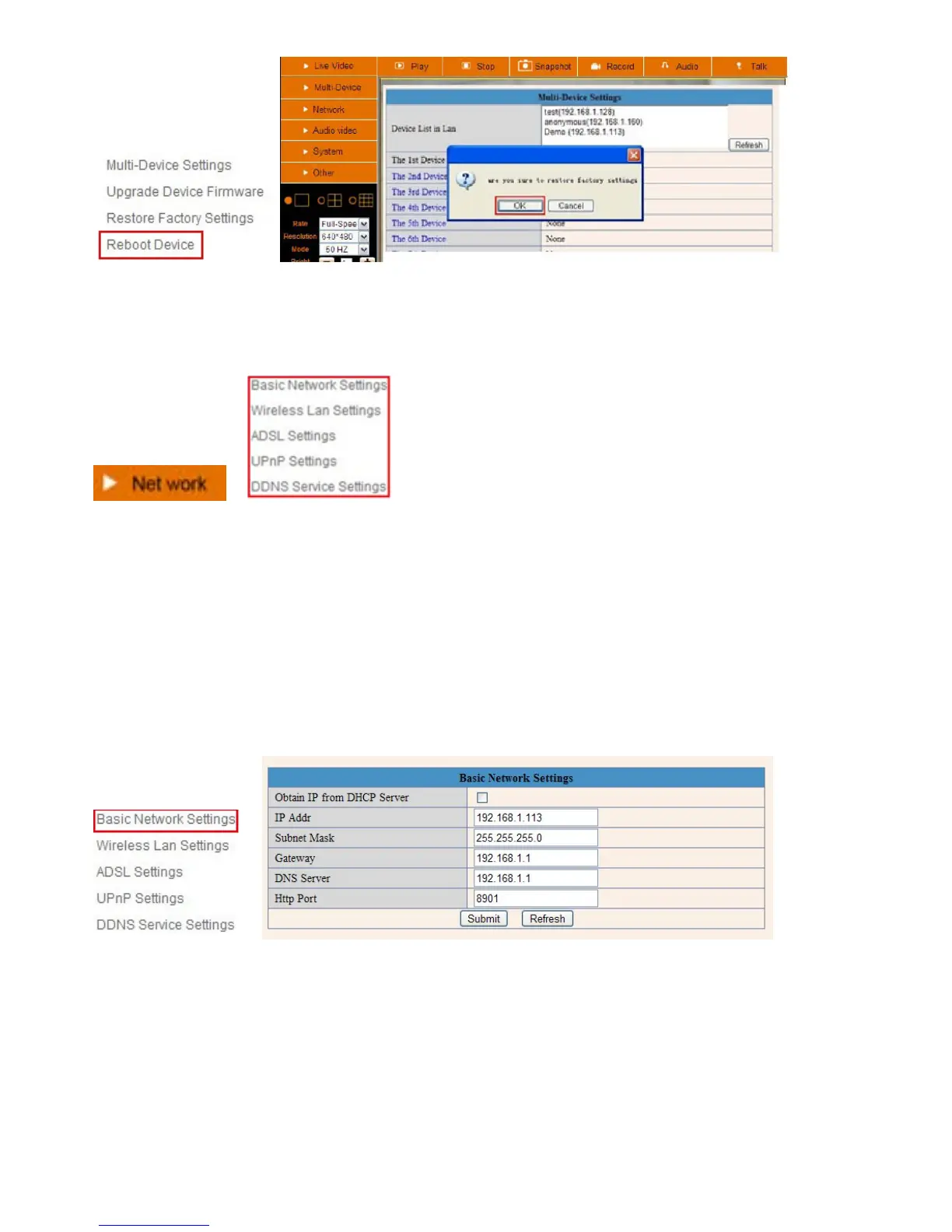
3.3 Basic Network Settings
Here you can fix the camera’s IP address; i.e., set the static IP address of the camera manually.
You can also do these settings from IP Camera Tool. (Figure 2.3).
There are some good reasons to give the camera a static IP. The factory default setting is DHCP, this means
that the network router will give the Camera an IP address itself for easy setup. The problem is that after a
camera or network power loss the router may decide to give the camera a different IP address than the last
time. If you want to login to the camera not using the IP Tool you don`t know the camera`s (new) IP address.
Figure 5.7
If you don’t know the Subnet Mask, Gateway, DNS Server. Please check the Local Area Connection Status of
your computer; it contains all this information, steps as below:


 To Next Page