FTP Upload Folder: Make sure that the folder you plan to store images in exists. The camera cannot create
the folder itself. Also, the folder must be erasable.
FTP Mode: It supports standard (POST) mode and passive (PASV) mode.
Upload Image Now: It will upload images when you selected it. Here Upload Interval refers to the time
between the current image and the next image.
NOTE: Here upload image now means it can upload images freely, no alarm trigger needed.
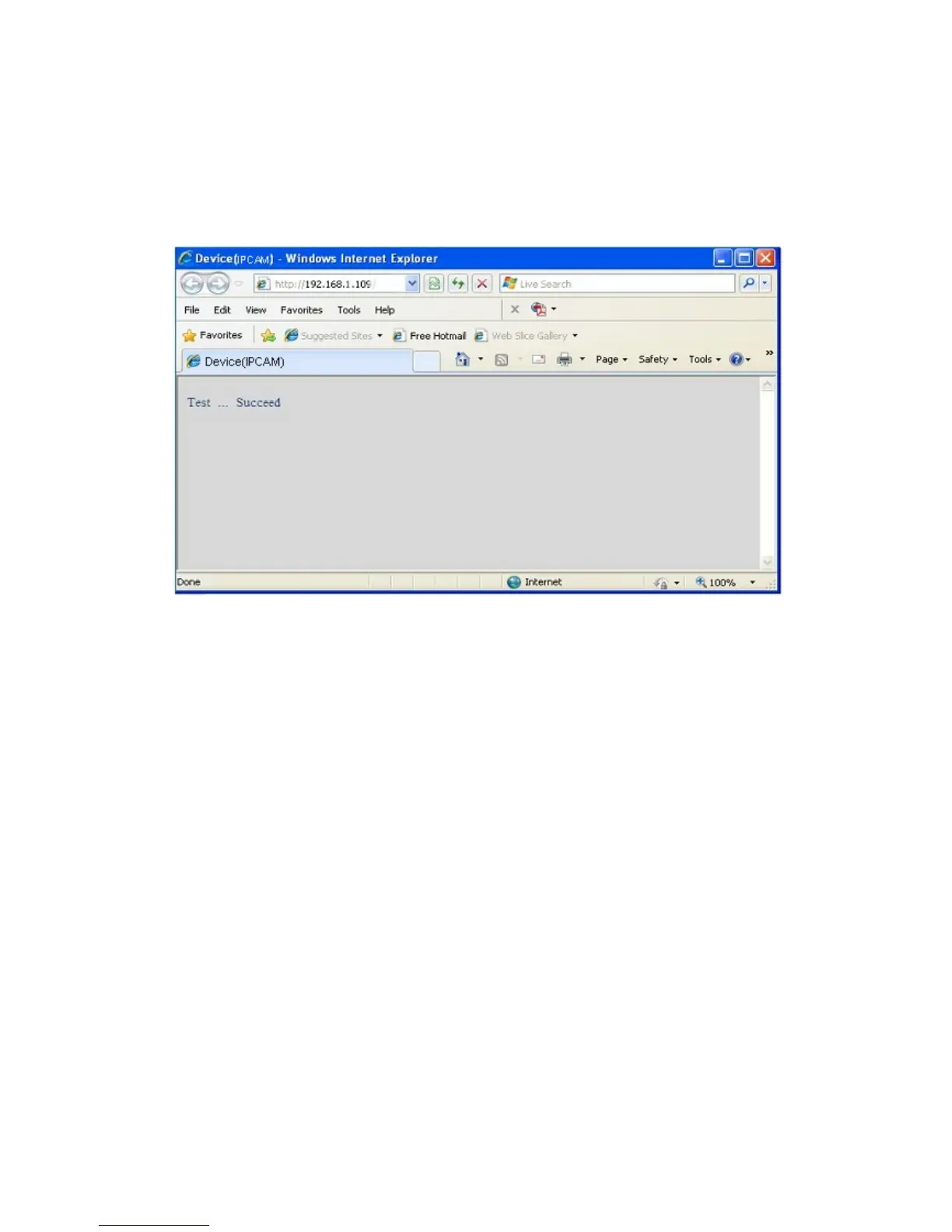
Click Submit after these settings. Then click Test. You will see the following picture.
Figure 9.5
If it prompts error information as follows.
1) Cannot connect to the server. Please check FTP Server is correct.
2) Network Error. Please try later.
3) Server Error.
4) Incorrect user or password. Please check the username and password is correct.
5) Cannot access the folder. Please be sure the folder exists and your account is authorized.
6) Error in PASV mode. Please be sure the server supports PASV mode.
7) Error in PORT mode. PASV mode should be selected if the device is behind a NAT.
8) Cannot upload file. Please be sure your account is authorized.
Please check if parameters you filled in are correct. The format of image is like 000DC5D008FA (IPCAM)
_0_20101115152525_25.jpg
Please check if your FTP server supports this format of file name.
3.18 Alarm Service Settings


 To Next Page