25∣EN
4. Troubleshooting
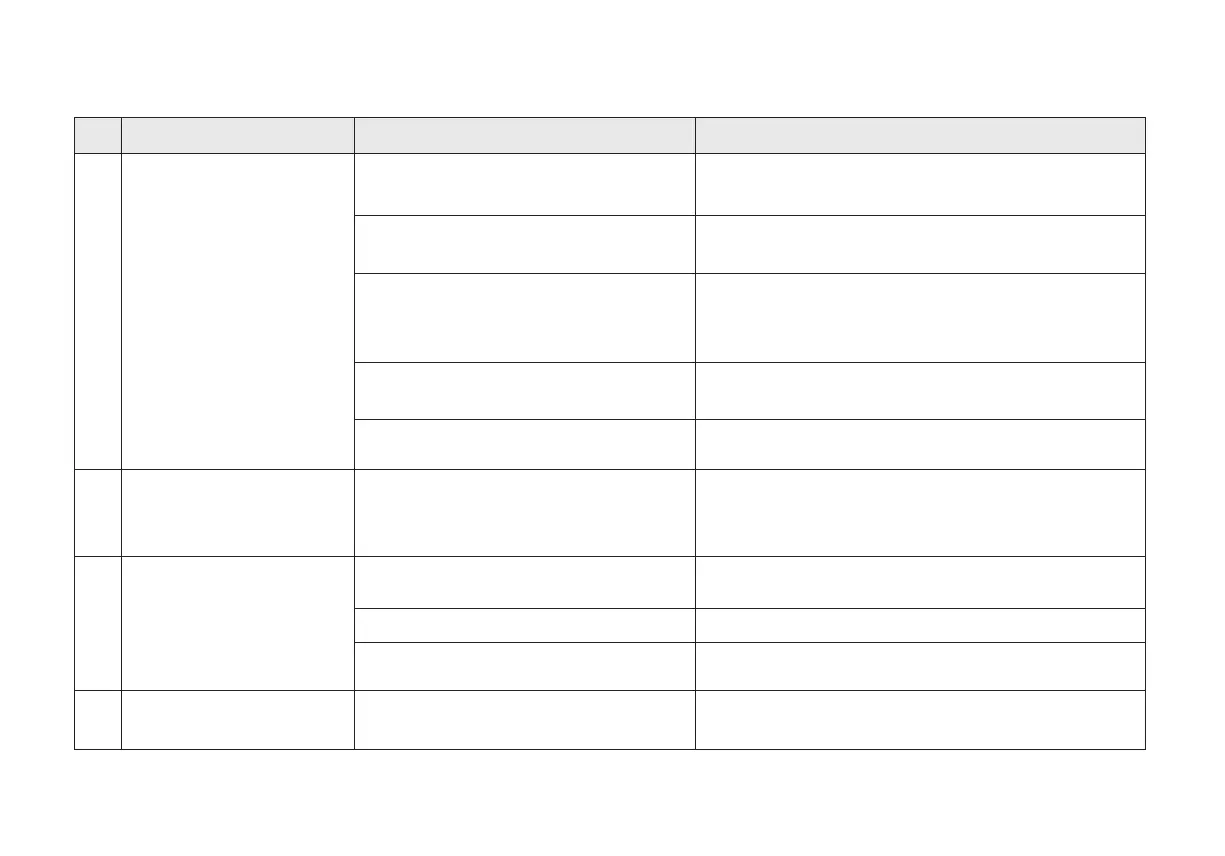
NO. Issues Possible Causes Solutions
1 Robot can't connect to APP.
The router user name and password are
incorrect.
The Robot is not within the network signal
coverage of the router.
Not use 2.4GHz or 2.4/5GHz network.
Download the wrong APP.
The Robot doesn't start working from
Auto-Empty Station.
The Robot must start cleaning from Auto-Empty Station.
It is possible to lose the map if move the
Robot manually.
Congure the router network and make sure that the "user
name" and "password" of the router are correct.
Ensure the Robot is within the network signal coverage of the
router.
The Robot doesn't support 5G network at present. Please
choose 2.4GHz or 2.4/5GHz.
Please scan the code or download the ECOVACS HOME App
in store.
Try to recover by moving the Robot into Auto-Empty Station.
Find the stored map in APP map storage, and press
"use map" to recover. If this problem persists after trying the
above solutions, please restart mapping.
2
Map lost.
3 Can't creat maps in APP.
4
Move the Robot when it is working.
Cleaning is not nished.
The position of Auto-Empty Station is
incorrect.
Unable to return to
Auto-Empty Station.
Don't move the Robot when it is working.
Allow the Robot return to Auto-Empty Station when it nishes
the cleaning.
Please place the Auto-Empty Station correctly according to
the chapter "Charging Robot" in user mannual.
Robot is not in the conguration state.
Make sure Robot is connected to the power supply and
turned on. Press Charging Button and Spot Cleaning Button
at the same time for 3 seconds. Robot will enter the
confuguration state when you hear a voice prompt.



 To Next Page