14 Version of 14 June 2016
character in the letter eld. A space is added by navigating with the arrow buttons to the character.
Conrm your entry by navigating with the arrow buttons to the ‘OK’ area. The new name is now
added to the channel list. The input window can be exited at all times by using the EXIT button
and thereby cancelling the process.
Skip channel
If a channel in the list should not be deleted and also not be displayed, simply skip this channel when
scrolling through the list.
How to select a channel to be skipped:
1. Move the cursor (yellow bar) in the program list to the channel selected to be skipped
(not to be displayed).
2. Change now to the right part of the menu and navigate the cursor to the ‘Skip’ symbol.
The symbol is highlighted in colour.
3. Press the OK button. The program list now displays the ‘Skip’ character behind the channel name,
i.e. when scrolling through the list during TV or Radio mode, the channel will be skipped.
Exit the ‘Edit channel’ menu by pressing the EXIT button. If changes were made, a dialogue window
appears prompting you to conrm these changes. The changed settings are saved by selecting ‘Yes’.
Note: Channel is only deleted, moved and/or locked upon conrmation with ‘Yes’. NO changes are saved
when selecting ‘No’.
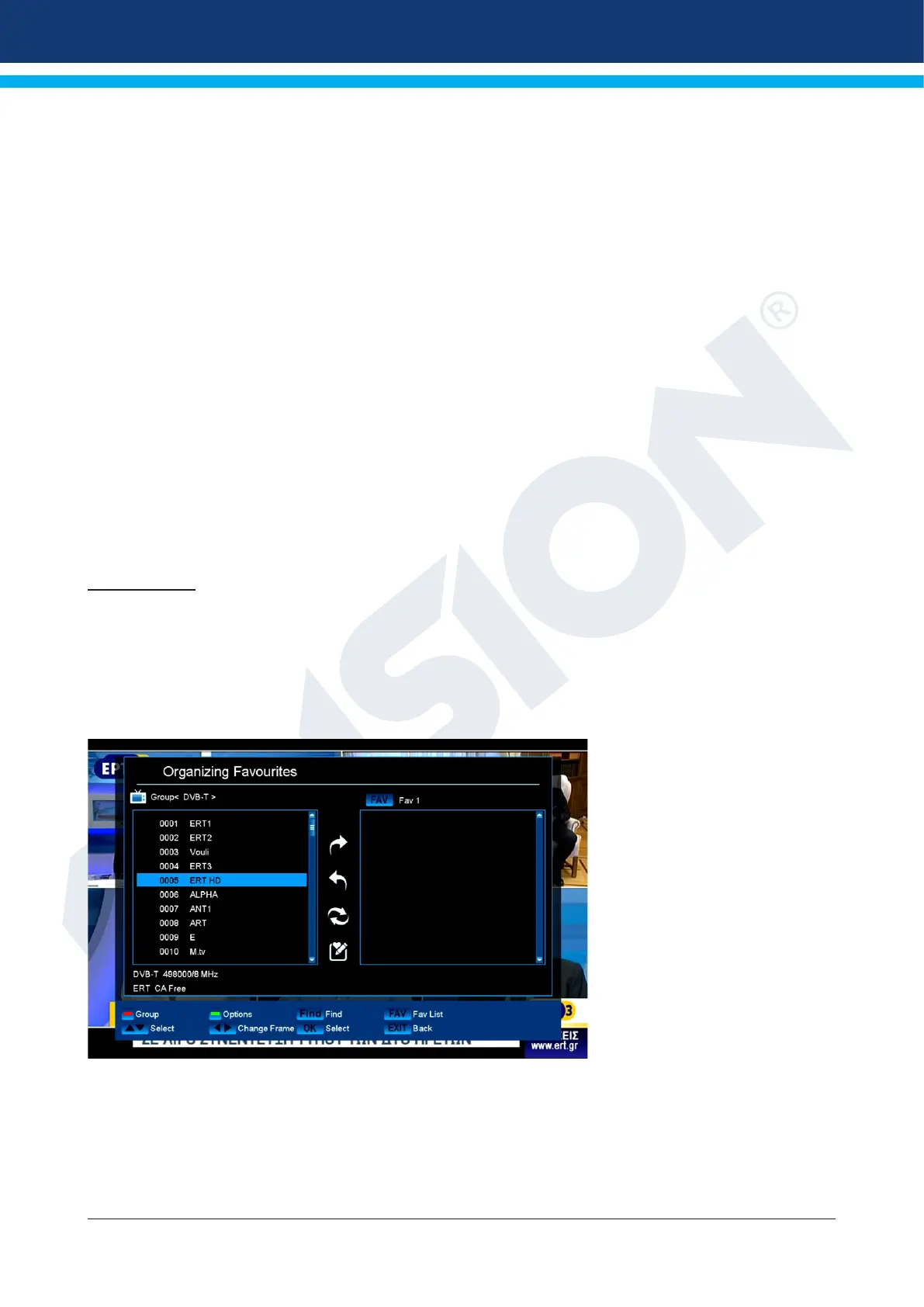
Edit favourites
Your favourite lists for TV or Radio programs can be customized in this menu in order to suit your personal
choices.
Standard: This menu is divided into 3 columns. The list of the available channels can be found on the left
side, depending on the overview selected. The currently selected favourite list can be found on the right side.
The ‘Add’, ‘Remove’, ‘Move’ and Rename’ symbols can be found in the centre.
Functions and settings in the
menu:
Use the left/right arrow
buttons to switch back and
forth between the columns
in the menu window, the up/
down arrow buttons to move
the cursor up or down in the
respective list. Select one or
more channels by pressing the
OK button.
When in the left column, it is
possible to display an overview
of all lists (except the favourite
list) with the red button and
select another group/list with the
arrow buttons and OK button. The title of the left column shows the list currently displayed.
The green button displays other possible options for channel lists. The following options are available:
Select all: All channels are selected.
Deselect all: All channels are deselected.
Select other: All channels are selected that were previously not selected.
Select TP: All channels of a transponder can be selected here.


 To Next Page