E. Making a print with CreatorK 8
E2 How to use CreatorK 8 (Continued)
None : ∃DISON PRO would not build support, but only a raft.
Exterior Support : Choose if there is a space between the bottom surface of the object
and the plate.
Full Support : Choose if there is a space in the middle of the object.
You can choose auto leveling function optionally. If you want to adjust the printing
bed manually, don’t check the box.
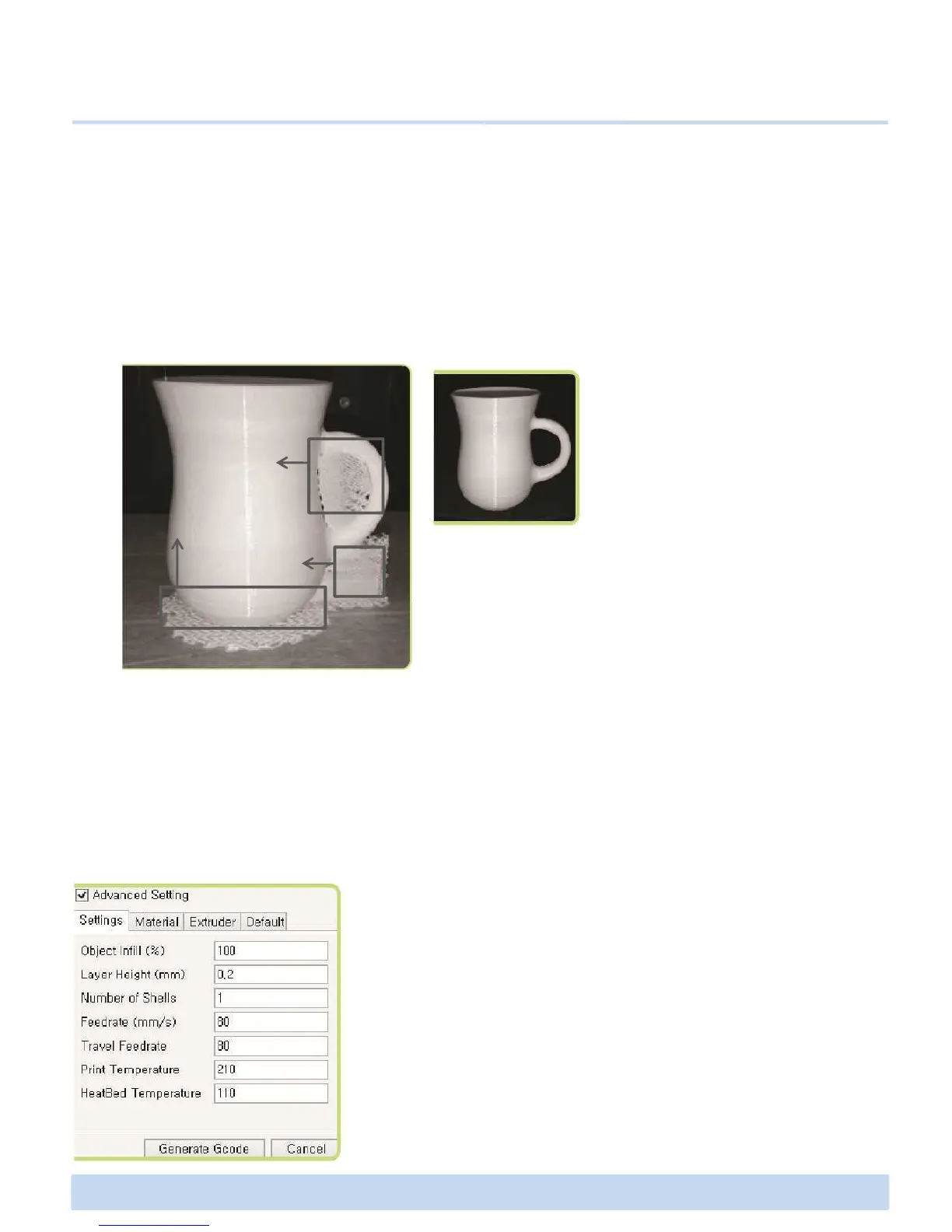
If you check advanced setting box, you can find several setting options for printing.
There are four categories in this advanced setting.
Tip. According to how you locate the object, different
shape of supports will be printed.
Minimizing supports as possible leads to better results
as well as saving the material used for support.
(Before removing a raft and supports)
(Right after removing a raft and supports)
Full Support
Exterior Support
Raft(Base)
∃DISON PRO User Manual V.1 20
There are four categories in this advanced setting.
① Object Infill (%)
: You can enter a number between 10 and 100 to fill inside.
Tip. It determines the density. If the density is not an important factor,
you may set it up to less than 50 to save the overall printing time and
material.
② Layer Height (mm)
: You can enter a number between 0.025 and 0.3 for layer height.
Tip. The higher the layer is, the less the printing time. It is recommend-
able for you to enter the number of over 0.1 mm in this item.
③ Number of Shells
: You can enter a number from 0 to 3 to determine the thickness of
outer cover.
Tip. When you want to enter ‘0’ for shell, you should fill ‘100%’ inside.



 To Next Page