6
No picture
If a problem still remains after applying the suggested remedies, contact your local dealer.
Problem Possible cause and remedy
1. No picture
• Powerindicatordoesnotlight.
• Checkwhetherthepowercordisconnectedproperly.
• Turnthemainpowerswitchon.
• Press
.
• Turnoffthemainpower,andthenturnitonagainafew
minuteslater.
• Powerindicatorislightinggreen.
(RX240/RX340/RX340-AR)
• Increase“Brightness”,“Contrast”,or“Gain”inthe
Adjustmentmenu.
• Powerindicatorislightingorange. • Switchtheinputsignal.Fordetails,refertotheUser’s
Manual(ontheCD-ROM).
• Operatethemouseorkeyboard.
• CheckwhetherthePCisturnedon.
• WhenthePresenceSensorissetatavaluefrom“Level-1”
to“Level-4”,themonitormayhaveshiftedtothepower
savingmode.Comeneartothemonitor.
• Powerindicatorashesorangeandgreen. • ThereisaprobleminthedevicethatusesDisplayPort
connection.Solvetheproblem,turnoffthemonitor,and
thenturnitonagain.Refertotheuser’smanualofthe
devicethatusesDisplayPortconnectionfordetails.
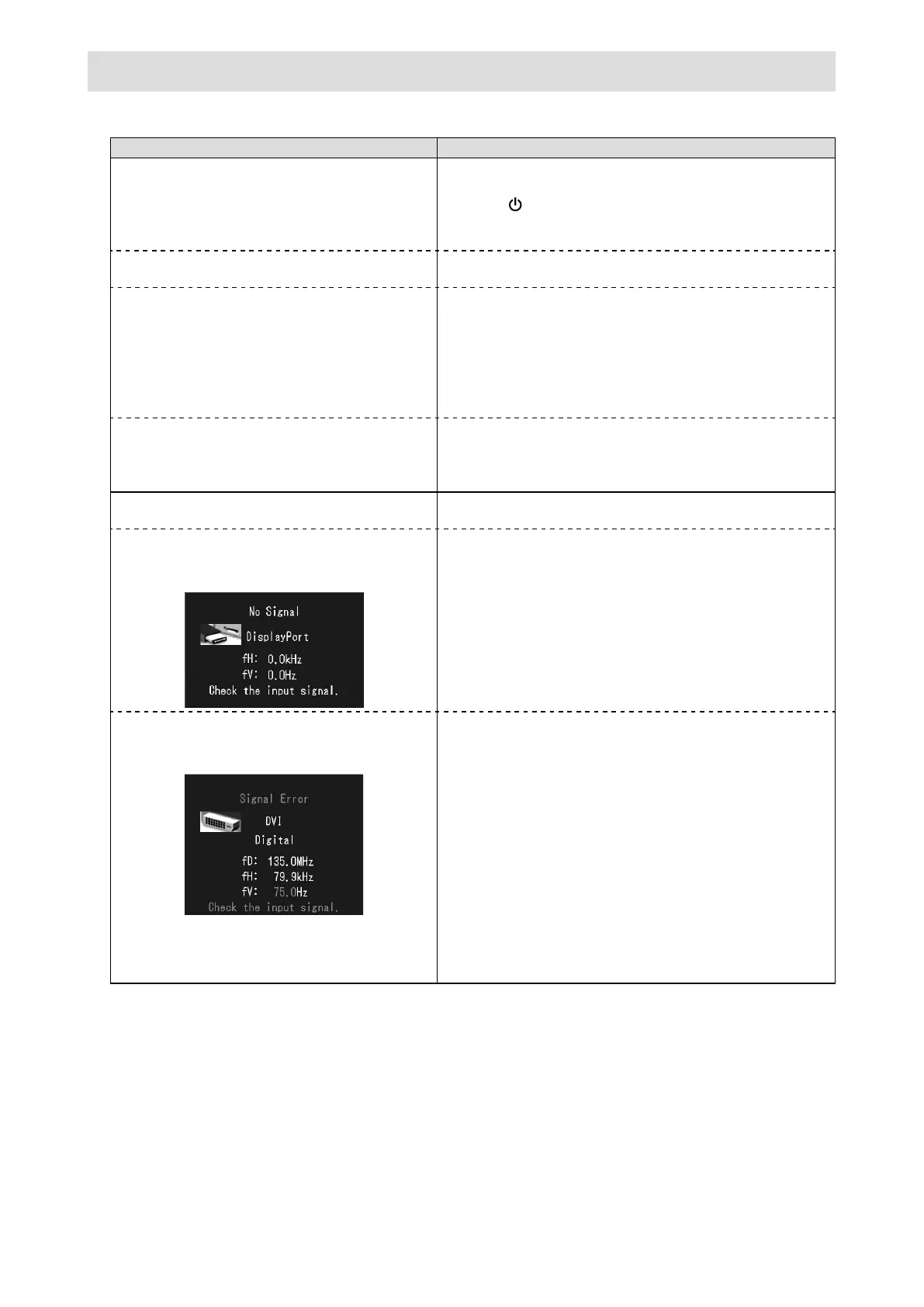
2. The message below appears. Thismessageappearswhenthesignalisnotinputcorrectly
evenwhenthemonitorfunctionsproperly.
• Thismessageappearswhennosignalis
input.
Example:
• Themessageshownleftmayappear,becausesomePCs
donotoutputthesignalsoonafterpower-on.
• CheckwhetherthePCisturnedon.
• Checkwhetherthesignalcableisconnectedproperly.
• Switchtheinputsignal.Fordetails,refertotheUser’s
Manual(ontheCD-ROM).
• Themessageshowsthattheinputsignalis
outofthespeciedfrequencyrange.
Example:
fD:DotClock
fH:HorizontalScanFrequency
fV:Verticalscanfrequency
• CheckwhetherthePCisconguredtomeettheresolution
andverticalscanfrequencyrequirementsofthemonitor
(see“CompatibleResolutions”).
• RebootthePC.
• Selectanappropriatedisplaymodeusingthegraphics
board’sutility.Refertothemanualofthegraphicsboard
fordetails.





 To Next Page